The Apple II platform lasted a very long time. The first Apple IIs were released in June of 1977 and the last Apple //e systems were last sold by Apple in November of 1993. No other non-PC compatible home computer had as long an official lifespan. Unlike its early home computer competitors, Apple is still in business, still independent and still highly relevant to the consumer today. Apple first entered the public consciousness with the Apple II and II Plus computers, and its Apple //e computers were many, many schoolchildren's first encounter with a computer. The Apple II was the first computer with some attention given to playing games, and over a fifteen year period thousands of games were released for it. There are several emulators for the system and some emulate the system to a very advanced degree, but the hardware is also fairly easy to use. Here I am going to give a beginner's guide into using Apple //e hardware.

Showing posts with label Tutorial. Show all posts
Showing posts with label Tutorial. Show all posts
Monday, October 12, 2020


Sunday, February 16, 2014
Patching DOSBox by a Beginner for Beginners
In order to apply a patch to DOSBox, you must first be able to compile DOSBox from its source. Start with this tutorial :
http://www.dosbox.com/wiki/Building_DOSBox_with_Visual_C_2008_Express
The link for Visual C++ 2008 Express given in that tutorial is out of date, you can obtain the downloader from here :
http://go.microsoft.com/?linkid=7729279
http://www.dosbox.com/wiki/Building_DOSBox_with_Visual_C_2008_Express
The link for Visual C++ 2008 Express given in that tutorial is out of date, you can obtain the downloader from here :
http://go.microsoft.com/?linkid=7729279
When you can compile a binary using the current SVN, then you are ready to begin patching DOSBox.
Patching DOSBox means you are making changes in the existing source code and recompiling DOSBox with those changes into a new binary. First you need a copy of the source code you are modifying. DOSBox is written in C++ and the source code is in almost plain text. You can find the latest source here : http://source.dosbox.com/dosboxsvn.tgz. Decompress it with a program like 7zip (it is doubly compressed), and look at the files. The .cpp files contain most of the code you may be modifying.
Next you need a good text editor, preferably one that supports line numbers. Notepad just does not support enough of the formatting these files need. Wordpad does, but you would do better with an editor like EditPad Lite 7, which supports line numbering. Line numbering is very useful to determine which lines of code you need to modify.
Finally, you need a patch file. Patch files often use the .diff extension because they show the differences between two files or two sets of files. If the patch is just code posted in a forum, you should copy and paste it into a new file opened in Wordpad or EditPad or something similar. Maintaining the spacing in these files is important.
Here is a sample patch file against the current DOSBox SVN (r3858) :
--- adlib.cpp.old 2013-01-15 12:10:04 +0000
+++ adlib.cpp 2014-01-19 19:54:06 +0000
@@ -227,10 +227,10 @@
Bitu i, val;
/* Check the registers to add */
for (i=0;i<256 font="" i="">
- //Skip the note on entries
- if (i>=0xb0 && i<=0xb8)
- continue;
val = (*cache)[ i ];
+ //Silence the note on entries
+ if (i>=0xb0 && i<=0xb8)
+ val &= ~0x20;
if (val) {
AddWrite( i, val );
}
The first two lines identify the source file that was modified, in this case adlib.cpp. Find and open adlib.cpp using your text editor in the DOSBox source directory. It can be found in \dosbox\src\hardware. This is what the existing source code looks like :
Bitu i, val;
/* Check the registers to add */
for (i=0;i<256 font="" i="">
//Skip the note on entries
if (i>=0xb0 && i<=0xb8)
continue;
val = (*cache)[ i ];
if (val) {
AddWrite( i, val );
}
The next line in the patch file, @@ -227,10 +227,10 @@ pinpoints the lines in adlib.cpp that were modified. Look for line 227 in the source code file or search Sometimes, depending on the patcher's working source, the line number may not line up exactly with the DOSBox source, but it should be very close to the line. Sometimes code looks similar, if you are unsure whether you have the right code, then copy as much of the code from the patch file as you can into a find box and search the source code file until you are sure you have the right lines.
The lines with blank space in front of them show the existing code that will not be modified. This is important to know where you will begin to modify and where you will end. Lines beginning a - indicate that that line was deleted by the patch. Conversely, lines beginning with a + indicate that that line was added by the patch. From our example above, these lines were deleted :
- //Skip the note on entries
- if (i>=0xb0 && i<=0xb8)
- continue;
In the original source file, highlight and delete them. Remove the lines entirely so the code looks like this :
Bitu i, val;
/* Check the registers to add */
for (i=0;i<256 font="" i="">
val = (*cache)[ i ];
Now add these lines after val = (*cache)[ i ]; :
//Silence the note on entries
if (i>=0xb0 && i<=0xb8)
val &= ~0x20;
Copying and pasting usually gives better results than retyping. Make sure the code fits where it is indicated and does not overwrite any lines without a - in front of them. Also make sure, since your text editor must be using a fixed-width font, that the lines line up vertically as shown in the patch. Do not forget the { and }. The + characters also should be removed, and add an extra space to the line to preserve the code's position on the line. Here is the code as it should look in the patched adlib.cpp file :
Bitu i, val;
/* Check the registers to add */
for (i=0;i<256 font="" i="">
val = (*cache)[ i ];
//Silence the note on entries
if (i>=0xb0 && i<=0xb8)
val &= ~0x20;
if (val) {
AddWrite( i, val );
}
Once you are done, save the modified .cpp file. There may be more than one place in the .cpp file to patch, so go to the next line indicator, which looks like @@ -227,10 +227,10 @@ and continue patching. .diff files can include more than one source code file to patch, so make sure you patch all source code files indicated by the .diff.
Go back into Visual C++ 2008 Express Edition, open the DOSBox solution, and build a new binary. If you have previously built a binary, then it will not take long as only the changes made by the patch need to be recompiled.
While there are utilities that can do this for you, I have never gotten one to work properly and sometimes the line numbers do not match and you need to manually patch the code.
More complex patches may require substantial modifications to the code, or may also require adding completely new code files. They may also require new libraries and includes files, which are beyond the scope of this tutorial.
Thursday, January 16, 2014
A Tale of Two Configs
In an MS-DOS system with a 386 or better processor, when it comes to configuring the OS, typically the issue is whether to load or not to load EMM386.EXE. Loading EMM386.EXE puts the machine into Virtual 8086 mode, and using EMM386 to make expanded memory available substantially decreases the amount of upper memory available to load drivers. Fortunately, you need not make expanded memory available unless a program requires it. EMM386 is used to make upper memory available for loading device drivers, and without it, those drivers must be loaded in conventional memory. If those drivers cause the amount of free memory to be lower than the amount a program requires, the program will not load. Use of EMM386.EXE is utterly incompatible certain programs like Ultima VII Parts I & II. On the other hand, many other contemporary games require expanded memory to support sound. Other games don't care either way.
HIMEM.SYS, which provides access to all the memory above 640KB, is essential to load and should always be loaded . EMM386.EXE requires HIMEM.SYS to be loaded first. HIMEM.SYS provides access to the high memory area and allows DOS to load most of itself there, significantly cutting down on the conventional memory DOS would otherwise take up. For programs that require or can use it, it also makes extended memory available.
For MS-DOS 6.22, a typical 486 computer setup with a mouse, CD-ROM drive and a Sound Blaster 16 may have a CONFIG.SYS like this :
DEVICE=C:\DOS\HIMEM.SYS /TESTMEM:OFF
DEVICE=C:\DOS\EMM386.EXE I=B000-B7FF FRAME=E000
DOS=HIGH,UMB
FILES=40
BUFFERS=30
DEVICEHIGH=C:\DRIVERS\VIDE-CDD.SYS /D:MSCD001
and a typical AUTOEXEC.BAT file may look like this :
@ECHO OFF
PROMPT $P$G
PATH=C:\;C:\DOS;C:\SB16
SET BLASTER=A220 I7 D1 H5 P330 T6
SET SOUND=C:\SB16
SET MIDI=SYNTH:1 MAP:E
C:\SB16\DIAGNOSE /S
C:\SB16\MIXERSET /P /Q
LH C:\DOS\MSCDEX.EXE /D:MSCD001
LH CTMOUSE.EXE
My 486 uses roughly these lines in its AUTOEXEC.BAT and CONFIG.SYS. Lets describe what each line does, starting with the first line of CONFIG.SYS :
1. DEVICE=C:\DOS\HIMEM.SYS /TESTMEM:OFF
HIMEM.SYS is a Device Driver that must be loaded in CONFIG.SYS on startup. The config.sys command to load a device driver is DEVICE=. The full path where a device driver can be found must be included. HIMEM.SYS is primarily used to allow DOS to access the High Memory Area, but it also functions as an eXtended Memory Manager (XMM), giving your programs access to eXtended Memory Specification (XMS) memory. The /TESTMEM:OFF parameter bypasses a memory test that adds to the boot time on DOS 6.x. It is only useful on 286 or above systems.
2. DEVICE=C:\DOS\EMM386.EXE I=B000-B7FF FRAME=E000
EMM386.EXE can be used as a command or as a device driver. It's primary function is to act as an Expanded Memory Manager (EMM), giving your programs access to Expanded Memory Specification (EMS) memory. It also allows the creation of Upper Memory Blocks (UMB) in the Upper Memory Area (UMA). It is only useful on 386 or above systems. This device driver switches DOS from using real mode into Virtual 8086 mode, and some programs and games refuse to run in this mode. By removing the EMM386.EXE line, those programs that complained about EMM386.EXE and Virtual 8086 mode and refuse to load now will load.
HIMEM.SYS, which provides access to all the memory above 640KB, is essential to load and should always be loaded . EMM386.EXE requires HIMEM.SYS to be loaded first. HIMEM.SYS provides access to the high memory area and allows DOS to load most of itself there, significantly cutting down on the conventional memory DOS would otherwise take up. For programs that require or can use it, it also makes extended memory available.
For MS-DOS 6.22, a typical 486 computer setup with a mouse, CD-ROM drive and a Sound Blaster 16 may have a CONFIG.SYS like this :
DEVICE=C:\DOS\HIMEM.SYS /TESTMEM:OFF
DEVICE=C:\DOS\EMM386.EXE I=B000-B7FF FRAME=E000
DOS=HIGH,UMB
FILES=40
BUFFERS=30
DEVICEHIGH=C:\DRIVERS\VIDE-CDD.SYS /D:MSCD001
and a typical AUTOEXEC.BAT file may look like this :
@ECHO OFF
PROMPT $P$G
PATH=C:\;C:\DOS;C:\SB16
SET BLASTER=A220 I7 D1 H5 P330 T6
SET SOUND=C:\SB16
SET MIDI=SYNTH:1 MAP:E
C:\SB16\DIAGNOSE /S
C:\SB16\MIXERSET /P /Q
LH C:\DOS\MSCDEX.EXE /D:MSCD001
LH CTMOUSE.EXE
My 486 uses roughly these lines in its AUTOEXEC.BAT and CONFIG.SYS. Lets describe what each line does, starting with the first line of CONFIG.SYS :
1. DEVICE=C:\DOS\HIMEM.SYS /TESTMEM:OFF
HIMEM.SYS is a Device Driver that must be loaded in CONFIG.SYS on startup. The config.sys command to load a device driver is DEVICE=. The full path where a device driver can be found must be included. HIMEM.SYS is primarily used to allow DOS to access the High Memory Area, but it also functions as an eXtended Memory Manager (XMM), giving your programs access to eXtended Memory Specification (XMS) memory. The /TESTMEM:OFF parameter bypasses a memory test that adds to the boot time on DOS 6.x. It is only useful on 286 or above systems.
2. DEVICE=C:\DOS\EMM386.EXE I=B000-B7FF FRAME=E000
EMM386.EXE can be used as a command or as a device driver. It's primary function is to act as an Expanded Memory Manager (EMM), giving your programs access to Expanded Memory Specification (EMS) memory. It also allows the creation of Upper Memory Blocks (UMB) in the Upper Memory Area (UMA). It is only useful on 386 or above systems. This device driver switches DOS from using real mode into Virtual 8086 mode, and some programs and games refuse to run in this mode. By removing the EMM386.EXE line, those programs that complained about EMM386.EXE and Virtual 8086 mode and refuse to load now will load.
As the command is given, EMM386 will emulate Expanded Memory. If you do not wish to emulate Expanded Memory, then use NOEMS. I=B000-B7FF tells the system to add a 32K Upper Memory Block in the area of video memory reserved for MDA cards. As you are likely using EMM386 with a VGA card, this area should be used. FRAME=E000 sets the EMS page frame to E000-EFFF, which permits UMBs at C000-C7FF and D000-DFFF. If the E000 segment gives you trouble, then you'll have to use the D000 segment. The line as given gives you 96K of UMBs to load your device drivers, which should be more than sufficient even for the relatively bloated CD-ROM and Mouse drivers of the day.
3. DOS=HIGH,UMB
This line instructs DOS to load itself high, saving about 55K of Conventional Memory. It also instructs DOS to create UMBs. By loading drivers within UMBs, you can save Conventional Memory from being used. You must load HIMEM.SYS to use the HIGH parameter and EMM386.SYS to use the UMB parameter.
4. FILES=40
DOS's default maximum number of files being open at one time is 15, but some games require more. 40 is sufficient for just about any program.
5. BUFFERS=30
DOS's default maximum number of disk buffers to allocate is 8, but some games require more. 30 is sufficient for just about any program.
6. DEVICEHIGH=C:\DRIVERS\VIDE-CDD.SYS /D:MSCD001
DEVICEHIGH tells DOS to load a device driver into an UMB. It does not work with HIMEM.SYS or EMM386.EXE and will not work until both have been loaded.
VIDE-CDD.SYS is a generic IDE CD-ROM device driver that works with pretty much everything and only takes up 5KB of RAM. This device driver acts as an interpreter between DOS calls and the low level hardware. If the CD-ROM drive used a SCSI or proprietary interface, you would load another kind of driver here. You cannot actually use a CD-ROM as a drive until you load MSCDEX.EXE in AUTOEXEC.BAT The /D:MSCD001 is the name given to the CD-ROM and must be used with MSCDEX.EXE.
Alternatives to EMM386.EXE for UMBs
EMM386.EXE generally causes slightly decreased performance compared with an environment when it is not loaded. If you want to create UMBs without it, you will have to try to find a program that will work with your chipset. The program UMBPCI.SYS works with chipsets that provide a properly-functional PCI implementation. Pentium/586 and later systems are the mostly likely systems to work with UMBPCI.SYS. Programs that can work with 386 and 486 computers include HiRAM, URAM, DOSMAX and RDOSUMB. These programs only support specific motherboard chipsets, whereas EMM386.EXE is universally supported on PC compatible motherboard chipsets. I have a 486 SiS 85C471 chipset and URAM supports it, so I use that program. My CONFIG.SYS looks like this :
DEVICE=C:\DRIVERS\URAM.COM R=..........7777777777.... I Q
DEVICE=C:\DRIVERS\UMB.SYS C800-EFFF
DEVICEHIGH=C:\DOS\HIMEM.SYS /TESTMEM:OFF
DOS=HIGH,UMB
FILES=40
DEVICEHIGH=C:\DRIVERS\VIDE-CDD.SYS /D:MSCD001
My AUTOEXEC.BAT stays the same.
DOS 6.0 and above allows you to select your configuration properties via a boot-up menu system. The Help in DOS 6.0 and above gives examples on how to set up a menu so that one selection will give load EMM386 and a second selection will load URAM.
3. DOS=HIGH,UMB
This line instructs DOS to load itself high, saving about 55K of Conventional Memory. It also instructs DOS to create UMBs. By loading drivers within UMBs, you can save Conventional Memory from being used. You must load HIMEM.SYS to use the HIGH parameter and EMM386.SYS to use the UMB parameter.
4. FILES=40
DOS's default maximum number of files being open at one time is 15, but some games require more. 40 is sufficient for just about any program.
5. BUFFERS=30
DOS's default maximum number of disk buffers to allocate is 8, but some games require more. 30 is sufficient for just about any program.
6. DEVICEHIGH=C:\DRIVERS\VIDE-CDD.SYS /D:MSCD001
DEVICEHIGH tells DOS to load a device driver into an UMB. It does not work with HIMEM.SYS or EMM386.EXE and will not work until both have been loaded.
VIDE-CDD.SYS is a generic IDE CD-ROM device driver that works with pretty much everything and only takes up 5KB of RAM. This device driver acts as an interpreter between DOS calls and the low level hardware. If the CD-ROM drive used a SCSI or proprietary interface, you would load another kind of driver here. You cannot actually use a CD-ROM as a drive until you load MSCDEX.EXE in AUTOEXEC.BAT The /D:MSCD001 is the name given to the CD-ROM and must be used with MSCDEX.EXE.
Alternatives to EMM386.EXE for UMBs
EMM386.EXE generally causes slightly decreased performance compared with an environment when it is not loaded. If you want to create UMBs without it, you will have to try to find a program that will work with your chipset. The program UMBPCI.SYS works with chipsets that provide a properly-functional PCI implementation. Pentium/586 and later systems are the mostly likely systems to work with UMBPCI.SYS. Programs that can work with 386 and 486 computers include HiRAM, URAM, DOSMAX and RDOSUMB. These programs only support specific motherboard chipsets, whereas EMM386.EXE is universally supported on PC compatible motherboard chipsets. I have a 486 SiS 85C471 chipset and URAM supports it, so I use that program. My CONFIG.SYS looks like this :
DEVICE=C:\DRIVERS\URAM.COM R=..........7777777777.... I Q
DEVICE=C:\DRIVERS\UMB.SYS C800-EFFF
DEVICEHIGH=C:\DOS\HIMEM.SYS /TESTMEM:OFF
DOS=HIGH,UMB
FILES=40
DEVICEHIGH=C:\DRIVERS\VIDE-CDD.SYS /D:MSCD001
My AUTOEXEC.BAT stays the same.
DOS 6.0 and above allows you to select your configuration properties via a boot-up menu system. The Help in DOS 6.0 and above gives examples on how to set up a menu so that one selection will give load EMM386 and a second selection will load URAM.
Friday, December 13, 2013
Tutorial - DOSBox and Floppy Disk Game Installation
Usually I do not write specifically about DOSBox because my main interest is real hardware, but DOSBox is an invaluable tool for anyone into retro-PC DOS gaming. DOSBox can play just about any DOS game, and can certainly play all the widely-known classic games. One of its lesser-acknowledged strengths is its ability to install games from floppy disks, or more usually, from floppy disk images. In this entry I will describe the ways DOSBox can install games off floppy "disks".
If you have floppy disks, your first task should be to make floppy disk images. Of course, you can mount a physical floppy disk drive directly with DOSBox, but relatively few people have floppy drives connected to modern systems these days. Floppy disks should be preserved, so I would always first image the disk, then install it.
A program like Winimage works for unprotected DOS-readable floppy disks, and the resulting image files have a .ima extension. On older hardware, I use a free program called img2dsk. If you read original floppy disks in a Windows machine, you should enable write protection on the disks otherwise Windows will make (usually harmless) changes to the first sector of a disk. Winimage and other simple disk imaging utilities only understands what DOS understands, so you will not be able to make useful backup copies of any game with disk-based floppy protection. Fortunately, this is almost never a problem with games that were released on high density floppy disks, since no game (except for Lemmings 2 : The Tribes) released on high density floppies is known to use disk based protection. Hopefully the images will not contained damaged files, but a disk imaging program should be able to report any errors.
Always dump a disk to its right size. Regular disk images are sector dumps and will dump all the formatted sectors on a disk, whether there is anything in the sectors or not. Remember that 5.25" double density disks have a hub ring and a rust brown color to the recording media while 5.25" high density disks have no hub ring and a shiny black finish on the recording media. 3.5" double density disks only have a hole on one side of the disk while 3.5" high density disks have a hole on either side of the disk. The size of the files should be able to tell you what kind of disk is being used. 160K, 180K and 320K disks are usually copy protected.
If you do not have floppy disks or images, it is much harder to find them than "full" installs of games. Disk images are generally unadulterated, they have not been cracked and can be used to install alternative features to the standard installed versions found everywhere else. Some games like Wing Commander require a reinstall off the disks to select Tandy or EGA graphics when the standard install or CDs with the game just have a VGA-only installation.
Now that you have some images of your floppy disk install disks, you need to mount them so DOSBox can find them. There are three ways you can do this. First, in Windows you can use a program like Virtual Floppy Drive 2.1, which will mount a DOS-formatted disk image of any regular size and emulate one to two floppy drives. If A:\ is your emulated drive, in DOSBox, you would use mount a a:\ -t floppy. The benefit to this method is that you can load new floppy disks just by double clicking on them once Windows associates the .ima extension with VFD. The author of VFD 2.1 doesn't like Windows Vista or 7 or 64-bit Operating Systems, but other users have found way around the program's limitations. There are workarounds, namely signed 64-bit drivers for VFD. The answers can be found here : http://superuser.com/questions/183335/how-to-create-a-virtual-floppy-drive
If you cannot or will not use VFD or another program like it, DOSBox can mount floppy images directly, but it is a complex process, at least in the official 0.74 version. If using the latest or recent SVN, the process is much easier. http://www.emucr.com/ has good basic builds of the current SVN, so let's start with the SVN method. The IMGMOUNT command in SVN supports multiple floppy images, just like it does with CD images in 0.74. DOSBox, however, does not mount files that do not conform to the 8.3 filename convention, so lengthy descriptive filenames will need to be condensed into disk1.ima, disk2.ima and so on. Here is a sample mounting command in the [autoexec] section of dosbox.conf :
imgmount a c:\dos\images\disk1.ima c:\dos\images\disk2.ima -t floppy
Images can use an IMG or IMA extension, but each image file must have the full path on the line for it to be recognized. It does get kind of tedious with a game like Discworld, which came on 15 disks (versus one CD-ROM). With this method, you can install a game to an ordinary mounted folder.
Some games have installers that do not work with DOSBox's DOS, but will work with MS-DOS. Dynamix games just don't like DOSBox when it comes to floppy installs. DOSBox emulates enough PC hardware that you can use it as a virtual machine for MS-DOS or PC-DOS. I generally see no need to use DOSBox as a virtual MS-DOS machine because getting EMM386 to work is tricky and MSCDEX needs ATAPI emulation not found in the standard SVN. But for those tricky floppy installation programs, it can be very useful and certainly beats using real hardware and copying floppy drive images to back to real blankdisks.
You will need a hard drive image, and you can make your own with a program called BXIMAGE or download one from here : https://sites.google.com/site/dotalshoff/games/dosbox I would not use a disk image size of more than 528,482,304 bytes because you cannot easily make it bootable with DOSBox. This is not coincidentally the old 520/504MB limit caused by the lowest common denominator between Int 13 and ATA/IDE hard drive size support. You will also need floppy images for a version of MS-DOS or PC-DOS. 5.0 is the minimum version I recommend, but MS-DOS 6.22 is the most up to date version of pure DOS commonly used. If you use MS-DOS 6.x, you should install the utilities off the Supplemental Utilities Disk, as they contain some utilities used in some weird game installs that were previously included in DOS 5.0. Floppy images can be found if you look hard enough. I do NOT recommend using FreeDOS, since many game installers rely on quirks of MS-DOS that have not been emulated well with FreeDOS.
Assume your hard drive image is named hdd-520mb.img and your MS-DOS 6.22 floppy images are msdosd1.img, msdosd2.img and msdosd3.img. Here is how your dosbox.conf should look :
imgmount c c:\dos\images\hdd-520mb.img
boot c:\dos\images\msdosd1.img c:\dos\images\msdosd2.img c:\dos\images\msdosd3.img
Note that with the BOOT command, the extension must be .IMG, .IMA will not work. The file hdd-520mb.img is already partitioned and formatted, so you need not use FDISK and FORMAT to prepare the image file. Just use the install program or use the SYS command to make the drive bootable and copy all the commands over to c:\dos in DOSBox. Ctrl + F4 will switch the active disk image.
Ordinary disk images cannot be booted, so you will need an MS-DOS boot disk with the version installed on the hard drive to start the process. With the boot disk named msdosbd.img, The [autoexec] section may look like this :
imgmount c c:\dos\images\hdd-520mb.img
boot c:\dos\images\msdosbt.img c:\dos\images\disk1.img c:\dos\images\disk2.img
After the boot disk boots, use Ctrl + F4 to switch to the first game disk image and install away.
BOOT should be the last command in the section. In order to transfer the installed files from the hard disk image to a regular mounted hard drive using a folder on your real hard drive, start with lines like these in your [autoexec] section :
ver set 6 22
imgmount c c:\dos\images\hdd-520mb.img
mount d c:\dos\games
The VER set command will allow you to use MS-DOS 6.22's XCOPY command to copy whole directories from the hard drive disk image to your mounted real folder. Regular DOSBox does not have an XCOPY command, so with regular DOSBox you will need to manually recreate the directory and subdirectory structure with the md command. With XCOPY, use the /E switch to copy over subdirectories.
One remaining issue is that you cannot IMGMOUNT floppy images and BOOT to a hard drive image at the same time. You need to BOOT the MS-DOS boot disk and the disks you wish to install. The hard drive image becomes a receptacle to hold the installed files, which you can transfer later.
If you have floppy disks, your first task should be to make floppy disk images. Of course, you can mount a physical floppy disk drive directly with DOSBox, but relatively few people have floppy drives connected to modern systems these days. Floppy disks should be preserved, so I would always first image the disk, then install it.
A program like Winimage works for unprotected DOS-readable floppy disks, and the resulting image files have a .ima extension. On older hardware, I use a free program called img2dsk. If you read original floppy disks in a Windows machine, you should enable write protection on the disks otherwise Windows will make (usually harmless) changes to the first sector of a disk. Winimage and other simple disk imaging utilities only understands what DOS understands, so you will not be able to make useful backup copies of any game with disk-based floppy protection. Fortunately, this is almost never a problem with games that were released on high density floppy disks, since no game (except for Lemmings 2 : The Tribes) released on high density floppies is known to use disk based protection. Hopefully the images will not contained damaged files, but a disk imaging program should be able to report any errors.
Always dump a disk to its right size. Regular disk images are sector dumps and will dump all the formatted sectors on a disk, whether there is anything in the sectors or not. Remember that 5.25" double density disks have a hub ring and a rust brown color to the recording media while 5.25" high density disks have no hub ring and a shiny black finish on the recording media. 3.5" double density disks only have a hole on one side of the disk while 3.5" high density disks have a hole on either side of the disk. The size of the files should be able to tell you what kind of disk is being used. 160K, 180K and 320K disks are usually copy protected.
If you do not have floppy disks or images, it is much harder to find them than "full" installs of games. Disk images are generally unadulterated, they have not been cracked and can be used to install alternative features to the standard installed versions found everywhere else. Some games like Wing Commander require a reinstall off the disks to select Tandy or EGA graphics when the standard install or CDs with the game just have a VGA-only installation.
Now that you have some images of your floppy disk install disks, you need to mount them so DOSBox can find them. There are three ways you can do this. First, in Windows you can use a program like Virtual Floppy Drive 2.1, which will mount a DOS-formatted disk image of any regular size and emulate one to two floppy drives. If A:\ is your emulated drive, in DOSBox, you would use mount a a:\ -t floppy. The benefit to this method is that you can load new floppy disks just by double clicking on them once Windows associates the .ima extension with VFD. The author of VFD 2.1 doesn't like Windows Vista or 7 or 64-bit Operating Systems, but other users have found way around the program's limitations. There are workarounds, namely signed 64-bit drivers for VFD. The answers can be found here : http://superuser.com/questions/183335/how-to-create-a-virtual-floppy-drive
If you cannot or will not use VFD or another program like it, DOSBox can mount floppy images directly, but it is a complex process, at least in the official 0.74 version. If using the latest or recent SVN, the process is much easier. http://www.emucr.com/ has good basic builds of the current SVN, so let's start with the SVN method. The IMGMOUNT command in SVN supports multiple floppy images, just like it does with CD images in 0.74. DOSBox, however, does not mount files that do not conform to the 8.3 filename convention, so lengthy descriptive filenames will need to be condensed into disk1.ima, disk2.ima and so on. Here is a sample mounting command in the [autoexec] section of dosbox.conf :
imgmount a c:\dos\images\disk1.ima c:\dos\images\disk2.ima -t floppy
Images can use an IMG or IMA extension, but each image file must have the full path on the line for it to be recognized. It does get kind of tedious with a game like Discworld, which came on 15 disks (versus one CD-ROM). With this method, you can install a game to an ordinary mounted folder.
Some games have installers that do not work with DOSBox's DOS, but will work with MS-DOS. Dynamix games just don't like DOSBox when it comes to floppy installs. DOSBox emulates enough PC hardware that you can use it as a virtual machine for MS-DOS or PC-DOS. I generally see no need to use DOSBox as a virtual MS-DOS machine because getting EMM386 to work is tricky and MSCDEX needs ATAPI emulation not found in the standard SVN. But for those tricky floppy installation programs, it can be very useful and certainly beats using real hardware and copying floppy drive images to back to real blankdisks.
You will need a hard drive image, and you can make your own with a program called BXIMAGE or download one from here : https://sites.google.com/site/dotalshoff/games/dosbox I would not use a disk image size of more than 528,482,304 bytes because you cannot easily make it bootable with DOSBox. This is not coincidentally the old 520/504MB limit caused by the lowest common denominator between Int 13 and ATA/IDE hard drive size support. You will also need floppy images for a version of MS-DOS or PC-DOS. 5.0 is the minimum version I recommend, but MS-DOS 6.22 is the most up to date version of pure DOS commonly used. If you use MS-DOS 6.x, you should install the utilities off the Supplemental Utilities Disk, as they contain some utilities used in some weird game installs that were previously included in DOS 5.0. Floppy images can be found if you look hard enough. I do NOT recommend using FreeDOS, since many game installers rely on quirks of MS-DOS that have not been emulated well with FreeDOS.
Assume your hard drive image is named hdd-520mb.img and your MS-DOS 6.22 floppy images are msdosd1.img, msdosd2.img and msdosd3.img. Here is how your dosbox.conf should look :
imgmount c c:\dos\images\hdd-520mb.img
boot c:\dos\images\msdosd1.img c:\dos\images\msdosd2.img c:\dos\images\msdosd3.img
Note that with the BOOT command, the extension must be .IMG, .IMA will not work. The file hdd-520mb.img is already partitioned and formatted, so you need not use FDISK and FORMAT to prepare the image file. Just use the install program or use the SYS command to make the drive bootable and copy all the commands over to c:\dos in DOSBox. Ctrl + F4 will switch the active disk image.
Ordinary disk images cannot be booted, so you will need an MS-DOS boot disk with the version installed on the hard drive to start the process. With the boot disk named msdosbd.img, The [autoexec] section may look like this :
imgmount c c:\dos\images\hdd-520mb.img
boot c:\dos\images\msdosbt.img c:\dos\images\disk1.img c:\dos\images\disk2.img
After the boot disk boots, use Ctrl + F4 to switch to the first game disk image and install away.
ver set 6 22
imgmount c c:\dos\images\hdd-520mb.img
mount d c:\dos\games
The VER set command will allow you to use MS-DOS 6.22's XCOPY command to copy whole directories from the hard drive disk image to your mounted real folder. Regular DOSBox does not have an XCOPY command, so with regular DOSBox you will need to manually recreate the directory and subdirectory structure with the md command. With XCOPY, use the /E switch to copy over subdirectories.
One remaining issue is that you cannot IMGMOUNT floppy images and BOOT to a hard drive image at the same time. You need to BOOT the MS-DOS boot disk and the disks you wish to install. The hard drive image becomes a receptacle to hold the installed files, which you can transfer later.
Tuesday, September 11, 2012
Combining the Right Vintage Hardware
Would you really put a CGA card in a 486? Or a Sound Blaster 16 in an IBM PC? People have done it, but its just plain wrong.
A. IBM PC & XT
As the familiar story goes, in the beginning IBM made the PC. And the world received the PC and deemed it good. IBM offered two choices of video adapter, the Monochrome Display and Printer Adapter (MDA) or the Color/Graphics Adapter (CGA). If you wanted color output or graphics, you chose the latter. If you wanted to run only text-based applications, you chose the former.
Few people saw this computer as a gaming machine, although with the right hardware it was as capable a gaming machine as the Apple II. It used an 8088 processor running at 4.77MHz, supported a maximum of 640KB of RAM and a socket for an 8087 math coprocessor. It had five 8-bit ISA expansion slots, and the XT had eight. Even so, the machine was slow, really slow. If you are going to use an IBM PC 5150 or XT as a gaming machine, keep these limitations in mind.
So for an IBM PC or XT or a clone, essential gaming hardware to have in the machine is :
1. Memory Expansion
PC - 256KB or 384KB memory expansion; XT - 640KB mod.
The PC, most commonly seen with 256KB on the motherboard, required memory expansion boards to reach a full 640KB. IBM's Memory Expansion Adapters maxed out at 256KB per board. The IBM XT originally came with a 64/256KB board, but a trivial modification would allow it to support 640KB by swapping chips. Competitors like AST's Six Pak Plus allowed for 384KB and added a serial port, a real time clock, a parallel port and could be upgraded to support a game port, which leads me to :
2. Gameport
If you want to play games on the PC, you need a gameport card. IBM's official name for its card is the Game Control Adapter, but any card should work fine. Sound card gameports work as well so long as the sound card is not Plug-n-Play.
3. Floppy Drives and Controller
While this should be a no-brainer, you will be using lots of floppies on these machines. Ideally, since floppy controllers only support two internal drives, you will be needing two drives. Virtually all IBM PC 5150s come with two 5.25" floppy drives, and XT's usually come with two Full Height 5.25" drive, but later models come with two Half Height 5.25" floppy drives and usually a hard drive. IBM PCs will work with a 3.5" floppy drive, but will treat it as a 720KB drive without a rare HD floppy controller. You will need to use DOS 3.2 or better to recognize 80-tracks. IBM PC and XTs are designed to accept only full-height drives, you will need to find some mounting hardware for half height drives or faceplates.
If you are running DOS off a floppy disk, then drive B will the drive you use to run DOS game software.
4. Graphics
The CGA card is really the only choice here, although you can run an MDA card for text if you cannot stand CGA snow. Many early games take advantage of CGA's composite output to display more colorful graphics on a TV or color composite monitor than an RGB monitor. In some weird reality I could see someone running a triple-display with an IBM 5151 Monochrome Display, an IBM 5153 Color Display and a Color Composite Monitor like the AppleColor Composite Monitor IIe.
5. Operating System : IBM PC-DOS 3.3
While 3.2 is perhaps the more historically accurate OS, 3.3 is more useful due to the support for multiple hard drive partitions.
Not essential, yet useful hardware include :
1. Hard Drive and Controller
The IBM PC has a 63.5W power supply, so running a huge Seagate ST-412 is out of the question, but its successor, the Seagate ST-225, should be doable. Later drives almost invariably take far less power, so you should be fine. Since the PC has only 8-bit slots, you will be stuck with whatever controller you can find, unless you build an XT-IDE controller of find an ADP-50L. Both cards will allow you to use standard 16-bit parallel ATA devices in an 8-bit slot. They can be used with a compact flash card, which is ATA compatible with a passive pin adapter.
2. NEC V20 CPU
Replacing your Intel 8088 with an NEC V20 CPU will increase performance by 10-15%. It does break the occasional game like Championship Lode Runner. Plus, if you are looking for the exact PC speed, it does not slow down.
3. Mice
Most applications that run well on an IBM PC were made before the days where the mouse was an ubiquitous input device. Nonetheless, when an application or game, like Tass Times in Tonetown supports it, it is always appreciated. Use serial mice, since they are the closest thing to a standard and the CuteMouse driver.
Not recommended :
1. EGA/VGA Graphics Cards
Most EGA cards offer decent CGA compatibility, but do not expect them to work with games that tweak the CGA registers. VGA cards usually are less compatible. Running EGA or VGA games on a 5150 is often too frustrating because the hardware is so slow.
2. Expanded Memory Boards
By the time games were taking advantage of EMS, it was 1990. The PC and XT were way too slow.
3. Math Coprocessor
While it will not hurt to insert an 8087, I would not go out of my way to do it. Games really did not support the coprocessor until the mid 90s. Early games that do include SimCity and Falcon 3.0. SimCity is no fun on an XT.
4. Sound Cards & MIDI
The first games supporting sound cards like the Adlib, C/MS Game Blaster and midi devices like a Roland MT-32 were not released until 1988, almost seven years after the release of the PC. You might as well try making a 486 play Quake II. King's Quest IV, even with CGA, on a PC is no fun. The number of games that are playable on an PC or XT and support sound cards is a very small number.
5. Modems
Games supporting modem play began in the late 80s, and if you can find someone who is willing to play with you over a telephone line, Battle Chess or Modem Wars will take an eternity to carry out commands.
B. IBM PCjr.
Normally, I say you should not play 16-color games on an 8088 machine. I have two exceptions to this rule. First, if the game is using a tweaked CGA mode like Round 42, Styx or ICON: Quest for the Ring. Second, if the game has specific support for the PCjr. The PCjr. is mostly self-contained, yet there are a few things to make life easier :
1. PCjr. Joysticks
Gaming is easier with a joystick, and the PCjr. has custom joystick ports. Regular PC-compatible joysticks are fully compatible with a pin-adapter.
2. Memory Expansion
The PCjr. was only supposed to have 128KB RAM, but even IBM realized that this artificial limitation was absurd. And as memory expansions did not have to share access between the CPU and the video controller and had dedicated DRAM refresh circuitry, the machine ran faster than a PC or XT when the expansion was used. Many self-booting games of course, did not know about the expansion RAM. Most memory expansions came in 128KB sidecars, but could be modified to support 512KB.
3. Keyboard Replacement
If you are using the original PCjr. keyboard with the unlabeled rectangular keys (the chicklet keyboard), you should replace it with the official replacement PCjr. keyboard, or make a cable to connect an XT keyboard. Typing on the chicklet can lead otherwise sane, well-adjusted people to commit depraved acts against computer hardware.
4. Cartridges
Imagic and Activision ported some of their best games to cartridges, and this is the only way you are going to run them.
5. Monitor
If you can find it, get the IBM PCjr. Display, Model 4863. It supports 16 colors, utilizes the PCjr.'s unique cable output and has a built-in speaker. The 3-voice sound only comes out of the monitor port or audio jack. The internal beeper is not a speaker cone but a tinny tweeter that fails to produce digitized sound with any sort of volume.
6. Operating System : IBM PC-DOS 2.1
The stock DOS for this system is just fine to run DOS programs. If you get a hard drive you will need something more advanced.
Recommended and Non-essential Hardware is the same for the IBM PC.
Virtually all PCjr. enhanced games are self-booters. Most DOS 16-color games support EGA or Tandy 1000 and many explicitly exclude PCjr. support.
C. IBM AT, XT/286 & Clones
1. Memory Expansion
The IBM AT comes with 512KB built into the motherboard, but can use 128KB on an expansion card. Most 16-bit extended memory cards can fill the remaining hole. The XT/286 has 640KB on the board. However, at 6 or 8MHz, many of the programs that benefit from Expanded or Extended Memory are still beyond these systems. Cards tend not to work well past 10MHz.
2. EGA Graphics
With a 286 machine, you should really be using an EGA graphics adapter. IBM's adapter requires a memory expansion board to increase the memory from 64KB to 256KB, but many third party adapters have the maximum built in. 128KB is needed for 640x350x16 graphics. Also needed is an EGA monitor like the IBM 5154 Enhanced Color Display. IBM's adapter is only an 8-bit device, 16-bit cards will provide speedier video, but at this stage CPU power is more important that graphics speed. VGA is easy to add and allow for use of modern monitors, but VGA games tend to be more demanding than what these machines can handle.
3. Sound Cards
At this point, games which use Sound Cards will run playably on these systems, so put them in. An Adlib, a Game Blaster, an 8-bit Sound Blaster, a Roland MPU-401, anything you can find will likely run due to the 16-bit ISA slots. Avoid ISA PnP cards, their software tends to require a 386.
4. Multi-I/O
A hard drive is essential at this stage, but due to the 16-bit ISA slot you have a multitude of options. There are plenty of cheap multi-I/O boards that integrate HD floppy controllers, IDE, serial, parallel and gameports. Unfortunately, without a BIOS ROM, your hard drive support will be extremely limited in an IBM system.
5. Network Card
A 16-bit ISA network card is easy to find, and they have several advantages. First, you can use a network to transfer files. Just set up an FTP on your main machine and use a small FTP client found in IRCjr. Also, the ROM socket can be used to expand your hard drive choices using the Universal XT-IDE BIOS. By burning the ROM and plugging it into the card, you have a BIOS extension capable of recognizing all that storage on your modern machine.
6. Mice
Mice are really starting to become supported in late 80s games, no gamer should be without one. If you have a machine with a PS/2 connector, the universe of mice has become greater.
One very useful addition is any kind of CPU accelerator. Intel Inboard 386/AT is an example of one product designed to work in an IBM AT. 101 Keyboards are also useful, but not yet indispensible (the 84-AT keyboard has a very impressive feel)
Unnecessary investments : 16-bit Sound Cards, High Density drives, 80287 coprocessor.
7. Operating System : IBM PC-DOS 3.3 or 5.0
Depends on the size of your hard drive, >32MB is best used with 5.0.
D. Tandy 1000
1. 286 Machines
The upgrade path for Tandys that use 8088s or 8086s often do not satisfy for the games that really use 320x200x16 graphics. 286 machines are really recommended if you wish to run the whole breadth of software which can use Tandy graphics and especially Tandy sound.
2. XT-compatible Keyboards
The Tandy 1000 TL/SL/RLs come with a Tandy Enhanced Keyboard, which in my opinion does not have great keystroke action. I prefer an IBM Model M, and the keyboards made from 1985-1992 work very well with these machines.
3. Memory Expansion
It is extremely important to upgrade these machines to their maximum supported motherboard limit. This is 768KB for the 286 machines, 640KB on the lower machines. Extended memory above 1MB is not supported, but Expanded memory is, if you can find a board that will fit inside these machines. They are extremely rare, and the games to run them just are not quite there yet.
4. Hard Drive Controller
8-bit Hard Drive Controllers like the ADP-50L and Acculogic S-IDE used to be impossible to find, but now with XT-IDE, the use of hard drives can now be realized in these systems.
5. Sound Cards
See the AT entry above, just avoid the Sound Blaster, Thunderboard or any other card that camps out only at DMA1, which is also used.
6. CPU Accelerator
Products like Make-it-486 are every useful here, as the speed boost will be much appreciated even in 16-color titles. They can give you 386SX performance, although not the memory mapping features.
Useful cards : Network cards (useful more for the file transfer capabilities, use one like an NE1000 or Intel EtherExpress 8/16), parallel cards (to avoid the card edge parallel ports). EGA card (to run games like Commander Keen which do not work with Tandy graphics)
7. Operating System : Tandy DOS 3.3 or MS-DOS 5.0
See above
Unnecessary : See AT entry above.
E. 386 Machines
1. Memory Expansion
Usually 386 boards will require two or four 30-pin SIMM modules to expand the memory. 4-8MB is a good amount for a 386 machine.
2. 386DX
These are often socketed while 386SX CPUs are almost always soldered in and not upgradeable.
3. Fast 16-bit VGA
At this point, VGA is the only choice. Avoid slow cards from Trident or OAK Technology. The Tseng ET4000AX is an excellent choice for fast, compatible VGA. While SVGA is not yet a requirement, a having a 512KB card is usually sufficient for the standard SVGA modes.
4. Sound Cards
A Sound Blaster Pro, Pro Audio Spectrum 16, Gravis Ultrasound are all great choices. Roland MPU-401 is also highly recommended. MT-32/LAPC-I/CM-32L is still the better option, but select games are starting to use General MIDI. A Roland SCC-1 is very useful.
5. HD Floppy Drives
Should have two, one for each size of disk.
6. Multi-I/O, Network Card, Mouse & 101 Keyboard
7. External Cache
Good boards can support up to 128-256KB external cache. Adding external cache will really boost performance.
See above
8. Operating System : MS-DOS 5.0-6.22
Absolutely necessary to gain access to the High Memory Area and Expanded Memory Emulation. Windows 3.1 is not yet recommended, the performance needed when playing games just is not there yet.
Useful items include a CD-ROM drive, 80387DX coprocessor, SCSI controller (faster than 16-bit IDE)
F. 486 Machines
All the above, with the following notes :
1. Memory Expansion
72-pin SIMMs, FPM RAM are beginning to be seen here.
2. 486DX
486SX processors have the coprocessor disabled, use a DX processor to get it back.
3. CD-ROM drive
At least 4x, but any generic IDE or SCSI CD-ROM will work fine.
4. VLB or PCI SVGA
A fast card will use either one of the 32-bit buses. Early PCI implementations tend to be buggy, but VESA gets unstable the more cards that are added to the bus.
5. SCSI or VLB IDE
VLB IDE can be very fast, but stability is an issue. ISA SCSI may not be quite as fast, but it is rock solid stable and faster than ISA IDE.
6. Sound Cards
A Sound Blaster 16 or AWE32/64 is a good choice for a main card. If you are not playing older games, a Roland MPU-401 is no longer essential. General MIDI, in the form of waveblaster daughterboards or external MIDI modules, is preferred for music.
7. External Cache
While not quite as impressive as on the 386, due to the internal cache of the 486, it can really help you get playable framerates in DOOM. 256KB should be the minimum
8. Operating System : MS-DOS 5.0-6.22 & Windows 3.11
See above, now you can enjoy Windows 3.1 games.
G. Pentium
1. Solid PCI Video
A S3 Trio64V+ is a good, compatible choice, but there are many others. Some like the quality of the Matrox Millenium. AGP is yet to make its appearance. A great VGA compatibility list of PCI and AGP cards can be found here : http://gona.mactar.hu/DOS_TESTS/
2. 3dfx Voodoo
At this point a 3D accelerator is very useful, and the compatible card of choice is the 3dfx Voodoo 1 chip.
3. Socket 7
Socket 7 boards support just about any Intel Pentium, and can range from 75 to 233MHz, MMX.
4. External Cache
512KB is the usual amount, 1MB is also available
5. Network Card
Should be PCI, and the Boot ROM feature should no longer be required as most boards should support 28-bit LBA.
Useful items include a DVD-ROM drive and mpeg2 decoder board (Creative DXR series or Sigma Realmagic Hollywood+)
6. Operating System : Windows 95 OSR 2.0
OSR 2.0 is necessary for FAT32 support and support for AGP cards, avoid 2.5 as it integrates Active Desktop.
H. Pentium II
1. 3dfx Voodoo 2 + AGP or Voodoo 3
3D acceleration is now required, so the above boards offer the best compatibility and good performance for the late 90s. Other good options include a nVidia Riva TNT2 board. Combining two Voodoo 2 cards in SLI with another 3D accelerator in the AGP slot is highly recommended.
2. DVD-ROM and mpeg2 Decoder
See above
3. 3D PCI Sound Card
Good options include the Sound Blaster Live! with its EAX support and Aureal SQ2500 with support for A3D 2.0. If you want solid backwards compatibility without using an ISA sound card, a Yamaha YMF-724 board shines in a BX motherboard.
4. Intel i440BX Motherboard
Stable, rock solid boards, fast as they come. Can support CPUs from 233MHz to 1GHz
Operating System : Windows 98SE
A. IBM PC & XT
As the familiar story goes, in the beginning IBM made the PC. And the world received the PC and deemed it good. IBM offered two choices of video adapter, the Monochrome Display and Printer Adapter (MDA) or the Color/Graphics Adapter (CGA). If you wanted color output or graphics, you chose the latter. If you wanted to run only text-based applications, you chose the former.
Few people saw this computer as a gaming machine, although with the right hardware it was as capable a gaming machine as the Apple II. It used an 8088 processor running at 4.77MHz, supported a maximum of 640KB of RAM and a socket for an 8087 math coprocessor. It had five 8-bit ISA expansion slots, and the XT had eight. Even so, the machine was slow, really slow. If you are going to use an IBM PC 5150 or XT as a gaming machine, keep these limitations in mind.
So for an IBM PC or XT or a clone, essential gaming hardware to have in the machine is :
1. Memory Expansion
PC - 256KB or 384KB memory expansion; XT - 640KB mod.
The PC, most commonly seen with 256KB on the motherboard, required memory expansion boards to reach a full 640KB. IBM's Memory Expansion Adapters maxed out at 256KB per board. The IBM XT originally came with a 64/256KB board, but a trivial modification would allow it to support 640KB by swapping chips. Competitors like AST's Six Pak Plus allowed for 384KB and added a serial port, a real time clock, a parallel port and could be upgraded to support a game port, which leads me to :
2. Gameport
If you want to play games on the PC, you need a gameport card. IBM's official name for its card is the Game Control Adapter, but any card should work fine. Sound card gameports work as well so long as the sound card is not Plug-n-Play.
3. Floppy Drives and Controller
While this should be a no-brainer, you will be using lots of floppies on these machines. Ideally, since floppy controllers only support two internal drives, you will be needing two drives. Virtually all IBM PC 5150s come with two 5.25" floppy drives, and XT's usually come with two Full Height 5.25" drive, but later models come with two Half Height 5.25" floppy drives and usually a hard drive. IBM PCs will work with a 3.5" floppy drive, but will treat it as a 720KB drive without a rare HD floppy controller. You will need to use DOS 3.2 or better to recognize 80-tracks. IBM PC and XTs are designed to accept only full-height drives, you will need to find some mounting hardware for half height drives or faceplates.
If you are running DOS off a floppy disk, then drive B will the drive you use to run DOS game software.
4. Graphics
The CGA card is really the only choice here, although you can run an MDA card for text if you cannot stand CGA snow. Many early games take advantage of CGA's composite output to display more colorful graphics on a TV or color composite monitor than an RGB monitor. In some weird reality I could see someone running a triple-display with an IBM 5151 Monochrome Display, an IBM 5153 Color Display and a Color Composite Monitor like the AppleColor Composite Monitor IIe.
5. Operating System : IBM PC-DOS 3.3
While 3.2 is perhaps the more historically accurate OS, 3.3 is more useful due to the support for multiple hard drive partitions.
Not essential, yet useful hardware include :
1. Hard Drive and Controller
The IBM PC has a 63.5W power supply, so running a huge Seagate ST-412 is out of the question, but its successor, the Seagate ST-225, should be doable. Later drives almost invariably take far less power, so you should be fine. Since the PC has only 8-bit slots, you will be stuck with whatever controller you can find, unless you build an XT-IDE controller of find an ADP-50L. Both cards will allow you to use standard 16-bit parallel ATA devices in an 8-bit slot. They can be used with a compact flash card, which is ATA compatible with a passive pin adapter.
2. NEC V20 CPU
Replacing your Intel 8088 with an NEC V20 CPU will increase performance by 10-15%. It does break the occasional game like Championship Lode Runner. Plus, if you are looking for the exact PC speed, it does not slow down.
3. Mice
Most applications that run well on an IBM PC were made before the days where the mouse was an ubiquitous input device. Nonetheless, when an application or game, like Tass Times in Tonetown supports it, it is always appreciated. Use serial mice, since they are the closest thing to a standard and the CuteMouse driver.
Not recommended :
1. EGA/VGA Graphics Cards
Most EGA cards offer decent CGA compatibility, but do not expect them to work with games that tweak the CGA registers. VGA cards usually are less compatible. Running EGA or VGA games on a 5150 is often too frustrating because the hardware is so slow.
2. Expanded Memory Boards
By the time games were taking advantage of EMS, it was 1990. The PC and XT were way too slow.
3. Math Coprocessor
While it will not hurt to insert an 8087, I would not go out of my way to do it. Games really did not support the coprocessor until the mid 90s. Early games that do include SimCity and Falcon 3.0. SimCity is no fun on an XT.
4. Sound Cards & MIDI
The first games supporting sound cards like the Adlib, C/MS Game Blaster and midi devices like a Roland MT-32 were not released until 1988, almost seven years after the release of the PC. You might as well try making a 486 play Quake II. King's Quest IV, even with CGA, on a PC is no fun. The number of games that are playable on an PC or XT and support sound cards is a very small number.
5. Modems
Games supporting modem play began in the late 80s, and if you can find someone who is willing to play with you over a telephone line, Battle Chess or Modem Wars will take an eternity to carry out commands.
B. IBM PCjr.
Normally, I say you should not play 16-color games on an 8088 machine. I have two exceptions to this rule. First, if the game is using a tweaked CGA mode like Round 42, Styx or ICON: Quest for the Ring. Second, if the game has specific support for the PCjr. The PCjr. is mostly self-contained, yet there are a few things to make life easier :
1. PCjr. Joysticks
Gaming is easier with a joystick, and the PCjr. has custom joystick ports. Regular PC-compatible joysticks are fully compatible with a pin-adapter.
2. Memory Expansion
The PCjr. was only supposed to have 128KB RAM, but even IBM realized that this artificial limitation was absurd. And as memory expansions did not have to share access between the CPU and the video controller and had dedicated DRAM refresh circuitry, the machine ran faster than a PC or XT when the expansion was used. Many self-booting games of course, did not know about the expansion RAM. Most memory expansions came in 128KB sidecars, but could be modified to support 512KB.
3. Keyboard Replacement
If you are using the original PCjr. keyboard with the unlabeled rectangular keys (the chicklet keyboard), you should replace it with the official replacement PCjr. keyboard, or make a cable to connect an XT keyboard. Typing on the chicklet can lead otherwise sane, well-adjusted people to commit depraved acts against computer hardware.
4. Cartridges
Imagic and Activision ported some of their best games to cartridges, and this is the only way you are going to run them.
5. Monitor
If you can find it, get the IBM PCjr. Display, Model 4863. It supports 16 colors, utilizes the PCjr.'s unique cable output and has a built-in speaker. The 3-voice sound only comes out of the monitor port or audio jack. The internal beeper is not a speaker cone but a tinny tweeter that fails to produce digitized sound with any sort of volume.
6. Operating System : IBM PC-DOS 2.1
The stock DOS for this system is just fine to run DOS programs. If you get a hard drive you will need something more advanced.
Recommended and Non-essential Hardware is the same for the IBM PC.
Virtually all PCjr. enhanced games are self-booters. Most DOS 16-color games support EGA or Tandy 1000 and many explicitly exclude PCjr. support.
C. IBM AT, XT/286 & Clones
1. Memory Expansion
The IBM AT comes with 512KB built into the motherboard, but can use 128KB on an expansion card. Most 16-bit extended memory cards can fill the remaining hole. The XT/286 has 640KB on the board. However, at 6 or 8MHz, many of the programs that benefit from Expanded or Extended Memory are still beyond these systems. Cards tend not to work well past 10MHz.
2. EGA Graphics
With a 286 machine, you should really be using an EGA graphics adapter. IBM's adapter requires a memory expansion board to increase the memory from 64KB to 256KB, but many third party adapters have the maximum built in. 128KB is needed for 640x350x16 graphics. Also needed is an EGA monitor like the IBM 5154 Enhanced Color Display. IBM's adapter is only an 8-bit device, 16-bit cards will provide speedier video, but at this stage CPU power is more important that graphics speed. VGA is easy to add and allow for use of modern monitors, but VGA games tend to be more demanding than what these machines can handle.
3. Sound Cards
At this point, games which use Sound Cards will run playably on these systems, so put them in. An Adlib, a Game Blaster, an 8-bit Sound Blaster, a Roland MPU-401, anything you can find will likely run due to the 16-bit ISA slots. Avoid ISA PnP cards, their software tends to require a 386.
4. Multi-I/O
A hard drive is essential at this stage, but due to the 16-bit ISA slot you have a multitude of options. There are plenty of cheap multi-I/O boards that integrate HD floppy controllers, IDE, serial, parallel and gameports. Unfortunately, without a BIOS ROM, your hard drive support will be extremely limited in an IBM system.
5. Network Card
A 16-bit ISA network card is easy to find, and they have several advantages. First, you can use a network to transfer files. Just set up an FTP on your main machine and use a small FTP client found in IRCjr. Also, the ROM socket can be used to expand your hard drive choices using the Universal XT-IDE BIOS. By burning the ROM and plugging it into the card, you have a BIOS extension capable of recognizing all that storage on your modern machine.
6. Mice
Mice are really starting to become supported in late 80s games, no gamer should be without one. If you have a machine with a PS/2 connector, the universe of mice has become greater.
One very useful addition is any kind of CPU accelerator. Intel Inboard 386/AT is an example of one product designed to work in an IBM AT. 101 Keyboards are also useful, but not yet indispensible (the 84-AT keyboard has a very impressive feel)
Unnecessary investments : 16-bit Sound Cards, High Density drives, 80287 coprocessor.
7. Operating System : IBM PC-DOS 3.3 or 5.0
Depends on the size of your hard drive, >32MB is best used with 5.0.
D. Tandy 1000
1. 286 Machines
The upgrade path for Tandys that use 8088s or 8086s often do not satisfy for the games that really use 320x200x16 graphics. 286 machines are really recommended if you wish to run the whole breadth of software which can use Tandy graphics and especially Tandy sound.
2. XT-compatible Keyboards
The Tandy 1000 TL/SL/RLs come with a Tandy Enhanced Keyboard, which in my opinion does not have great keystroke action. I prefer an IBM Model M, and the keyboards made from 1985-1992 work very well with these machines.
3. Memory Expansion
It is extremely important to upgrade these machines to their maximum supported motherboard limit. This is 768KB for the 286 machines, 640KB on the lower machines. Extended memory above 1MB is not supported, but Expanded memory is, if you can find a board that will fit inside these machines. They are extremely rare, and the games to run them just are not quite there yet.
4. Hard Drive Controller
8-bit Hard Drive Controllers like the ADP-50L and Acculogic S-IDE used to be impossible to find, but now with XT-IDE, the use of hard drives can now be realized in these systems.
5. Sound Cards
See the AT entry above, just avoid the Sound Blaster, Thunderboard or any other card that camps out only at DMA1, which is also used.
6. CPU Accelerator
Products like Make-it-486 are every useful here, as the speed boost will be much appreciated even in 16-color titles. They can give you 386SX performance, although not the memory mapping features.
Useful cards : Network cards (useful more for the file transfer capabilities, use one like an NE1000 or Intel EtherExpress 8/16), parallel cards (to avoid the card edge parallel ports). EGA card (to run games like Commander Keen which do not work with Tandy graphics)
7. Operating System : Tandy DOS 3.3 or MS-DOS 5.0
See above
Unnecessary : See AT entry above.
E. 386 Machines
1. Memory Expansion
Usually 386 boards will require two or four 30-pin SIMM modules to expand the memory. 4-8MB is a good amount for a 386 machine.
2. 386DX
These are often socketed while 386SX CPUs are almost always soldered in and not upgradeable.
3. Fast 16-bit VGA
At this point, VGA is the only choice. Avoid slow cards from Trident or OAK Technology. The Tseng ET4000AX is an excellent choice for fast, compatible VGA. While SVGA is not yet a requirement, a having a 512KB card is usually sufficient for the standard SVGA modes.
4. Sound Cards
A Sound Blaster Pro, Pro Audio Spectrum 16, Gravis Ultrasound are all great choices. Roland MPU-401 is also highly recommended. MT-32/LAPC-I/CM-32L is still the better option, but select games are starting to use General MIDI. A Roland SCC-1 is very useful.
5. HD Floppy Drives
Should have two, one for each size of disk.
6. Multi-I/O, Network Card, Mouse & 101 Keyboard
7. External Cache
Good boards can support up to 128-256KB external cache. Adding external cache will really boost performance.
See above
8. Operating System : MS-DOS 5.0-6.22
Absolutely necessary to gain access to the High Memory Area and Expanded Memory Emulation. Windows 3.1 is not yet recommended, the performance needed when playing games just is not there yet.
Useful items include a CD-ROM drive, 80387DX coprocessor, SCSI controller (faster than 16-bit IDE)
F. 486 Machines
All the above, with the following notes :
1. Memory Expansion
72-pin SIMMs, FPM RAM are beginning to be seen here.
2. 486DX
486SX processors have the coprocessor disabled, use a DX processor to get it back.
3. CD-ROM drive
At least 4x, but any generic IDE or SCSI CD-ROM will work fine.
4. VLB or PCI SVGA
A fast card will use either one of the 32-bit buses. Early PCI implementations tend to be buggy, but VESA gets unstable the more cards that are added to the bus.
5. SCSI or VLB IDE
VLB IDE can be very fast, but stability is an issue. ISA SCSI may not be quite as fast, but it is rock solid stable and faster than ISA IDE.
6. Sound Cards
A Sound Blaster 16 or AWE32/64 is a good choice for a main card. If you are not playing older games, a Roland MPU-401 is no longer essential. General MIDI, in the form of waveblaster daughterboards or external MIDI modules, is preferred for music.
7. External Cache
While not quite as impressive as on the 386, due to the internal cache of the 486, it can really help you get playable framerates in DOOM. 256KB should be the minimum
8. Operating System : MS-DOS 5.0-6.22 & Windows 3.11
See above, now you can enjoy Windows 3.1 games.
G. Pentium
1. Solid PCI Video
A S3 Trio64V+ is a good, compatible choice, but there are many others. Some like the quality of the Matrox Millenium. AGP is yet to make its appearance. A great VGA compatibility list of PCI and AGP cards can be found here : http://gona.mactar.hu/DOS_TESTS/
2. 3dfx Voodoo
At this point a 3D accelerator is very useful, and the compatible card of choice is the 3dfx Voodoo 1 chip.
3. Socket 7
Socket 7 boards support just about any Intel Pentium, and can range from 75 to 233MHz, MMX.
4. External Cache
512KB is the usual amount, 1MB is also available
5. Network Card
Should be PCI, and the Boot ROM feature should no longer be required as most boards should support 28-bit LBA.
Useful items include a DVD-ROM drive and mpeg2 decoder board (Creative DXR series or Sigma Realmagic Hollywood+)
6. Operating System : Windows 95 OSR 2.0
OSR 2.0 is necessary for FAT32 support and support for AGP cards, avoid 2.5 as it integrates Active Desktop.
H. Pentium II
1. 3dfx Voodoo 2 + AGP or Voodoo 3
3D acceleration is now required, so the above boards offer the best compatibility and good performance for the late 90s. Other good options include a nVidia Riva TNT2 board. Combining two Voodoo 2 cards in SLI with another 3D accelerator in the AGP slot is highly recommended.
2. DVD-ROM and mpeg2 Decoder
See above
3. 3D PCI Sound Card
Good options include the Sound Blaster Live! with its EAX support and Aureal SQ2500 with support for A3D 2.0. If you want solid backwards compatibility without using an ISA sound card, a Yamaha YMF-724 board shines in a BX motherboard.
4. Intel i440BX Motherboard
Stable, rock solid boards, fast as they come. Can support CPUs from 233MHz to 1GHz
Operating System : Windows 98SE
Wednesday, June 30, 2010
Vintage Gamer's Guide to Sound Blasters (ISA)
Sound Blaster 1.0/1.5

These are the original models of the Sound Blaster. The chief difference between the two is that the 1.0 version has two CMS-301 chips soldered onto the board while the 1.5 version has empty sockets for those chips. The CMS-301 chips are Creative's name (put on stickers) for Phillips SAA-1099 chips. These chips are the only source for stereo output on these cards, and if you can find two of these chips, you can turn a 1.5 into a 1.0. Adding the chips provides for a very good degree of compatibility with Creative Music Systems Card and Game Blaster software. This compatibility is not perfect because some programs and games (Taito) require the presence of a special chip found only on those cards.
These cards contain a single Yamaha OPL2 (YM3812 + YM3014) chipset. This chipset is the exact same chipset the Adlib Music Systems Card uses and is also located at the same I/O range (388/389h), which provides for perfect compatibility with any software supporting Adlib. These chips may be socketed or soldered.
The gameport on these cards can be disabled via removing JP1. It is IBM PC compatible and uses I/O address 201.
I/O addresses ranges include 210-21F; 220-22F; 230-23F; 240-24F; 250-25F; 260-26F.
Available IRQs are 2, 3, 4, 5, 7. The only DMA channel this card can use is 1 and it cannot be fully disabled, despite the DMACTRL jumper.
These cards have no on-board mixer, volume control is done by the application and the volume wheel at the back of the card. The output is amplified for headphones and unpowered speakers.
These cards support line out and mic in, there is no separate line in. The mic in jack is often rusty with these old cards.
The large socketed chip is the Digital Signal Processor (DSP). In earlier cards, DSP V1.05 is usually present. DSP V1.03 is also confirmed to exist. These DSPs will have a sticker label on them. Some later cards use a DSP V2.0. This DSP has an etched silkscreen on the chip. The DSP handles digitized audio and midi I/O. As the chip is socketed, it could be upgraded from a V1.xx to a V2.00. Doing so would allow the card to achieve compliance with MPC-1 standards.
DSP V1.xx supports single-cycle DMA mode, ADPCM modes from 8-4 bits, 8-3 bits and 8-2 bits. It supports 8-bit mono output up to 23,000 kHz or 11,000-13,000 kHz using ADPCM. It supports normal mode midi output. DSP V2.00 adds auto-initialize DMA mode and UART midi mode. The Sound Blaster is totally incompatible with the Roland MPU-401 midi interface, which is what early games that supported midi (generally the MT-32), used.
The gameport also supports midi input/output and can use gameport-to-midi cables.
This card uses T1 (Type 1) in the SET BLASTER line in your autoexec.bat. The default SET BLASTER variable is as follows:
SET BLASTER=A220 I7 D1 T1
Sound Blaster Pro 1.0

These cards contain a dual Yamaha OPL2 (2 x YM3812 + 2 x YM3014) chipset. The chips may be socketed or soldered. This allows for stereo music output. Game Blaster compatibility was removed to achieve this.
This card supports a Panasonic CD-ROM interface. This interface is incompatible with standard IDE/ATAPI CD-ROM drives and requires special drives. The interface does not use any additional resources beyond the normal I/O address range this card uses.
I/O addresses ranges available are 220-233; 240-253.
Available IRQs are 2, 5, 7, 10. Available DMAs are 0, 1, 3. Using DMA 0 is not a good idea because games assumed DMA0 would be used for refreshing system RAM. However, AT class systems use dedicated refresh circuitry. Using IRQ 10 is also not a good idea, many games will not recognize IRQs higher than 7.
These cards support line out, line in and mic in.
This card uses DSP V3.01 and the CT-1345 mixer. DSP 3.xx adds support for stereo digital output up to 8-bit/22,050 kHz and mono digital output to 8-bit/44,100 kHz. It adds the high speed stereo and mono DMA modes. The CT-1345 supports output mixing in 8 volume steps in stereo for Voice, MIDI, CD and 4 volume steps in mono for the microphone. It has 8 volume steps for the Master Volume. It can also mix PC Speaker output in mono. It has a special register switch for digital stereo modes and a 3.2k output low-pass filter.
The volume control wheel is still present.
Has onboard CD-ROM input connector (white plug) and PC Speaker connector (2-pin).
Note that while this card has a 16-bit ISA slot connector, it is an 8-bit card. The 16-bit portion of the connector only allows the card to use IRQ 10 and DMA 0. It fits and works just fine in an XT machine.
This card uses T2 (Type 2) in the SET BLASTER line in your autoexec.bat. The default SET BLASTER variable is as follows:
SET BLASTER=A220 I7 D1 T2
Sound Blaster 2.0

Card uses DSP v2.01 or 2.02. It adds support for mono digital output to 8-bit/44,100 kHz. It adds the high speed mono DMA mode.
Card has two sockets for CMS-301 chips and a third socket for a specially programmed PAL16L8 chip which is required to interface with the CMS-301 chips. Without the PAL chip, which was included in the upgrade kit, the card cannot utilize the CMS-301 chips or provide any Game Blaster compatibility. The PAL has been decoded and GAL chips can be programmed to work in the socket. Boards have been shown to work with GALs manufactured by National Semiconductor and Lattice, but not with SGS Thompson GALs. Boards with a CT1336A chip do not work with the upgrade, even the official upgrade from Creative Labs.
Card has line out, line in and mic out and a volume wheel.
I/O addresses ranges include 220-22F; 240-24F.
This card uses T3 (Type 3) in the SET BLASTER line in your autoexec.bat. The default SET BLASTER variable is as follows:
SET BLASTER=A220 I7 D1 T3
Sound Blaster Pro 2.0

These cards contain a Yamaha OPL3 (YMF262 + YM512) chipset. The chips are always surface mounted. Stereo music output is not programmed in exactly the same way on the OPL3 as on the dual OPL2 of the Pro 1.0. Most games that support stereo OPL music support both types of Sound Blaster Pro. DragonSphere and Ultima Underworld are exceptions, the latter only supports the dual OPL2 of the Pro 1.0 and the former supports dual OPL2 much better than OPL3. DSP V3.02 has been seen on these cards, but V3.01 may be more common.
This card uses T4 (Type 4) in the SET BLASTER line in your autoexec.bat. The default SET BLASTER variable is as follows:
SET BLASTER=A220 I7 D1 T4
These are the first cards that have OEM versions that support a CD-ROM interface other than the standard Panasonic. The retail version, the CT-1600, has a Panasonic interface.
Sound Blaster MCV/Sound Blaster Pro MCV
CT-5320 & CT-5330


These are the Micro Channel versions of the Sound Blaster and Sound Blaster Pro, respectively for the IBM Personal System/2 computer series. They are full-length 16-bit Micro Channel cards.
The Sound Blaster MCV has identical features to the Sound Blaster 1.0/1.5 except they have no CMS-301 chips or sockets for them, no volume knob and cannot select IRQ2. I/O is selected in software.
The Sound Blaster Pro MCV has identical features to the Sound Blaster Pro 2.0 except it has no CD-ROM interface, no volume knob and cannot select IRQ2. I/O, IRQ and DMA are all selected in software.
These cards may not work properly in high speed Micro Channel systems. Like all Micro Channel cards they require .ADF files to configure the cards (partially) when inserted into a Micro Channel system. Compatibility wise they may be a bit more finicky than ISA sound blasters.
The Sound Blaster MCV should use T1 in the SET BLASTER line in your autoexec.bat. The default SET BLASTER variable is as follows:
SET BLASTER=A220 I7 D1 T1
The Sound Blaster Pro MCV should use T5 in the SET BLASTER line in your autoexec.bat. The default SET BLASTER variable is as follows:
SET BLASTER=A220 I7 D1 T5
Sound Blaster 16

Early cards contain a Yamaha OPL3 (YMF262 + YM512) chipset. Later cards may have true OPL3 functionality included in the CT-1747 chip. Even later cards may use the CT-1978 CQM chip, which approximates OPL FM Synthesis (or improves upon it according to Creative.) CQM in my opinion has a harsher sound than Yamaha FM Synthesis.
Card has line out, line in and mic out.
Has onboard CD-ROM input connector (white plug and/or black plug) and PC Speaker connector (2-pin). Later cards may have AUX or MODEM or TAD connectors.
Many boards have a 26-pin header for a Waveblaster-compatible midi daughtercard.
Early cards still have a volume wheel; these cards also have jumpers that allows the user to disable the on-board amplifiers, making the wheel useless.
Boards frequently support the Panasonic, Sony and/or Mitsumi CD-ROM interfaces or an IDE/ATAPI interface. The Panasonic interface does not take up extra resources, but the Sony, Mitsumi and IDE interfaces require an IRQ and I/O for the IDE. They may or may not be able to be disabled.
Many of these cards have an empty socket for a CT-1748 Advanced Signal Processor (ASP) or Creative Signal Processor (CSP). Some cards have the chip soldered onto the board. This processor, which was supposed to provide surround sound and more, is not known to be used in games other than TFX. There are jumpers to enable or disable the chip if the chip is in a socket.
This card uses DSP (maybe V4.01) V4.04, V4.05, V4.11, V4.12 and V4.13 and the CT-1745 mixer. DSP 4.xx adds support for mono or stereo digital output up to 8-bit/44,100 kHz or 16-bit/44,100 kHz . It scraps the high speed modes of the Pros but allows the other pre-existing single-cycle and auto-init DMA modes to support digitized sound up to 44,100 kHz in 8-bit or 16-bit. If a game uses single-cycle DMA modes, the listener will experience pops and cracks that would not be present in earlier cards. DSPs 4.05 and lower are very noisy when it comes to digital audio output.
A UART mode compatible MPU-401 midi interface is added at I/O 330 or 300. This interface may also be disabled on some cards via jumper. It will not work with games requiring a 100% compatible Roland MPU-401 interface (namely games requiring normal/intelligent midi mode support). Such games are typically Roland MT-32/LAPC-I games; General MIDI games will almost invariably work with a UART compatible MPU-401 midi interface. The UART MPU-401 interface will communicate through the gameport or the wavetable header. DSPs 4.11-4.13 are subject to the hanging or incorrect notes midi bug, with some cards more affected than others. The bug tends to rear its head when the DSP is also trying to process digitized sound at the same time as midi.
I/O addresses ranges include 220-233; 240-253; 260-273; 280-293. Available IRQs are 2, 5, 7, 10. Available low/8-bit DMAs are 0, 1, 3. Available high/16-bit DMAs are 5, 6, 7.
In the early cards, there are jumpers to select I/O addresses, IRQs, DMAs, Midi I/O. Later cards allow software IRQ and DMA selection through the Creative Configuration Manager. This program must be loaded on bootup to assign resources to these cards. Even later cards are Plug-n-Play compatible, eliminating jumpers for I/O and many other settings.
The CT-1745 mixer supports output mixing in 32 volume steps in stereo for Voice, MIDI, CD, Line-In, 32 volume steps in mono Microphone and 4 volume steps in mono for the PC Speaker. It has a 32 volume step Master control. It allows 4 levels of Gain control and 16 levels of Treble and Bass control. It does not have the stereo switch of the CT-1345 and uses dynamic filtering instead of a set low-pass filter. Certain cards may not include the CT-1745 mixer chip, their mixers tend to lose the Treble and Bass control and sometimes the Gain control. These cards use chips marked ViBRA. It is unknown whether any games use the Treble and Bass controls.
The last cards in the series were the Sound Blaster 16 WavEffect cards. CT-4170 is an example of such a card. These use 2 low DMAs instead of 1 low DMA and 1 high DMA for 16-bit sound. This may be incompatible with games that expect to use a high DMA for 16-bit digitized sound. Few use the H-DMA channel.
This card and its ISA successors all use T6 (Type 6) in the SET BLASTER line in your autoexec.bat. The default SET BLASTER variable is as follows:
SET BLASTER=A220 I5 D1 H5 P330 T6
H refers to the high DMA channel, P refers to the MPU-401 midi I/O used. By this time, the default IRQ has changed to 5, probably to avoid conflicts with the printer IRQ.
Sound Blaster AWE32/32

See Sound Blaster 16, above for basic capabilities. Changes include:
The biggest change is the inclusion of the E-mu (EMU8000 and EMU8011) midi processor chipset. Except as noted below, this chipset can use 1MB of ROM plus up to 28MB or RAM to store sampled instruments contained in files called SoundFonts. Two 30-pin SIMM slots are provided, but they use plastic retention clips that are very cheap and easy to break. (Epoxy is your friend if they do.) Up to 16MB SIMMs can be used, although 28MB is the maximum that the E-mu chipset can address. While some DOS games supported these cards, they typically only used the ROM samples.
Sound Blaster 32 and Sound Blaster AWE32 Value cards generally do not have a wavetable header. Value cards also do not have SIMM slots for RAM upgrades. Sound Blaster 32s do not have RAM onboard and use ViBRA chips but do have SIMM slots. AWE32s usually have the ASP/CSP chip of the 16s soldered in.
The AWE32 and AWE32 Value come with 512K of RAM for Soundfonts. When RAM is inserted into the slots, the on-board RAM is disabled. There is a "Goldfinch" card that can be used to upgrade a Sound Blaster 16 with the EMU capabilities. Most Goldfinch cards do not have an audio-out mini-jack, seeing as they were an OEM product, so a special cable will be needed to output sound.
Many of these cards have a 2-pin header for an S/PDIF connector. This S/PDIF can only pass EMU and OPL sound output.
Typical cards have a line in, mic in, line out and speaker out jacks. Earlier cards come with Panasonic, Sony and Mitsumi CD-ROM interfaces, later cards use IDE. If the IDE interface on these cards cannot be disabled or changed to an unused portion of the I/O space, then you may have a resource conflict with your motherboard.
The default SET BLASTER variable is as follows:
SET BLASTER=A220 I5 D1 H5 P330 T6 E620
The E variable refers to the starting I/O address of the EMU8000. Its address depends on the addresses at 220-280. If the main I/O starts at 220, then 620-623, A20-A23, E20-E23 are used. If I/O starts at 240, then 640, A40, E40 are used. I/O address 100 is used for the Creative 3D Stereo Enhancement effect of dubious value.
In the AWE32 series, the cards choose IRQ and DMA in software, writing the settings to a small EEPROM. The user still needs to set the I/O addresses manually for some of the earlier cards. Later cards only tend to allow you to disable the MPU-401 interface and enable the SIMMs by jumper. Even later 32s support ISA PnP for configuration, but those are virtually indistinguishable from the AWE64s.
There is no difficulty with trying to access a midi device connected to the wavetable header or gameport. If you are trying to access the EMU as a midi device, and the program does not specifically support the AWE32, then you will have to load a TSR utility called AWEUTIL in order for the EMU to emulate a full midi device. AWEUTIL takes up alot of conventional memory and is incompatible with programs that use DOS extenders (DOS4GW, CWSDPMI, DOS32A) such as DOOM and most DOS games released in 1994-present. It also requires a system with a working Non-Maskable Interrupt (NMI).
Since AWE32s use DSPs 4.11-4.13, they will suffer from the DSP hanging note bug described above when using ordinary midi devices. The ones without a CT-1747 chip will use the CQM method of FM emulation (see Sound Blaster 16, above). This includes most of the AWE32 PnPs and SB32s. There is also the occasional card with YMF-262 or YMF-289 ICs, which are genuine Yamaha FM OPL3 chips. For these cards, you cannot get S/PDIF FM audio output.
Sound Blaster AWE64

To DOS, this card is identical to the AWE32. In Windows, it can provide 32 more software voices of polyphony in midi by use of the Wayesynth software. This uses sythesized sounds, not digitized sounds from a soundfont file, and was little supported.
Sound Blaster AWE64 Gold cards have S/PDIF connectors which add digitized sound support as well as OPL and EMU. They come with 4MB of Soundfont RAM, whereas the standard card comes with 1MB and the value card 512KB. The Gold cards come with gold-plated RCA jacks, the other cards must make do with mini-jacks.
All AWE64s use CQM, but as they use DSP 4.16, they no longer suffer from the DSP hanging note bug. All use CQM for FM synthesis emulation.
To upgrade the RAM to the 28MB maximum, one has to find proprietary Creative memory modules or use an adapter like AWE-SIMM or SIMMCONN with 30-pin SIMMs.
Thanks to wikipedia for providing fair use images.
Sunday, March 21, 2010
Tutorial : How to Get the Roland MT-32 working with DOS Games
As a followup to my previous post about the Choices for Roland LA Synthesis, I have decided to write a tutorial on how-to make DOS games work with them. This tutorial assumes that the reader has or will have a real Roland MT -32 or one of the compatibles listed in my previous post on the subject. This tutorial is not intended for those using the MT-32 emulator called Munt or any other hardware device that claims MT-32 compatibility.
With that out of the way, there are two guaranteed methods get your MT-32 or compatible working with DOS games. Method 1 is by using a hardware Roland MPU-401 Midi interface. Method 2 is using DOSBox.
Method 1 : Hardware Midi Interface
(a.k.a. the Intended Way). Ah, if you are going the Method 1 route, you are truly adventurous and deserve respect for attempting it. You have your MT-32 or compatible unit, probably acquired off eBay or Yahoo Auctions Japan. Now you need a midi interface for the game to communicate with the module. (That is what those DINs on the back of these modules are for.) Since we are playing DOS games on an IBM PC or compatible, you are going to need a midi interface in the machine. (Atari ST users had midi interface ports with DIN ports built into the system, a design feature that never made it into the PC world.) Moreover, most of the DOS games of the MT-32 era, which runs from 1988-1992, assumed that the interface would be a Roland MPU-401 interface.
A bit of back-history here: Roland, makers of the MT-32, designed an interface box called the MPU-401 Midi Processing Unit so a computer could communicate with midi modules, whether its own or from a competitor such as Yamaha, Casio or Korg. The original MPU-401 could have been released in 1984 but would certainly have been available in 1985. The Unit is pretty large and looks like this:

It is a little hard to make out from the picture, but the Unit has two MIDI OUT ports. The rest of the ports are unimportant to a gamer. You have to connect a 5-pin DIN cable from the MIDI OUT of the Unit to the MIDI IN of your MIDI module or keyboard. On the other side, which is not visible, there is a DB-25 pin female connector.
The MPU-401 Midi Processing Unit was not tied to any specific computer. Roland made adapter cards and cartridges to allow the Unit to work with Apple IIs (MIF-APL), Commodore 64s (MIF-C64), IBM PCs (MIF-IPC & MIF-IPC-A) and most popular Japanese PCs. These MIF cards/cartridges only contained some simple glue logic to give the computer access to the data port and command/status port on the Unit. The adapter card/cartridge connect to the Unit via a mostly standard DB-25 male to male cable. The only difference between a standard cable and an MIF-IPC or MIF-IPC-A card is that pins 13 & 25 (ground) are connected in the cable.
If you obtain an MPU-401 Unit, it is useless without an adapter card. As previously mentioned, Roland made two for IBM PCs and compatibles, the MIF-IPC and MIF-IPC-A. The MIF-IPC came first and is designed for bus of the IBM PC and IBM PC/XT (also works with the IBM PC Portable should work with most 8088 processor-based PC compatibles). It is an 8-bit ISA card, and does not reliably work properly with an IBM PC AT or faster computer (essentially anything with an 80286 processor or better) The MIF-IPC-A is the simplified version and is compatible with the IBM PC, IBM PC/XT & IBM PC AT. It is also an 8-bit card and is not bus-sensitive, so it should work in any ISA slot of any IBM-PC compatible, regardless of CPU speed. The MIF-IPC-A is an incredibly simple card, someone with the proper skills and a few parts could easily reproduce it on an ISA prototype board. The schematic is here:

Although the Unit was developed and sold long before Roland convinced Sierra On-Line to support its MT-32 in King's Quest IV and other high-profile 1988 games, Sierra used the MPU-401 to provide the interface between computer and module. Sierra sold the MT-32 to its customers so they could hear great music in its games, and also bundled a MPU-401 interface.
By this time, Roland had made an IBM PC-specific product called the MPU-IPC. This product contained an 8-bit ISA card, which contained the midi interface, and a smaller breakout box which contained the connectors for midi modules. A DB-25 pin cable connected the two. Often on ebay you may see either the card or the breakout box but not both. Both are required to communicate with an MT-32 or compatible. If you have the interface card, you can make a midi output port with a few electronic parts. Like its immediate predecessor, the MPU-IPC should work in any computer with an available ISA slot.
Before I continue with my description of MPU-401 interfaces, I must talk for a moment about setting up your game and card to work with the interface. The MPU 401 interface on an IBM PC or compatible requires certain system resources, two input/output ports and one IRQ. The previously mentioned cards are all wired to use I/O 330/331 and IRQ 2/9. This cannot be changed absent soldering and trace cutting on the cards. As this was the default, games expect that the interface will use these ports and IRQ. Later cards allow the user to change these resources, but I always say that you should keep to the default. All you need to do with your game is to set it to use the MT-32 whenever offered (chiefly for music but sometimes for sound effects) and it will work. You do not need to load any drivers (outside of the game) or type any strings in your AUTOEXEC.BAT file.
The next year, Roland introduced two new MPU-401 compatible products, the MPU-IPC-T and LAPC-I. The first was a cost reduced version of the MPU-IPC and and for our purposes, is identical to it with one exception. This was the first interface product whereby Roland allowed the user to change the settings for the system resources to be used via jumpers. If you obtain this card, you should make sure the jumpers are set to use the default system resources I/O 330/331 and IRQ 2/9. The proper settings are illustrated in the manual, which is available at Roland's US site, backstage.rolandus.com/login.php, after a free registration. Also, there is a schematic diagram in that manual that will allow you to make a MIDI OUT port for either the MPU-IPC or MPU-IPC-T if you don't have the breakout box. Finally, the breakout box for the MPU-IPC will work with the MPU-IPC-T and vice versa. The MPU-IPC-T looks like this (the MPU-IPC looks almost exactly the same):

The second product, the LAPC-I, combines the MPU-401 MIDI Interface with the circuitry from a Roland CM-32L module all one one 8-bit ISA card. It is a perfect solution for MT-32 DOS games except for those (few) games that utilize bugs on the first generation MT-32 modules. It also allows you to change the settings, so please refer to the manual (available at Roland's US site) for the proper settings. All the caveats that I mentioned in my previous post on the subject of the Roland LA Synthesis devices apply here. This card is 13" long, so your case and motherboard cannot block it. It needs a -5v power source from the PSU, which may not be available on all computers. It also tends to go for very high prices on eBay. If you want to use an external module, such as a Roland SC-55 or MT-32 for the MIDI messages, you will need the MCB-1 breakout box.
In 1991, Roland released the SCC-1 GS Sound Card. Similar to the LAPC-I, the card combines the MPU-401 MIDI Interface with the circuitry from a Roland CM-300 module all on one 8-bit ISA card. This card should be compatible with all IBM PCs, and is much smaller than the LAPC-I. To connect to external midi modules, it uses mini-DINs on the card bracket. You will need a mini-DIN to DIN adapter to connect to an MT-32 or compatible. Two were included with the card, but if your eBay purchase did not come with them, you will need to find a substitute. No one makes these adpaters, but Creative Labs included compatible adapters on their Sound Blaster Live! Audigy and X-Fi card that came with I/O Drives that fit inside a 5.25" computer case drive bay. I do not believe that Roland or Creative carry any spares in stock anymore. Here is the pinout to make an adapter cable yourself (red is ground) :
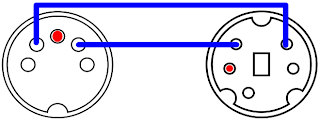
The last true Roland MPU-401 Midi Interface card was the MPU-401AT, released in 1994. This contained the interface on a small 8-bit ISA card. To communicate with external modules, it uses the same mini-DIN ports of the SCC-1. The above diagram should also work fine if you lack the proper adapter cables. The card comes with no midi module circuitry but has a 26-pin Waveblaster port to connect a midi daughterboard. Roland offered combinations of the card with its SCB-7/SCD-10 daughtercard (containing the GM-compatible circuitry of its SC-7 module) and the the SCB-55/SCD-15 daughtercard (containing the GM/GS compatible circuitry of an SC-55ST). The combinations were sold as the SCM-10AT (GM) and SCM-15AT (GS/GM). Any other waveblaster-compatible daughterboard, such as the Yamaha DB50XG and Creative WaveBlaster I or II will work well here. The SnR is better on this card than many Creative cards (which created the waveblaster standard). The MPU-401AT looks like this:

The following third party MIDI interfaces or devices have been confirmed to contain the Roland MPU-401 chipset or are 100% Roland MPU-401 compatible :
CMS CMS-401
CMS CMS-444
Midiman MM-401%
Music Quest MQX-16(s)
Music Quest MQX-32(m)*
Voyetra V-4000
Voyetra V-4001
Voyetra OP-4001
Voyetra V-22/24
* - This card has been observed to cause freezes or incorrect MIDI playback in Origin Systems games like Wing Commander and Ultima VI.
% - Has been reported to have problems with working consistently with Legend Entertainment's Gateway compared to a Roland MPU-401.
Music Quest also released a pair of basic MPU-401 compatible cards. The pure 8-bit card looks like this :

The dongle has one MIDI in and one MIDI out. The jumpers can select IRQ 2, 3, 5 and 7, and the jumper marked P controls the address. If the P jumper is covered, the address will be at Address 330, and if removed it will be at address 300.
There are two ROM versions for this card. The earlier version is v.004 and the later version is v.010. Fortunately Music Quest marked their ROMs. The earlier ROM will not work with Wing Commander or Wing Commander II and may have trouble with other Origin games that support the MT-32. The later ROM will fix the problem, but requires desoldering and replacing the old ROM. Here is a shot of a card with the old ROM for reference purposes :

Music Quest later released a version of this card with a small 16-bit connector. All the connector did was allow you to use IRQs 10, 11 or 12. The rest of the options remained the same as the older card. The ROM is embedded into the microcontroller chip, and as it is a later card it would not have the problems of the ROM v.004.
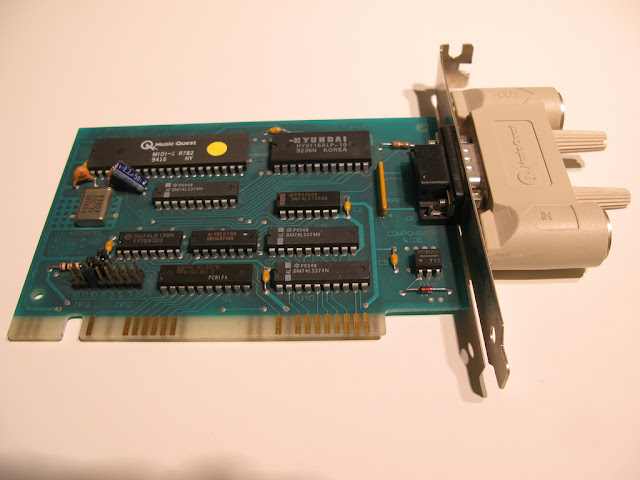
If you don't have the dongle for the card, do not despair. You can make a dongle like the one in the second picture with this handy diagram :

A final word about other MIDI interfaces, do not bother with them. The above choices are your only guaranteed choices for DOS Games using MT-32 or compatibles. The reason why? These cards are the only cards known to guarantee to implement the MPU-401 Normal (a.k.a. Intelligent) Mode reliably. DOS Games that support the MT-32 and compatibles frequently use this mode when setting up the interface or communicating through it. Most later games, including games that are GM compatible, use the MPU-401 UART mode, which is much simpler to implement in "MPU-401 compatible" hardware. The Sound Blaster 16 and up only support MPU-401 UART mode, making them unsuitable as a reliable interface for older DOS Games with MT-32 support. The older Sound Blasters do not support MPU-401 at all. Even later Roland products, including the Roland S-MPU, S-MPU II, SCP-55 or RAP-10AT do not support intelligent mode or have problems with it. Some MT-32 DOS games will work with an interface that supports Normal/Intelligent Mode, but a true MPU-401 interface will ensure hassle-free operation.
There are cards that try to fool games into thinking that an intelligent MPU-401 interface exists by sending an ACK byte in response to every command to the MPU-401. However, the actual command sent to the MPU-401 is not processed. This works for most games, but not games from Legend Entertainment, whose MPU-401 usage cannot be defeated by such simple tricks. Cards with this functionality incldue the Ensoniq Soundscape ISA series, the Yamaha SW-20PC and the MediaTrix AudioTriX Pro.
Even if you have a true MPU-401 Interface, if your computer is too fast, your game may be sending MIDI data to the MT-32 or compatible faster than the module can handle. This is the cause of the dreaded Exec. Buffer Overflow (first gen MT-32s only) and the Exec. Checksum Error (all modules). The first is very common in faster computers, the second is a lot less common. Expect either issue if you are using an MT-32 with a Pentium III computer (the last that generally had ISA slots as standard).
Method Number 2 : DOSBox
(a.k.a. the easy way out). DOSBox is an PC emulator that concentrates on getting DOS games to work. It emulates a lot of video and sound cards. It also emulates an MPU-401 interface, including the Normal/Intelligent Mode. For MT-32 and compatibles and GM/GS/XG modules, the emulation is superb. Considering that DOSBox takes the need for a Roland MPU-401 Interface and a computer with ISA slots out of the equation, it is easy to see why people prefer it. DOSBox is mostly a matter of configuring software, but a Midi Interface is still required.
This part of the guide will only consider DOSBox MIDI interface support in Windows operating systems, since that is all I am familiar with. In order to work with DOSBox, your sound card must have its MIDI drivers installed in Windows. On-board sound chips on modern motherboards tend not to support external midi. If you have a chip or a sound card that does, it generally will connect through the DA-15 game port. If you have a midi/gameport in your computer or on your card, you will need a gameport midi cable. Creative Sound Blaster cards also can use the I/O Drives or external breakout boxes that have midi ports on them.
If your audio device will not support an external midi connector, then you can use a USB MIDI adapter. However, you have to be picky, as not all USB midi adapters are created equal. I have used a Roland UM-1X for years and never have had a problem. Unfortunately it has been discontinued. Some USB MIDI adapters have had problems being able to transmit system exclusive messages to an MT-32, which is what DOS Games use create custom sounds with the MT-32.
Having obtained some kind of MIDI interface with support for external modules, connect the MIDI OUT cable to the MIDI IN port on the MT-32 or compatible module. That completes the hardware assembly. Having properly installed your drivers for your midi product, you need to set the Windows midi device to use external interface. In Windows XP, go to your Control Panel and click on "Sound and Audio Devices". Under the "Audio" tab, go to the Midi dropbox and select the name of your external device. Usually it is quite evident. Press the OK button. Under Windows 98, go to your Control Panel and click on "Multimedia". Under the MIDI tab, in the Single instrument box select the name of your external device. Press the OK button. This completes your Windows configuration.
Since Microsoft, in its infinite wisdom eliminated the selection of midi devices in the Control Panel in Windows Vista & 7, you have to select the MIDI device to use program by program. To do this in DOSBox, start DOSBox up and enter the command "mixer /listmidi". This command will show you all the MIDI devices available in your system. Make a note of the number next to the name of the external midi device. Go to your dosbox.conf file, and under [midi] there will be a line that says "midiconfig=". Enter the number of your MIDI device as DOSBox reported it after the =, save the configuration and DOSBox will use your external MIDI interface instead of the Windows default midi. If the external device is the only other midi device other than the Windows GM/GS synthesizer, then the number will be 1.
DOSBox configures its settings through the dosbox.conf (really a text) file or through a shortcut under its program folder in the start menu. Open the config file up and make sure [midi] that "mpu401=intelligent" is there. It should be by default I believe. Once that has been done, start DOSBox and configure your game to use MT-32 for its music and/or sound effects. Exit your game's configuration program, start the game and get ready to listen to some great music. Watch the MT-32 display for midi messages and make sure that there are no errors in transmission. If you are getting buffer overflow errors on a first gen MT-32, adjust the machine cycles down by using Ctrl F11. 2000 cycles should be good to start, and if you are not using a joystick you can increase them later in the game.
Currently there is a good Roland MT-32 and CM-32L emulator called Munt. Munt is a device that emulates an MT-32 or CM-32L in software on a modern machine. It requires the PCM ROM and Control ROM from an MT-32 or CM-32L. You should dump your own, or if you own one of these devices you can find it without too much difficulty on the Internet. Once installed and configured with the appropriate ROM set, it will show up in DOSBox's mixer /listmidi and you can use it by setting the MIDI device.
With that out of the way, there are two guaranteed methods get your MT-32 or compatible working with DOS games. Method 1 is by using a hardware Roland MPU-401 Midi interface. Method 2 is using DOSBox.
Method 1 : Hardware Midi Interface
(a.k.a. the Intended Way). Ah, if you are going the Method 1 route, you are truly adventurous and deserve respect for attempting it. You have your MT-32 or compatible unit, probably acquired off eBay or Yahoo Auctions Japan. Now you need a midi interface for the game to communicate with the module. (That is what those DINs on the back of these modules are for.) Since we are playing DOS games on an IBM PC or compatible, you are going to need a midi interface in the machine. (Atari ST users had midi interface ports with DIN ports built into the system, a design feature that never made it into the PC world.) Moreover, most of the DOS games of the MT-32 era, which runs from 1988-1992, assumed that the interface would be a Roland MPU-401 interface.
A bit of back-history here: Roland, makers of the MT-32, designed an interface box called the MPU-401 Midi Processing Unit so a computer could communicate with midi modules, whether its own or from a competitor such as Yamaha, Casio or Korg. The original MPU-401 could have been released in 1984 but would certainly have been available in 1985. The Unit is pretty large and looks like this:

It is a little hard to make out from the picture, but the Unit has two MIDI OUT ports. The rest of the ports are unimportant to a gamer. You have to connect a 5-pin DIN cable from the MIDI OUT of the Unit to the MIDI IN of your MIDI module or keyboard. On the other side, which is not visible, there is a DB-25 pin female connector.
The MPU-401 Midi Processing Unit was not tied to any specific computer. Roland made adapter cards and cartridges to allow the Unit to work with Apple IIs (MIF-APL), Commodore 64s (MIF-C64), IBM PCs (MIF-IPC & MIF-IPC-A) and most popular Japanese PCs. These MIF cards/cartridges only contained some simple glue logic to give the computer access to the data port and command/status port on the Unit. The adapter card/cartridge connect to the Unit via a mostly standard DB-25 male to male cable. The only difference between a standard cable and an MIF-IPC or MIF-IPC-A card is that pins 13 & 25 (ground) are connected in the cable.
If you obtain an MPU-401 Unit, it is useless without an adapter card. As previously mentioned, Roland made two for IBM PCs and compatibles, the MIF-IPC and MIF-IPC-A. The MIF-IPC came first and is designed for bus of the IBM PC and IBM PC/XT (also works with the IBM PC Portable should work with most 8088 processor-based PC compatibles). It is an 8-bit ISA card, and does not reliably work properly with an IBM PC AT or faster computer (essentially anything with an 80286 processor or better) The MIF-IPC-A is the simplified version and is compatible with the IBM PC, IBM PC/XT & IBM PC AT. It is also an 8-bit card and is not bus-sensitive, so it should work in any ISA slot of any IBM-PC compatible, regardless of CPU speed. The MIF-IPC-A is an incredibly simple card, someone with the proper skills and a few parts could easily reproduce it on an ISA prototype board. The schematic is here:

Although the Unit was developed and sold long before Roland convinced Sierra On-Line to support its MT-32 in King's Quest IV and other high-profile 1988 games, Sierra used the MPU-401 to provide the interface between computer and module. Sierra sold the MT-32 to its customers so they could hear great music in its games, and also bundled a MPU-401 interface.
By this time, Roland had made an IBM PC-specific product called the MPU-IPC. This product contained an 8-bit ISA card, which contained the midi interface, and a smaller breakout box which contained the connectors for midi modules. A DB-25 pin cable connected the two. Often on ebay you may see either the card or the breakout box but not both. Both are required to communicate with an MT-32 or compatible. If you have the interface card, you can make a midi output port with a few electronic parts. Like its immediate predecessor, the MPU-IPC should work in any computer with an available ISA slot.
Before I continue with my description of MPU-401 interfaces, I must talk for a moment about setting up your game and card to work with the interface. The MPU 401 interface on an IBM PC or compatible requires certain system resources, two input/output ports and one IRQ. The previously mentioned cards are all wired to use I/O 330/331 and IRQ 2/9. This cannot be changed absent soldering and trace cutting on the cards. As this was the default, games expect that the interface will use these ports and IRQ. Later cards allow the user to change these resources, but I always say that you should keep to the default. All you need to do with your game is to set it to use the MT-32 whenever offered (chiefly for music but sometimes for sound effects) and it will work. You do not need to load any drivers (outside of the game) or type any strings in your AUTOEXEC.BAT file.
The next year, Roland introduced two new MPU-401 compatible products, the MPU-IPC-T and LAPC-I. The first was a cost reduced version of the MPU-IPC and and for our purposes, is identical to it with one exception. This was the first interface product whereby Roland allowed the user to change the settings for the system resources to be used via jumpers. If you obtain this card, you should make sure the jumpers are set to use the default system resources I/O 330/331 and IRQ 2/9. The proper settings are illustrated in the manual, which is available at Roland's US site, backstage.rolandus.com/login.php, after a free registration. Also, there is a schematic diagram in that manual that will allow you to make a MIDI OUT port for either the MPU-IPC or MPU-IPC-T if you don't have the breakout box. Finally, the breakout box for the MPU-IPC will work with the MPU-IPC-T and vice versa. The MPU-IPC-T looks like this (the MPU-IPC looks almost exactly the same):

The second product, the LAPC-I, combines the MPU-401 MIDI Interface with the circuitry from a Roland CM-32L module all one one 8-bit ISA card. It is a perfect solution for MT-32 DOS games except for those (few) games that utilize bugs on the first generation MT-32 modules. It also allows you to change the settings, so please refer to the manual (available at Roland's US site) for the proper settings. All the caveats that I mentioned in my previous post on the subject of the Roland LA Synthesis devices apply here. This card is 13" long, so your case and motherboard cannot block it. It needs a -5v power source from the PSU, which may not be available on all computers. It also tends to go for very high prices on eBay. If you want to use an external module, such as a Roland SC-55 or MT-32 for the MIDI messages, you will need the MCB-1 breakout box.
In 1991, Roland released the SCC-1 GS Sound Card. Similar to the LAPC-I, the card combines the MPU-401 MIDI Interface with the circuitry from a Roland CM-300 module all on one 8-bit ISA card. This card should be compatible with all IBM PCs, and is much smaller than the LAPC-I. To connect to external midi modules, it uses mini-DINs on the card bracket. You will need a mini-DIN to DIN adapter to connect to an MT-32 or compatible. Two were included with the card, but if your eBay purchase did not come with them, you will need to find a substitute. No one makes these adpaters, but Creative Labs included compatible adapters on their Sound Blaster Live! Audigy and X-Fi card that came with I/O Drives that fit inside a 5.25" computer case drive bay. I do not believe that Roland or Creative carry any spares in stock anymore. Here is the pinout to make an adapter cable yourself (red is ground) :

The last true Roland MPU-401 Midi Interface card was the MPU-401AT, released in 1994. This contained the interface on a small 8-bit ISA card. To communicate with external modules, it uses the same mini-DIN ports of the SCC-1. The above diagram should also work fine if you lack the proper adapter cables. The card comes with no midi module circuitry but has a 26-pin Waveblaster port to connect a midi daughterboard. Roland offered combinations of the card with its SCB-7/SCD-10 daughtercard (containing the GM-compatible circuitry of its SC-7 module) and the the SCB-55/SCD-15 daughtercard (containing the GM/GS compatible circuitry of an SC-55ST). The combinations were sold as the SCM-10AT (GM) and SCM-15AT (GS/GM). Any other waveblaster-compatible daughterboard, such as the Yamaha DB50XG and Creative WaveBlaster I or II will work well here. The SnR is better on this card than many Creative cards (which created the waveblaster standard). The MPU-401AT looks like this:

The following third party MIDI interfaces or devices have been confirmed to contain the Roland MPU-401 chipset or are 100% Roland MPU-401 compatible :
CMS CMS-401
CMS CMS-444
Midiman MM-401%
Music Quest MQX-16(s)
Music Quest MQX-32(m)*
Voyetra V-4000
Voyetra V-4001
Voyetra OP-4001
Voyetra V-22/24
* - This card has been observed to cause freezes or incorrect MIDI playback in Origin Systems games like Wing Commander and Ultima VI.
% - Has been reported to have problems with working consistently with Legend Entertainment's Gateway compared to a Roland MPU-401.
Music Quest also released a pair of basic MPU-401 compatible cards. The pure 8-bit card looks like this :
The dongle has one MIDI in and one MIDI out. The jumpers can select IRQ 2, 3, 5 and 7, and the jumper marked P controls the address. If the P jumper is covered, the address will be at Address 330, and if removed it will be at address 300.
There are two ROM versions for this card. The earlier version is v.004 and the later version is v.010. Fortunately Music Quest marked their ROMs. The earlier ROM will not work with Wing Commander or Wing Commander II and may have trouble with other Origin games that support the MT-32. The later ROM will fix the problem, but requires desoldering and replacing the old ROM. Here is a shot of a card with the old ROM for reference purposes :
Music Quest later released a version of this card with a small 16-bit connector. All the connector did was allow you to use IRQs 10, 11 or 12. The rest of the options remained the same as the older card. The ROM is embedded into the microcontroller chip, and as it is a later card it would not have the problems of the ROM v.004.

If you don't have the dongle for the card, do not despair. You can make a dongle like the one in the second picture with this handy diagram :
There are cards that try to fool games into thinking that an intelligent MPU-401 interface exists by sending an ACK byte in response to every command to the MPU-401. However, the actual command sent to the MPU-401 is not processed. This works for most games, but not games from Legend Entertainment, whose MPU-401 usage cannot be defeated by such simple tricks. Cards with this functionality incldue the Ensoniq Soundscape ISA series, the Yamaha SW-20PC and the MediaTrix AudioTriX Pro.
Even if you have a true MPU-401 Interface, if your computer is too fast, your game may be sending MIDI data to the MT-32 or compatible faster than the module can handle. This is the cause of the dreaded Exec. Buffer Overflow (first gen MT-32s only) and the Exec. Checksum Error (all modules). The first is very common in faster computers, the second is a lot less common. Expect either issue if you are using an MT-32 with a Pentium III computer (the last that generally had ISA slots as standard).
Method Number 2 : DOSBox
(a.k.a. the easy way out). DOSBox is an PC emulator that concentrates on getting DOS games to work. It emulates a lot of video and sound cards. It also emulates an MPU-401 interface, including the Normal/Intelligent Mode. For MT-32 and compatibles and GM/GS/XG modules, the emulation is superb. Considering that DOSBox takes the need for a Roland MPU-401 Interface and a computer with ISA slots out of the equation, it is easy to see why people prefer it. DOSBox is mostly a matter of configuring software, but a Midi Interface is still required.
This part of the guide will only consider DOSBox MIDI interface support in Windows operating systems, since that is all I am familiar with. In order to work with DOSBox, your sound card must have its MIDI drivers installed in Windows. On-board sound chips on modern motherboards tend not to support external midi. If you have a chip or a sound card that does, it generally will connect through the DA-15 game port. If you have a midi/gameport in your computer or on your card, you will need a gameport midi cable. Creative Sound Blaster cards also can use the I/O Drives or external breakout boxes that have midi ports on them.
If your audio device will not support an external midi connector, then you can use a USB MIDI adapter. However, you have to be picky, as not all USB midi adapters are created equal. I have used a Roland UM-1X for years and never have had a problem. Unfortunately it has been discontinued. Some USB MIDI adapters have had problems being able to transmit system exclusive messages to an MT-32, which is what DOS Games use create custom sounds with the MT-32.
Having obtained some kind of MIDI interface with support for external modules, connect the MIDI OUT cable to the MIDI IN port on the MT-32 or compatible module. That completes the hardware assembly. Having properly installed your drivers for your midi product, you need to set the Windows midi device to use external interface. In Windows XP, go to your Control Panel and click on "Sound and Audio Devices". Under the "Audio" tab, go to the Midi dropbox and select the name of your external device. Usually it is quite evident. Press the OK button. Under Windows 98, go to your Control Panel and click on "Multimedia". Under the MIDI tab, in the Single instrument box select the name of your external device. Press the OK button. This completes your Windows configuration.
Since Microsoft, in its infinite wisdom eliminated the selection of midi devices in the Control Panel in Windows Vista & 7, you have to select the MIDI device to use program by program. To do this in DOSBox, start DOSBox up and enter the command "mixer /listmidi". This command will show you all the MIDI devices available in your system. Make a note of the number next to the name of the external midi device. Go to your dosbox.conf file, and under [midi] there will be a line that says "midiconfig=". Enter the number of your MIDI device as DOSBox reported it after the =, save the configuration and DOSBox will use your external MIDI interface instead of the Windows default midi. If the external device is the only other midi device other than the Windows GM/GS synthesizer, then the number will be 1.
DOSBox configures its settings through the dosbox.conf (really a text) file or through a shortcut under its program folder in the start menu. Open the config file up and make sure [midi] that "mpu401=intelligent" is there. It should be by default I believe. Once that has been done, start DOSBox and configure your game to use MT-32 for its music and/or sound effects. Exit your game's configuration program, start the game and get ready to listen to some great music. Watch the MT-32 display for midi messages and make sure that there are no errors in transmission. If you are getting buffer overflow errors on a first gen MT-32, adjust the machine cycles down by using Ctrl F11. 2000 cycles should be good to start, and if you are not using a joystick you can increase them later in the game.
Currently there is a good Roland MT-32 and CM-32L emulator called Munt. Munt is a device that emulates an MT-32 or CM-32L in software on a modern machine. It requires the PCM ROM and Control ROM from an MT-32 or CM-32L. You should dump your own, or if you own one of these devices you can find it without too much difficulty on the Internet. Once installed and configured with the appropriate ROM set, it will show up in DOSBox's mixer /listmidi and you can use it by setting the MIDI device.
Subscribe to:
Posts (Atom)