Showing posts with label Getting Started. Show all posts

Monday, May 31, 2021

The Computer in Monochrome - Practical Advice for Using for a Macintosh SE


The Graphical User Interface is something computer users have taken for granted for twenty-five years since Windows 95 computers became ubiquitous.  Of course, to owners of any Macintosh computer, the GUI was something they had experienced since day one.  The original Macintosh was designed to be a low-cost productivity computer.  It eventually evolved into a fully general purpose computer, but the systems were sufficiently popular even in the earliest days to enjoy a wide variety of software, including games.  I recently acquired an earlier example of the line, a Macintosh SE, and decided it was worth getting it up and running.  In that process I will be sharing some of the issues I have encountered and solutions.

Thursday, March 23, 2017

Practical Issues with a Tandy 1400 LT Laptop Comptuer


Recently I acquired a Tandy 1400 LT Laptop computer, so as tradition seems to demand, I will talk about my impressions of the machine, tips on how to use it and mistakes to avoid.  The Tandy 1400 LT is Tandy's first IBM PC compatible laptop.  As the 1400 LT is so very much a mostly-improved clone of the IBM PC Convertible, it makes sense to compare the two products.

In April of 1986, IBM released the first PC compatible that could conceivably be called a laptop, the IBM PC Convertible Model 5140.  In 1988, Tandy released its own version of the PC laptop, the Tandy 1400 LT.  The Tandy machine had many notable improvements over the IBM machine :


Monday, October 5, 2015

Getting Started in System Shock


Welcome to my DEATH MACHINE!
System Shock is a classic from the DOS gaming era, but trying to play it can be, well, something of a shock.  If you are used to DOOM and its simple controls, you are in for quite the learning curve.  However, once you get a feel for the game, you should be able to appreciate what it was trying to do.  While it has been unavailable legitimately for many years outside of eBay, GoG is now offering System Shock Enhanced Edition, which includes the original CD-ROM Enhanced version as well as a Windows executable to run the game on modern systems.  I have beaten the game multiple times and really love it.  In the spirit of the times, I offer this guide to get the most out of the game.

Installation and Settings

Getting the game running in DOS or DOSBox is no particular chore.  I am assuming you are using the Enhanced CD-ROM version, most people do over the inferior (but original) floppy version.  For any system, I highly recommend that the CD-ROM drive is D.  That will save many a headache trying to figure out why the game is not loading. After you mount the CD, the game is installed with ORIGIN.BAT (not INSTALL.EXE) on the root directory of the CD.  Installation is straightforward, and I recommend choosing the Roland SCC-1 for music and the Sound Blaster 16 for digital audio.  Even if you only have the built-in General MIDI capabilities of Windows, the music is still better than Adlib.  If sound or music is not working, try the manual setup.

Running the game in Windows 9x is a bit more tricky.  You can always run it in real mode DOS, but that requires you to exit Windows and load mouse and CD drivers and maybe sound drivers.  If you want to run it within Windows, it can be done.  Right click on CDSHOCK.BAT and go to Properties, then the Memory tab.  Under the memory tab, put all the memory value for Conventional at 600 and the DPMI Memory at 16384.  Click on the Protected box, then Apply.  You then start the game with the MS-DOS shortcut.  Even though the game will play fine on my machine, once I click on the checkbox to get rid of the window, it will crash my system hard.

For a good challenge, start the game with the default "2" settings for each category, and when you enter the game you will immediately be presented with a screen full of stuff and information boxes.  The first thing you should do is to hit the Space Bar key, then the Esc key, go to Video and increase the resolution to 640x400 or 640x480.  Even 320x400 is better than the default 320x200.  However, if you are running this game on a 486 spec machine, 320x400 is the best resolution/performance option you will likely achieve.  You can set the number of audio channels to eight, which is advisable if you are running the game on a Pentium or better.  Neither the enhanced video modes nor the extra audio  channels nor the voice acting is available in the Floppy version.  Everything that I talk about hereafter applies to both versions.  I use DOSBox at a fixed 100,000 cycles for my preferred resolution of 640x400.  If you use max cycles, you will find the mouse cursor exceptionally jerky when moved.

Movement Controls

Today, everyone uses WASD to navigate through a first-person perspective game.  In System Shock's time, that convention had yet to be established.  Unfortunately, the game did not allow you to remap keys. Instead, you use ASDX to move.  The S and X keys move forward and backward, but the A and D keys turn left and right.  System Shock was made before the days of mouse-look, which essentially eliminated the turning movement.  Strafing left and right is done by the Z and C keys.  You can run by holding down the Shift key or always run by pressing the Caps Lock key.  (DOSBox may require a few key presses of the Caps Lock key before emulator will register a change to the key's state.)

System Shock truly expanded the scope of your ability to move and interact with the environment.  The Q and E keys allow you to lean left and right, and W will return your posture to the center.  The R and V keys allow you to look up and down and F will put your head movement back to the straight ahead position.  This is important because System Shock is much closer to a true 3-D environment than DOOM.  Finally, G makes you squat, B puts you on your stomach and T lets you stand upright.  Sometimes this is necessary to squeeze through low-height corridors and tight spaces.  Having such freedom was unprecedented, but so much of this has been simplified by the mouse look and extra mouse buttons.  The last key set is confusing because it is the top key that puts you back to normal instead of the middle key.

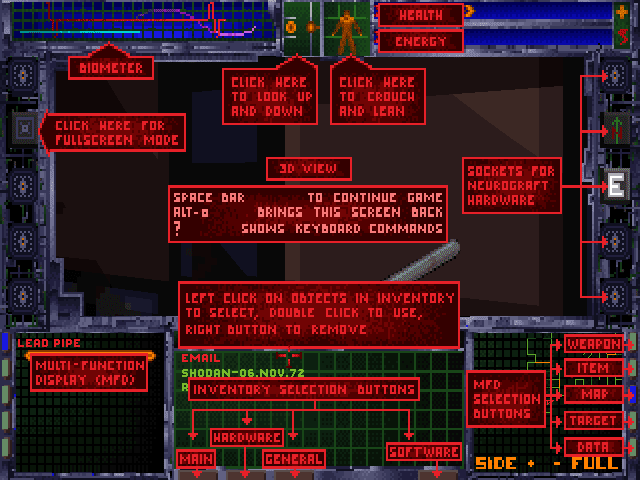
If you forget what any key does, just hit ? and it will bring up the Help Screen.  Alt-O will give you a description of the items in your HUD display.  You can click the Full Screen box or Alt-V to play the game in Full Screen with a minimal HUD, but sometimes even the minimal HUD will get in the way and you will sometimes use an item by mistake where the full HUD would keep you from doing so.

The mouse controls both cursor by which you interact with objects on the screen and the aiming and firing of your weapons.  A single click on an object will give you a description of the object, a double click will grab the object.  You can place the object in your inventory by dragging it into one of the bottom panels.  You can throw the item by right clicking, and the higher the item's icon is on the screen, the farther you will throw it.  A double left click will allow you to search corpses, both human and enemy.

The first weapon you get will be a pipe, and it is easy enough to swing by right clicking.  When you encounter the first enemies, you may have to look down to get good hits in them.  You will have to look up to destroy security cameras with the pipe and it can be a bit of trial and error.

Soon you will find a projectile weapon.  They shoot where you aim the cursor.  Many of the guns have more than one type of ammo available, and you need to observe which type works best against which type of enemy.  Regular rounds are best against organics or cyborgs, but teflon rounds work better against robots.  EMP weapons are useless against organics and gas or tranquilizer darts are useless against robots.  Energy weapons are usually good against anything and do not waste ammo.  Instead, they use energy, as their name implies, and finding recharge stations becomes very important.

HUD

In-Game Help Display
You will not get far in this game if you do not master the HUD.  The first thing you will notice are the two rows of arrows on the top left of the screen.  They represent your Health and Energy Level.  If the former disappears, you die.  If the latter disappears or gets too low, you cannot fire energy weapons or use software that consumes energy like Shield.

There are three panels on the bottom, and the left and right panels, called the Multi-Functional Displays have identical functions.  The middle panel, the Inventory Panel, has four buttons, Main, Hardware, General and Software.  Main and General are the most important.  On either, you can select the weapon or item by clicking on the name.  You can activate a grenade or a patch or a battery or first aid kit by clicking on it twice.  You can throw an item away by right clicking on it.  You only have a certain number of slots for weapons and items, so you may need to make some hard choices.

Would you like to play a game?  Just don't on company time
The left and and right MFD Panels are mostly informational.  They can show Weapon, Item, Automap, Target and Data.  Weapon will show you any settings you may be able to adjust with the weapon and also to unload and reload a weapon.  If you have more than one type of ammo available, you can choose which type to load.  Item will give you a visual identification of an item, and it can also show you how many clips of each type of ammo you have if you click on the name of a gun on the Main panel.  Automap is a feature you will be using almost constantly.

The Side Icons control various functions.  As you find the hardware, you can install a Sensaround unit to look behind you, a Turbo Boost to go faster, a Lantern to light up dark places and a Shield to help absorb damage.  Most of these upgrades will consume energy.

Most of the functions on the HUD can be selected with hotkeys as the following diagram shows for the major functions :


The Data Reader can be accessed by clicking on the E box on the left of the Side Icons.  Email comes from living people like SHODAN and Rebecca or to update you on the status of the ship itself.  Logs can be picked up on the station from its former inhabitants and give you information, clues and background to the plot.  Data is only found in Cyberspace and will appear when you leave it.

Data Reader Log List
Cyberspace

Finally, there is Cyberspace.  You enter Cyberspace when you double click on a large multi-pronged jack.  Each level usually has one or two of these jacks.  In Cyberspace you have full 3-D movement.  You move forward by pressing the S key, and you turn up, down, left and right by pressing W, A, D, and X.  Q or Z rotate your position left and E and C rotate you right.  It is not dissimilar to how flight simulators control a plane.  You only have a limited time to explore Cyberspace.

Cyberspace is a series of rooms connected by corridors.  Most corridors will propel you one way and your movement is limited.  You are looking for spinning cubes, usually found in the rooms, which contain helpful software or data.  You will need to find a weapon called a Pulser quickly to defend yourself against Enemy Software.  You will be able to spot enemy software because its always large and hostile looking and will approach or shoot at you.  Shoot at it until it disappears.  If you take too much time or damage, you will be ejected from Cyberspace with lower health and high fatigue.  Also avoid the two squares connected by a short cylinder, they act like land mines.  Eventually you should find a circular exit.  Before you do, you should try to collect all the spinning cubes in the area and activate switches that look like two triangles and a rectangle between them.

The red spinning rectangles contain pulser or drill, yellow has c-shield software, purple contains data you can read with your E-Reader and blue is for decoy or recall software, and green is for amusement software.

Cyberspace showing software and enemies
Sometimes, you will see an item with a blue polygon outlined around it.  That is a security barrier and needs to be destroyed using the Drill software.  You can choose your software in the Software tab, the only part of your HUD available to you in Cyberspace.  You can upgrade your Pulser and Drill software whenever you can.  The red crosses can be collected to restore health, which is called System Integrity in cyberspace.  The amount of damage you receive is influenced by the C-Shield software. You can and should upgrade your Drill and Pulser and C-Shield software to the highest levels possible.  Cyberspace rewards searching everywhere for hard to find nooks and corridors.

Mouselook

At some point in the 21st Century, someone finally decided to hack System Shock to add mouse look support.  Prior to that, the only option other than using the keyboard to do things like lean and look up or down was to use the Logitech Cyberman mouse.  The Cyberman was a mouse that was raised above its mousepad on a stick to allow for six-degrees of freedom movement.   In System Shock, the roll movement is used for leaning and the pitch movement is for looking up and down.  Unfortunately, the Cyberman gained a reputation as one of the worst controller peripherals of all time and six degrees of freedom controllers (6DOF) never really caught on until arguably the Nintendo Wii.

The mouselook patch can be found here : https://www.systemshock.org/index.php?topic=1719.0.  I used the older patch, which gives you the ability to set a different resolution in game and remap keys by editing a CFG file.  You press the E key to activate the mouselook mode and WASD to move forward/back and strafe left/right.  You need to deactivate mouselook mode often to bring items into your Inventory Panel and to use items located in your inventory panel, so its less than a perfect solution.

Practical Advice and Hints for Playing your First Game

The first real object of the game, once you have grabbed your initial items and restored your health and energy, is to find a Sparq beam.  The Sparq beam will be your weapon of choice for Levels 1, 2 and R.  It can kill all the common enemies on these levels in one or two fully charged hits.  If you follow the ducts past the first logic puzzle you find, you will come across an area with many bodies and it will be there.  Using the Sparq beam will make life easier when you deal with the Cyborgs who have ranged weapons.  It is also useful when you need to light up a dark place.

Nah nah, you can't catch me!
This game has an automap, be sure to explore every nook and cranny for items and enemies to kill for items. Your HUD display can show you a section of the map and you can enlarge the map to fill the screen.  You can and should leave notes on the map, especially where the Power Stations can be found.  You should use rooms near an elevator to store equipment you cannot fit in your inventory.

Level 1 Complete, most levels are similarly complex
Do not waste ammo on Humanoid Mutants, they respawn on level 1 and you will need the ammo for the Minipistol and the Dart Pistol for later levels, mostly the Groves.  If you go back to the healing suite before reaching Level 2, the game will delight in throwing multiple Humanoid Mutants at you on the way to and at the healing suite.  Hit the Energy Station near the entrance to Beta and Delta quadrants before making the trip back there.

After you acquire a Sparq beam, the next goal for Level 1 is to find the Cyborg Conversion chamber and flip the switch that turns off Cyborg Conversion.  The chamber is in Beta Quadrant and there are quite a few Cyborg Drones and Cyborg Assassins between the entrance to Beta Quadrant and the Conversion Chamber.  They shoot projectiles, so you should get in plenty of practice in leaning around corners to fire at them.  Cyborg Assassins act silently, unlike most enemies who make noises indicating their presence.  If you suddenly start taking damage and there is no enemy sounds about, chances are you are dealing with a Cyborg Assassin, so run until you figure out where it is hiding.

Berzerk patches can come in handy when crowd control is necessary
Once you find a Cyborg Conversion Chamber and turn Cyborg Conversion off, finishing a level is usually a matter of time.  It should be your first priority to find the Chamber upon entering a new level.  You can die as often as you like and you will be brought back to the Chamber and be resurrected.  On one occasion, you must activate the chamber or you will be caught in an inescapable death trap after performing a certain plot critical event.  Be warned that not every level has an accessible conversion chamber.

Once you reach the Research Level, Level 2, you should have fully mastered the HUD and the Control System.  Level 2's Cyborg Conversion Chamber's Switch can be a tad tricky to find  It is in the western part of the Level, in a room that looks like the top half of a heart.  Level R is your next stop, but you won't be able to see everything on your first trip.  It also has the second of two healing units in the game, but the puzzle to open its door is tricky.  While you can get Level 2 to an almost respawnless state, Level R will respawn Hoppers, those annoying blue enemies that shoot at you.  Remember that often you can hit enemies by exploiting angled walls and height differences and they won't shoot back until its too late.

The logs and emails will often give you clues to the plot events if you want a spoiler-free game.  Write down any important numbers you may find.  Logic Probes can be used to bypass some of the more tricky puzzles, including those trial-and-error wire puzzles.

When you get to Level 3, you may feel overwhelmed by invisible mutants, which respawn and take many hits to kill.  The Sparq beam is no longer going to cut it here.  You need not spend much time on Level 3 initially.  If you find a Laser Rapier, you can cut them down in two hits as long as you have some energy.  It is near an Elevator and is very powerful, provided you can get close enough to an enemy to use it without dying.  After you do what you can on Level 3, you can choose whether to go to Levels 4, 5 or 6.  I would suggest taking the levels in their numbered order, but really the rest is up to you.  Good luck, you'll need it!


Tuesday, May 27, 2014

Practical Issues with the Tandy 1000 SX and TX

I have recently become the owner of a Tandy 1000 TX, and I'd like to share my experiences with using the machine.  Since the system is very similar to a Tandy 1000 SX, much of what I will say will also apply to that system.  Overall, the system is much more straightforward than the Tandy 1000 TL.

Memory Upgrade  (SX and TX differences)

The TX comes with 640KB but can be upgraded to 768KB.  The extra 128KB is dedicated solely to the video chip and allows you to have the full 640KB conventional free for MS-DOS.  There are four DIP-18 sockets on the motherboard, and you must insert a 64Kx4 DRAM chip, 120ns or better into each of them.  Once all four are inserted, you must remove the jumper at E9-E10.

Not all games and software work with this upgrade.  I know of three games that either do not show graphics or are unplayable (Demon Stalkers, Snow Strike, Duck Tales : Quest for the Gold) with the upgrade. Unlike the TL, you do not need to remove the chips.  Just replace the jumper at E9-10 and the upgrade will be disabled.

The SX comes with 384KB and can be upgraded to 640KB.  Eight DIP-16 sockets are on the motherboard and you must insert a 256Kx1 DRAM chip, 150ns or better into each of them.  One all eight are inserted, remove the jumper at E1-E2.  There are no compatibility issues with this upgrade.

If you add an EGA or VGA card, the on-board video and its RAM stealing is disabled and you will also be able to use the full 640KB of conventional memory.  Most games will not recognize an EGA or VGA card in the Tandy 1000s without running a simple program called VGAFIX on startup.

Case Opening (SX and TX differences)

The SX and TX's case is held together by two screws at the front.  The case shell is made of plastic, so be careful of stepping on it or letting it fall when you are working inside it.  Unlike the TL and SL and later machines, the keyboard and joysticks attach to the front of the machine, so you will need to remove them to get at the insides.  When you have removed the front screws, just pull the plastic portion of the case forward.

Unlike the SX, which had a metal bar over the expansion slots to allow a monitor to sit on the case, the TX has a metal shield completely covering the expansion bays.  Two screws attach the shield to the chassis, and once removed, you have to pull the shield up and then to the left.  You may need a small screwdriver to help pry it up.  The shield is bendable, so take care with it.

The SX has a metal bar to support the weight of a monitor, and should have two plastic guards to protect someone from slicing their fingers on the metal edge.  Its expansion slots use slotted hex screws.  The back plastic plate should be removed when installing expansion cards, but one can get at the screws with a small slotted screwdriver.

Tandy mostly used slotted or phillips head hex nut screws inside the SX and TX, and I highly recommend using a 1/4" hex nut driver to remove them.  You won't strip a screw using a hex nut driver.  The drive cage is fixed to the chassis with approximately five screws.  You will need to remove any expansion cards to get at the screws.  The SX has a metal plate parallel to the the expansion slots that should be removed to get at some of the screws holding the drive cage in place.

The TX and TL use the same small Phillips head screws for the expansion cards.  Jameco sells compatible screws, look for Jameco Item # 2185871.  Unlike the SX, you probably will not need to remove the back plastic plate to unscrew the screws.  They also work in the SX.

The drive cage supports only two 5.25" drives.  Some drives do not have the appropriate mounting holes.

CPU Upgrade (TX and SX differences)

The TX, like the TL, has a socketed 80286-8 in an 68-pin PLCC socket.  Unfortunately, the location of the 286 is close to the front edge of the bezel, and a longer accelerator will not fit.  Improve Technologies Make-it-486! will fit, but it has no math coprocessor.

The 80287 math coprocessor should be rated for 8MHz, but a 6MHz will probably be fine.  Games that run on an 8MHz 286 generally do not use one.  No jumpers or dipswitches need be set.

The SX has a socketed 8088-2 in a 40-pin DIN socket.  It can be upgraded with an NEC V-20, μPD70108-8 for a modest speed boost and compatibility with many programs that use 286 instructions.

The SX will support a special accelerator board called the 286 Express Card.  This card takes up an expansion slot, requires the removal of the 8088 and inserting a ribbon cable with a DIP-pin connector into the CPU socket.  The 8088 goes onto the daughtercard with the ribbon cable.  This upgrade allows and defaults to the use of the 8088 and acts like it is not there unless activated via its DOS driver.  It has 8KB of cache, which can be disabled for compatibility.

The 8087 math coprocessor should be rated for 8MHz operation, but 5MHz will probably be fine (its runs at 7.16MHz/4.77MHz).  Remove the jumper at E3-E4 if you install one.

Floppy Drives (SX and TX differences)

The ideal 5.25" 360KB double density floppy drive for the Tandy 1000 SX or TX is the Teac FD-55BR. This is a beige/off-white version of the FD-55BV, which is also a good choice.  Teac made a 1.2MB 5.25" high density drive called the FD-55GFR, and it looks identical to the lower density drive.  Make sure you get a double density drive, high density drives do not work with the SX or TX's built-in floppy controller.  The SX and TX have very short floppy cables and the card edge placement on the Teac drives (and they are good drives) work beautifully with the stock cable.  The molex power connector is also close to the left edge of the drive, and the one connector from the power supply is extremely short.

The proper drive to use with a TX  is a Sony MP-F63-01D 720KB double density 720KB floppy drive.  This drive is a 3.5" drive enclosed in a 5.25" bay adapter.  The bay adapter provides the front faceplate for the drive.  The drive uses a large "lip" as the ejector button.  It is identical to the drive in the HX, but that has a different faceplate and designation.   Tandy provided a 3.5" upgrade for the SX that uses the same drive but has an adapter board that converts the power-in-drive connector on the drive to a card edge and molex connector.

The TX and HX are the first systems that incorporate Tandy's power-in-drive cable, so you need to use your own cable with holes punctured through pins 3, 5, 7, 9, 11, 29, 31, 33 if powering a 3.5" drive that uses a mini-molex power connector.  You also need to untwist the twist in the floppy cable.  Tandy drives get selected by dipswitches and the F3 key in the SX and TX.

The TX cable has one pin connector and one card edge connector.  The SX has two card edge connectors. The SX does not use power in drive cables and has two molex power connectors.

Hard Drives (SX and TX)

The SX and TX requires a hard drive interface.  An MFM controller like the WD1002A-WX1 is small enough to fit in the Tandy and can select IRQ2, but you may need to obliterate a trace that hardwires IRQ5.  However, the SX and TX can disable the video's use of IRQ5.  The hard cards sold during or near the TX's time were were the 20MB 25-1029(A-B) and 25-1032(A-E) and the 40MB 25-4059(A-B).  They use MFM or XTA-IDE drives.  They can save a slot, but are bulky, noisy and can prevent long cards from being installed in nearby slots.

The best contemporary IDE interface was the ADP-50L, which allows the use of any 16-bit IDE drive up to 504MB.  With a compact flash adapter, you can save a drive bay by using a slot bracket.  Modern solutions include XT-IDE, some of which combine a CF card interface, saving you a slot.  Unfortunately, while you can buy the board and parts cheaply enough, you will have to solder the CF connector and other surface-mounted components yourself.

Serial Port (TX only) / Light Pen Port (SX only)

The TX replaced the useless light pen port on the SX with a serial port.  This is a standard XT-8250 port, so do not expect speeds about 9,600 baud.  It defaults to COM1 and can be set to COM2 by removing the jumper at E3-4 or disabled by removing the jumper at E1-2.

The SX uses a DE-9 Male no-screw connector for a light pen, which would suggest that Atari 8-bit or Commodore 64 light pens would work.  The pinouts for those light pens do not correspond to the pinout for the Tandy 1000.  Tandy did offer light pens for the 1000 series, but they must be beyond hard to find today.

Jumpers (SX and TX)

JP1 sets the system to use an MDA or Hercules compatible card.  I am not sure whether it totally disables the onboard video, or just initializes the monochrome monitor for text like on an IBM PC.  If its the latter, programs can still use the built-in video when they require it.  It is NOT the same as pressing F1 on startup, that just sets the Tandy video to use composite-monochrome friendly colors.

JP2-5 disables the use of IRQ5, 6 & 7 for the system board devices, freeing them up for the expansions slots.  The system board uses IRQ5 for the video interrupt, which was rarely used with Tandy graphics.  IRQ6 is used for the floppy controller.  Even if you disable the built-in floppy controller's IRQ6, you will need a secondary floppy controller that can use an alternative floppy controller address.  Ditto for a printer port on an expansion slot for IRQ7.  Leaving IRQ7 enabled is typically harmless.  Sound Blasters don't need it disabled.

Keyboard (SX and TX)

The SX and TX is designed to use a 1000 keyboard.  Some games (Snow Strike) and programs, like Tandy 1000 Deskmate, require it.  The default text mode is an 80x25 column by line mode with 225 lines, pressing F2 at startup will give you a 40x20 column by line mode with 200 lines, suitable for a composite video monitor.  You can also do this by using the Tandy DOS 3.2 or 3.3 command MODE TV If you use the command MODE 200 command will give you 80x25 column by line mode with 200 lines (assuming you are in an 80-column mode).

F3 sets the speed to 4MHz (TX) or 4.77MHz (SX), which can also be done with MODE SLOW.  If you want to play a game like Lode Runner on the TX, you will need the slower speed.  F4 swaps the boot drive, which is quite useful with a 5.25" and a 3.5" drive.

I am not the biggest fan of the 1000's keyboard.  The key action is mushy and the Shift keys are too small.  The Hold key is a particular nuisance, especially as it is right next to the Enter key.  Essentially it is the "freeze" key, if you press it (intentionally or otherwise), your program may pause and it may seem like the computer has frozen up and crash.  Press it again and the program should resume.  Shift + Print acts acts to Print the screen (I believe its Ctrl Print on a IBM PC).  There is no Scroll Lock key, you need to use Alt + Break.

Some programs will only use the dedicated cursor keys for movement, others will use both the cursor keys and the numeric keypad, and others will only use the numeric keypad.  On the IBM PC 83-key Keyboard, there is no dedicated cursor keys, and games do not have this problem.  However, unlike that keyboard, there are status LEDs for Num Lock and Caps Lock.

The ~ and ` and the | and \ are split up on the Tandy 1000 keyboard, making for an adjustment when coming from a PC keyboard.  The \ key is used frequently in DOS, and the | is also used.  (TYPE README.TXT |MORE) More annoyingly, there is no separate *, so typing something like *.* in DOS is a hassle.

Any Northgate Omnikey Keyboard with dipswitches should be able to work with an SX or TX.  They are very expensive, and required a special cable.  I believe the cable just passively mapped the common pins (DATA, CLK, +5v and GND) from the IBM standard to the Tandy standard.  The Northgates can provide full 101 Key capabilities.

Sound Output (SX and TX differences)

The SX and TX both have volume controls for the internal speaker.  The SX's volume control is inside the case and requires opening the case to get at it.  The TX's is in the front of the case and can be accessed with ease.  Both have RCA video and audio jacks, but the TX also has a headphone jack.  Due to the audio routing design of the TX, all audio will always output to the RCA jack.  If something is plugged into the headphone, the internal speaker is disabled.  The volume control will still work for the headphones, but has no effect on the RCA output.

On the TX, there is no need for a program like TDYSPKR to set the internal and external audio options. On the SX, you will need that program to hear 3-voice sound out of the RCA jack for games that do not set the multiplexer (LucasArts' SCUMM games) or to shut off the internal speaker.

Saturday, May 3, 2014

Practical Issues with using the Tandy 1000 TL

This week I have reacquired from a friend a Tandy 1000 TL he once sent me.  I would like to describe my experiences with it, getting programs to work with it, etc.

Floppy Drives :

Tandy really wanted you to use the drives they sold, so they supplied these awkward cables that tended to fit only their drives.  If you have the original Tandy cable, you will not that it does not connect to the floppy header on the system motherboard in the way you would expect.  Instead, it uses the berg connector nearest the the card edge for the 5.25" drive.  That connector plugs into the motherboard, and from that plug the wire comes out at both ends.  The short end has the card edge connector, and the long end has two berg connectors for the 3.5" drives.  The cable may not work with all 5.25" drives.

The next thing to note is that Tandy supplied power to the 3.5" drives through the drive cables.  If you are using a 3.5" drive that does not use the Tandy-power-in-drive method, then you need to cut small holes in pins 3, 5, 7, 9, 11, 29, 31, 33.  Tandy already did this for that end of the cable with a card edge on it, since all 5.25" IBM PC compatible drives use the 4-pin Molex connector.

Additionally, Tandy's cables do not use a twist to determine drive A, B and C.  Instead you must manipulate DS0-DS3 on the drive.  If you use a standard "universal floppy drive" cable, you must untwist the twist. 720KB drives usually have jumpers or switches, as did 360KB and 1.2MB drives.  Modern 1.44MB drives are always set to DS1, so by default they are Drive B:.  The setup program may be able to change that to Drive A:, but you won't be able to use two of these drives unless you figure out how to set one of them to DS0.

Finally, if you use a custom cable, be prepared to insert it "backwards,"  The bit of plastic on one of the ends of the berg connector on modern universal cables is on the wrong side from the Tandy's perspective.  File, cut or dremel it down.

The built-in 720K floppy drive should be a Sony MP-F11W or MP-F17W.  It has a switch on the side to select DS0-3.  It is more or less identical to the earlier Sony 3.5" drives Tandy used except it has a small blue eject button instead of a large "lip" button.

3.5" drives automatically terminate depending on what drive they are, but 5.25" drives have a terminator pack or jumper to set the termination.  Regardless of position on the cable, whichever drive is drive A: must be terminated, and drives B: and C: cannot.  If your 360KB drive is drive B:, remove the terminator.

Hard Drives : Tandy 1000 TL have no hard drive interface, you will need to find one that works in the Tandy.  XT-IDE devices should work fine.  There is a vintage device called the Silicon Valley ADP-50L that uses a faster method for data transfer, memory mapping, than the I/O driven method of the XT-IDE interface.  On the other hand, while the XT-IDE can handle drives up to the DOS Final FAT 16 limits (8GB, 2GB partitions), the ADP card is limited to the Int 13h barrier of 504MB.  There is also the XTA interface that was used with old hard drives, but they only get to 40MB.

Alternatively, you can use an 8-bit SCSI card.  The Trantor T-128 and Rancho Technologies RT1000B will boot in a Tandy 1000 TL.  The more common, yet somewhat slower Trantor T-130B will not boot a device in the TL, but will work if initialized with a floppy drive.  With an external SCSI adapter, you can add floppy drives, hard drives or CD-ROM drives without taking up the precious room in the machine.

Built in Video and Video Cards :

The Tandy 1000 TL's built-in video is a jack-of-all-trades.  It is nearly 100% CGA compatible, supports Tandy 16-color graphics and can also emulate a Hercules card quite well.  It also supports EGA and VGA cards.  You could insert a CGA video card in it, but unless you are looking for composite color output, the built-in video is superior.  Any video card inserted into an expansion slot will "disable" the built-in video.

The video inside the TL and later machines is called Tandy Video II because it supports a special 640x200x16 mode.  Relatively few games support it, but a recent patch provides support for all Sierra 256-color SCI1 and 1.1 games.

With VGA cards, you should run a simple program called VGAFIXC.COM to modify some bytes in the BIOS data area that programs frequently look to to detect VGA.  If you can find a VGA card that can work in an 8-bit slot, there is an excellent utility called VSWITCH that allows you to switch between the built in video adapter (CGA, Tandy, Hercules) and a VGA expansion card.  I use a Cirrus Logic CL-5401 basic 16-bit VGA card I pulled from a Packard Bell.  It works just fine, no jumpers, dipswitches or drivers needed.  With a VGA card, a Tandy system becomes a real jack-of-all-trades when it comes to PC video.

Some games are aware of a Tandy and often do not detect a non-Tandy video adapter, so you may need to force some to work despite their protests if you can with command line arguments or in their setup programs.

You can switch from color (Tandy/CGA) to monochrome (Hercules) by pressing Ctrl + Alt + Shift + V at bootup.

The built in video uses IRQ5 for indicating when the adapter is in a vertical retrace, allowing for rapid screen updates.  It is set by a jumper on E1-E2.  If E2-E3 is set instead, IRQ5 will be available to the expansion slots.  Whether the video uses IRQ2 when IRQ5 is disconnected is debatable.  IRQ5 is typically used by non-Tandy aware hard drive controllers.

Keyboard :

The Tandy 1000 TL only works with keyboard supporting the XT keyboard protocol.  It came with the Tandy Enhanced Keyboard, a standard 101-key autoswitching XT/AT protocol keyboard that works in just about any PC.  It will work in the IBM PC, XT, AT and any PC with a 5-pin DIN or 6-pin PS/2 mini-DIN that supports an XT or an AT protocol keyboard.  It will work in a modern motherboard with a PS/2 port or PS/2 to USB converter.

The TL will also work with an IBM 83-key Model F PC/AT keyboard.  According to the Technical reference, it (and the Tandy 1000 SL) should also work with a 90-key Tandy 1000 keyboard, but it requires an adapter because the Tandy 1000 keyboard uses an 8-pin DIN and the Tandy 1000 TL keyboard port is a 7-pin DIN.  I tried making an adapter, but no key presses were registered.  The TL/2, SL/2 and later machines do not have a 7-pin port, so this functionality cannot be used, even if it exists, in these machines.

Case :

The case for the later Tandys are all really easy to remove.  Just unscrew one screw on each side and pull the sides out a bit, then up, then forward.  Unlike the earlier Tandys, you don't need to disconnect the keyboard or the joystick ports, which have been relocated to the back of the machine.

Inside the machine is easier to work in than the older models.  There is no internal shielding to remove to get at the innards.  The TL uses a sheet metal cover, unlike the TX and earlier models which used plastic.  The screws for the expansion slots are small phillips head screws, and the plastic on the back has indentations to allow for easy screwdriver access.  The left 3.5" drive bay can be removed by unscrewing two screws on the front metal chassis and pushing the bay back until the clips clear.  The 5.25" bay requires drive rails.  I am not sure whether modern drive rails will work.

The front bezel may have the left 3.5" drive cutout covered with a plastic panel.  Once the panel is removed, you can install another floppy drive that conforms to the shape of the cutout.  If it does not, or you wish to use some drive with a faceplate, you will need a dremel.

Serial :

There is one 9-pin serial port on the back, and it uses a 8250B UART.  It is set to COM1.  However, the serial hardware has been incorporated into the PSSJ chip, so it may not be as robust as a card with a discrete chip.

Game Ports :

There are two 6-pin DIN game ports on the back of the machine next to the keyboard sockets.  Unlike the game ports of the TX and earlier models, you can disable the built-in game ports of the TL and later machines in software.  The game ports in the TX and earlier machines have to be disabled by cutting a pin or two on one of the ICs on the system board.

Parallel Port :

The Tandy parallel port has been covered in more detail in another post.  In the TL, there is a setup setting for output enable.  This should corresponds to bit 5 at port 37A, allowing for bidirectional mode.  However, as the Tandy parallel port in any model with a PSSJ chip (except the TL/3 and RLX) is missing one of the printer select lines, it may not work with any device requiring bidirectional parallel port mode.  The other printer select line has a jumper, E4-E5, to connect it from the card edge to the PSSJ.

Conventional Memory Upgrade :

The TL can be upgraded from 640K to 768K by inserting four 64Kx4 (120ns or better) chips into the four unpopulated memory sockets on the motherboard.  This extra RAM will allow you to enjoy a full 640KB of conventional memory without the onboard video taking a portion of it.  However, this extra 128K cannot be used for any other purpose, it is solely dedicated to the on-board video.

Expanded Memory :

Only a few Expanded Memory boards will work in the TL, and this is mostly due to the fact that there is only room for 10" cards.  Most Expanded Memory boards run the full 13".

Real Time Clock :

The TL uses a Dallas 1215E RTC which is powered by a coin-style battery, a CR2032.  The built in DOS-in-ROM will handle keeping the system date and time up to date, a separate driver is not needed.

CPU Upgrades :

A math coprocessor socket is available in the TL.  The 80286 CPU is socketed in a 68-pin PLCC socket under the left 3.5" bay.  It should only be removed with a PLCC extractor and after the bay above has been removed.  There are 386 and 486 upgrades which can plug into these boards and offer up to 2x the performance of the original 8MHz 80286.  The built-in video performance will not improve.  I have one called the IO Data PK-X486/87SL, which is a Japanese product intended for an NEC-9801 machine.

While the accelerator is usually a good thing, I have encountered two problems with the one I am using.  First, the floppy drives simply will not respond, no matter how the machine is slowed down.  Second, the audio recording function is speed-sensitive in the TL, so audio will record too quickly using Deskmate.  The TL/2 should fix this problem with a double-buffered chip.  I understand that Improve Technologies Make-it-486 will also work in the TL.

Built in Sound and Sound Cards :

The TL comes with the Tandy PSSJ sound chip.  It provides for Tandy 3-voice sound and digital audio input and output through the internal speaker.  The speaker has a volume control, an earphone out and a line/mic in.  Do not connect a Line Input without first setting the jumper to E7-E8.

The digital audio output function sits on DMA1 and doesn't like other sound cards, like a Sound Blaster, to use DMA1.  It also uses IRQ7.  A Mediavision Thunderboard allows you to disable the DAC, at which point is functions like an Adlib with a gameport (and without MIDI interface).  Additionally, a Pro Audio Spectrum 16 and a MedixTrix AudioTrix Pro require software initialization before functioning, so they will work with the PSSJ.

Sound Blaster Pros and early Sound Blaster 16s only work with the PSSJ when set to DMA3.  Earlier Sound Blasters are hard wired to DMA1.  The DMACTRL jumper on some Sound Blaster 2.0s and Pro 1.0s will not solve the problem, nor will removing the jumper from DRQ1, since DACK1 is still wired.  The second greneration Sound Blaster 16s, which use diagnose.exe or sbconfig.exe to set their IRQ and DMAs should work.  For a solution for the ISA PnP Sound Blaster 16s, look here : http://www.vintage-computer.com/vcforum/showthread.php?38484-ISA-XT-Sound-card-list.

The DAC in the SL and TL were rather speed sensitive.  Essentially an audio sample played back in one machine would be too fast or slow in the other machine unless the program adjusted itself for the system speed.  This is not an issue in the TL/2 or SL/2 or later computers because the DACs on these computers are double buffered.

DOS-in-ROM :

The TL comes with the basic core of Tandy DOS 3.3 in ROM.  This is very helpful when you are trying to run DOS programs off floppy disks, you don't need a disk with COMMAND.COM in the drive.  If you have no hard drive installed, then the DOS-in-ROM becomes drive C: if you have 1-2 floppy drives, and drive D: if you have three.  If you have a hard drive installed, it will be drive C: or D: and the ROM drive will be drive D: or E:.  Here are the contents of the ROM drive :

 Volume in drive D has no label
 Directory of  D:\

AUTOEXEC BAT       20   6-15-88   1:00p
AUTOMEM  COM     1962   6-15-88   1:00p
COMMAND  COM    25612   6-15-88   1:00p
DESK     COM       77   6-15-88   1:00p
DISKCOPY COM     6264   6-15-88   1:00p
DRVR8530 MOD     6652   6-15-88   1:00p
FORMAT   COM    11681   6-15-88   1:00p
NETBIOS  MOD     8092   6-15-88   1:00p
NETLOAD  COM      485   6-15-88   1:00p
RESTART  COM      209   6-15-88   1:00p
       10 File(s)         0 bytes free

IBMIO.SYS and IBMDOS.SYS or IO.SYS and MSDOS.SYS should also be present, but hidden.

The TL came with Tandy MS-DOS 3.3 on one 720KB disk.  The disk contains all DOS programs on one disk and is fully bootable.  Important programs on the disk are SETUPTL.COM, which allows you to enter the setup menu, BASIC.EXE and BASICA.COM, which grant you access to GW-BASIC, and MODE.COM, which allows you to control Tandy specific features like Mode Slow (for 4MHz operation).  Unfortunately, the MODE.COM included in the Tandy TL disks has a bug where the MODE 200 command does not work in the 80-column text mode.  Take the MODE.COM from the RL system disks and restore that feature.

If you upgrade to MS-DOS 5.0 or better, you will lose the ROM drive.  In this case, you will need a standalone version of Deskmate.  Standalone Deskmate doesn't come with the music or sound programs, so you may need to rescue them from the TL Deskmate disks.   Additionally, you should use drivparm in your config.sys for every floppy drive. drivparm=/d:0 /f:2 for a 720KB 3.5" drive and drivparm=/d:1 /f:0 for a 360KB 5.25" drive.

Deskmate :

The TL came with Deskmate 3.0, partially in ROM and the rest on two 720KB disks.  The main executable is DESK.COM on the ROM drive and it will allow you to enter the basic graphical shell.  To use programs, you need to install them off the floppies, or change the directory to where the programs are located on your hard drive.  The ROM Deskmate may be necessary to access the music and sound programs, which use the PSSJ sound chip.  The Deskmate draw program will use the 640x200x16 mode.  If you have a VGA card installed, you will need a VGA Deskmate driver.  Deskmate 3 works well with serial mice supporting the Microsoft serial mouse protocol.

Setup Utility :

The basic setup utility is displayed by using SETUPTL.COM.  SETUPTL /A brings up the advanced menus, and SETUPTL /F restores the settings to the factory defaults.  

The basic setup functions are identified in the TL Practical Guide.  If you have a hard drive, there is little need to change the usual settings.  You will probably want to set the Initial Start-up Program to MSDOS instead of DESKMATE.  It may not seem intuitive, but if you have a hard drive with MS-DOS 3.3 on it, the setting for Primary Statup Device should remain ROM.  You should also definitely Check for Autoexec.bat and Config.sys on Drive C:  If you have upgraded your DOS to version 4.00 or later, then you must select DISK as the primary startup device.  

As far as the advanced menu goes, you won't find much of interest here.  The first screen is Diskette, and the TL should automatically detect the number and types of floppy drives you have.  Running the basic utility usually works to automatically recognize a new drive.  If it doesn't, you can try setting them here.  The second screen is System Startup, and everything here can be found on the basic menu except for Video Memory.  The maximum amount of video memory is only an issue when you don't have the 768K upgrade.  The default value is 64K, which is sufficient for the 640x200x16c graphics mode.  The maximum is 128K, and if you have the upgrade you can set it to that amount because that memory can't be used for anything else.  

The third screen is BIOS Machine State.  There are off/on selections for Hard Disk, Parallel, Video, Diskette, Serial Chip Selects and Parallel Output Enable.  All default to on.  The Hard Disk Chip Select is useless as there is no hard drive interface in the TL, perhaps it was meant for the TL/2.  The Diskette Chip select apparently does not work, you will need a program called nofloppy.com, available here, http://www.oldskool.org/guides/tvdog/1000TL.html to disable the built-in floppy controller.  Since the on-board video is disabled when a VGA or EGA card is installed, the video chip select is more harmful than helpful.  Parallel Output Enable apparently does not make the built-in parallel port bidirectional, at least to devices that weren't sold by Tandy.

Later on that page, there are Wait State cycle options for Internal Memory, External Memory (Expanded Memory), CPU I/O Cycle, DMA Cycle, 16-bit Video.  The defaults, 0, 3, 3, 1,1 are safe values and probably should not be changed.  Last is the OSCIN frequency, which defaults to 24MHz but can be set to 28.636360MHz. I think the OSCIN frequency has something to do with the PSSJ chip.

The next two screens have to deal with network adapters, and unless you have the specific Tandy adapters the ROM expects, then these screens are useless.  The penultimate screen is International and lets you select the language, country code, keyboard type and code page.  If you live in the US, there is no need to change any of these settings.  The final screen is Usable Programs, and let you specify whether each program on the ROM disk can be used.

Thursday, February 20, 2014

Good Bits

Hex nut driver bits can be very useful for opening up vintage PCs and not quite so vintage, especially those made by IBM.  Here are some bits and the screws they can more easily unscrew in most instances than a standard slotted screwdriver.

3/16" - Expansion card retention screws for IBM PC, XT and probably the AT, XT/286 and Portable, Expansion card retention screws for the Tandy 1000/A/HD/SX.  Drive mount and system board retention screws for IBM PC & XT, probably others.

7/32" - IBM Model M Keyboard screws, probably Unicomp Keyboards as well.  Needs a long barrel bit to fit inside the three of the four holes for the screws.

1/4"- External case screws for the IBM PC, XT and probably the AT, XT/286 and Portable, Internal case screws for Tandy 1000s.  IBM Model F PC and probably AT screws.  System board screws for Tandy 1000s.  Floppy disk drive mounting screws for IBM PCjr.

Later, more generic PC cases can still use the 1/4" and 3/16" bits, even though they have Phillips-screw heads, as they are still using hex heads.  Sometimes in-between bits like 5mm and 6mm can also come in handy, the former especially when trying to screw in port standoffs.  

Saturday, February 8, 2014

Introduction to the PCjr., or How NOT to Destroy It!

IBM PCjr. Startup Screen - Maximum RAM Count (but you can have more)
Congratulations!  You have just won a PCjr off ebay, scored one off craigslist, took one from the recycling center or was given one by Uncle and Aunt Lots-o'-Stuff in the Attic.  Its just arrived, you open the box, unwrap all the pieces, now what do you do with it?

First Things First : To use a PCjr., you need, at a minimum the system unit, the keyboard and the power cable.  If you are missing any one of these three, the PCjr. is useless.  I am going to go through each in terms of simple to complex :

The External Power Adapter: This is a large black power converter.  It has wires on either end.  One the end of one wire is a three-pronged plug.  On the other end is a rectangular three pin connector that connects to the back of the system unit.  The port is in between the A and the C ports.  On early bricks, the cable with the three-pronged plug is detachable from the large brick.  A standard three-pronged computer power cable should fit into the brick.  The brick only supports 120v/60Hz AC power, so in Europe you will need a step-down converter.  It outputs AC power, the AC to DC conversion is done inside the system unit.  The power cable can fit into the system either way (polarity is irrelevant for AC).

The Cordless Keyboard : The original Cordless Keyboard, later known by everybody, even IBM as the "chicklet" keyboard is the less common of the two IBM PCjr. Cordless Keyboards, especially after IBM offered a free trade in to the non-chicklet keyboard.  IBM called the replacement keyboard the "Freeboard", presumably because it offered some freedom from the frustration of the chicklet and was a free replacement for PCjr. owners who hated the chicklet keyboard.  Internally, they function identically.

The PCjr. Cordless Keyboards use rubber-dome technology and can feel stiff yet squishy.  The keyboard communicates with the system via an infrared sensor or via an optional keyboard cable.  It takes 4 x AA batteries, and you should check the battery compartment to see if there are old corroded batteries.  If there are, you should clean the contacts with cotton swabs or Q-tips with apple cider vinegar or lemon juice and follow it up with baking soda.  You may need to unscrew the board to inspect for leakage on the PCB.  The infrared can work up to twenty feet away according to IBM, but line of sight must be maintained and the sensor on the keyboard should be as perpendicular as possible to the sensor on the computer.  Rechargeable batteries may or may not provide reliable power for the keyboard.

The System Unit : The computer is inside on a large system board.  Most PCjr's you will find these days are the Enhanced Model, which come with a 5.25" diskette (floppy disk) drive and a 64KB memory expansion.  These have 128KB of RAM total, not counting any extra memory added via sidecar.  The Basic Model did not come with a diskette drive or the 64KB memory expansion.  If you are getting a boxed unit, it should come with all the above and two books, the first being the PCjr. Guide to Operations and the second being the "Hands On BASIC for the IBM PCjr."  A complete unit should also come with a plastic plate to cover the sidecar expansion and a Basic Model also comes with a plastic cutout to cover the floppy bay hole.

Checking for damage : The expansion ports on the rear of the PCjr. use BERG-style connectors, which little more than pins bent at right angles sticking out from the system board.  These are more prone to damage than connectors set in a D-shell, but it was cheaper for IBM to implement them in this way.  Check for any bent, broken or pushed in pins.  Most of the connectors have a missing "key pin", so check below to discover pins that are supposed to be missing.  Gently straighten or pull out any pins with a small pair of pliers or tweezers.  Expansion cables are held in the port by friction alone, so do not try yanking cables out. Similarly, the sidecar expansion port also uses pins, but at least these are cased in a plastic connector like an IDE port.

Opening the case : The case top is held down by friction and tabs, there are no screws to deal with.  Using a small screwdriver, insert it into each of the three indentations at top rear edge and gently pop that portion of the case off.

Inside the case : There are up to four internal expansion boards.  Fortunately each can only fit one way.  There are no jumpers or dipswitches inside or on the internal expansion board.  IBM did not use jumpers (officially) on its sidecar expansion board either.  Everything is configured in software, which was rather progressive for the time and technology.  If you want a true definition of plug and play, here it is!

On the left side of the unit (with the cartridge ports facing you), is the power board, which is always present.  The power board comes in either a 33W short card or a 45W long card.  If the power card is about 2/3rds the length of the case, it is the short card.  If it extends nearly to the front of the case, it is the long card.  There is a 2-pin staking connector which the power board must be inserted into when it is put back in its slot.  There are grooves in the case to stabilize the card, make sure the card fits into them.

The second board is the 64KB Memory and Display Option.  As its name suggests, this adds 64KB to the 64KB on the motherboard for a total of 128KB inside the System Unit.  Early memory boards are covered in a metal shield, later boards are just a bare PCB.  If this board is not present, you will only have 64KB of RAM in the system and a big hole if any sidecar memory expansions exist.

The third board is the PCjr. Internal Modem Option, and as it was always an optional upgrade, it probably won't be present in your average PCjr. System Unit.  IBM's modem was not very popular since it only communicated at 300 baud and did not use the industry standard Hayes command set.  Third party Hayes-compatible modems were also made to fit in this slot.  Like the power board, this card connects to a 2-pin staking connector and grooves in addition to its slot.  This is the only internal upgrade not to come automatically bundled with the PCjr. System Unit.

The fourth board is the PCjr. Diskette Adapter.  This connects to the Diskette Drive via a 34-pin ribbon cable with a pin header on one end and a card edge connector on the other.  It only supports the one internal drive.  Note the side of the cable with the colored wire, that side must correspond to pin 1 on the board if the diskette drive is going to work properly.  Pin 5 is missing on the adapter pin header as a key pin to prevent wrongful insertion.

The diskette drive is mounted on a unique plastic drive support.  It is connected to the board by two standoffs that push through the bottom of the case.  To remove the drive support mechanism (and the drive itself), first unplug the cables for the diskette drive power connector and the fan power connector from the power board.  Next, disconnect the drive data cable.  Next, with a pair of pliers, squeeze the tabs in and push upwards on the standoffs until the constrict and pop up from the bottom of the case.  These are not screws, so do not twist a screwdriver in them.  Finally, pull up on the back of the diskette drive and it should be able to be lifted out of the system with no further difficulty.

If you have removed all the internal boards and the diskette drive support, you will have complete access to the interior of the PCjr.  Check for any signs of damage and be prepared to dust.  There is a raised metal box on a small PCB, that is the Infrared Receiver.  Make sure it is firmly seated on its slot.  The receiver is connected to the System Unit by its connector and two plastic standoffs, so you won't be able to remove it without removing the System Unit itself.  The System Unit can be removed from the case by unscrewing four screws at the rear of the system, at least one screw holding down the cartridge ports and removing whatever sidecars are attached.

Rear Expansion Ports :

Except for the RCA ports for video and audio and the modem port (if one is installed), there is nothing standard about the PCjr.'s expansion ports.  However, the hardware that the PCjr. is designed to connect to is standard with one exception.  Looking at the rear of the machine, the ports are lettered as follows :

J   J   L   K   LP    T             V      M   D         S        C      P    A

J = Joystick - There are two joystick ports in the PCjr., with the first port,  sometimes called the right joystick being closest to the edge of the System Unit.  The inner port is sometimes called the left joystick.  These connect to the PCjr. Joystick, which functions just like a standard PC joystick.  The PCjr. joystick just uses a different connector.  River Raid, Demon Attack and Microsurgeon will not work without a joystick connected.  8-pins, with Pin 1 missing as the key pin.

L = Spare - These pins are not connected to anything on the system board. 6-pins, with pin 4 missing as the key pin.

K = Keyboard - For the optional Keyboard Connector.  The keyboard connector has a phone jack on one end and a large RFI ferrite choke.  It plugs into the PCjr. keyboard and allows you to use the keyboard without IR and batteries.  Third party keyboard replacements also plug into this port, but must be specifically designed for the PCjr.  If there is anything plugged into this port, then the system unit will not receive the input from the IR receiver, even if its just an unconnected wire.  6-pins, with pin 1 missing as the key pin.

LP =  Light Pen - IBM never marketed a light pen with a PCjr. style connector, but PC Enterprises did.  6-pins with pin 6 missing as the key pin.

T = Television - For the TV Connector, an RF switchbox to connect to an antenna screw terminal on a TV.  You may need a 300 to 75 Ohm balun connector.  External Audio can be heard from this connector. 6-pins, with pin 2 missing as the key pin.

M = Modem - A standard RJ-11 phone jack connector will be found here if you have an internal modem installed, otherwise it is just a hole.

V = Video - RCA Composite Video jack, better than RF, but not as sharp as :

D = Direct Drive Video - This connector supplies a CGA-compatible video signal and a mono audio signal.  The standard IBM PC Color Display Model 5153 or IBM Enhanced Color Display Model 5154 or compatible monitors can connect to it via a 9-pin adapter.  IBM released one because its PCjr. Color Display was not available at launch.  The IBM PCjr. Color Display Model 4863 has a connector that plugs directly into this port.  The IBM PCjr. Color Display has a built-in speaker with a volume control wheel for the external audio output.  The IBM PC Convertible Color Display Model 5145 also uses the same connector as the PCjr. Color display, but may or may not have a speaker for the external audio.  18-pins.  An adapter exists to allow the PCjr. and Convertible displays to work with a 9-pin D-shell port.

S = Serial - Any serial device can use this port with a proper adapter, such as from IBM.  The only device I know of that has the connector for this port is the IBM PC Compact Printer.  An adapter exists to allow the Compact Printer to be used with a standard serial port.  16-pins.

C = Cassette - IBM made a cable to interface with cassette drives and cassettes for data storage and retrieval.  It has two mini-jacks and one micro-jack.  The cassette interface is functionally identical to the interface in the IBM PC Model 5150.  8-pins, with pin 5 missing as the key pin.

P = Power Connector - See above

A = Audio - RCA Mono Audio Jack, necessary to hear sounds from the external audio unless you are using the TV Connector or the 4863 PCjr. Color Display.

Cartridge Ports :

On the front of the machine, there are two cartridge slots.  These slots are functionally identical.  Like any cartridge slot, they can accumulate dust and should be cleaned with a Q-tip and 99% Isophropyl Alcohol.  The most common cartridge that can be found is the BASIC cartridge (IBM Cartridge BASIC).  This cartridge is intended to supplement the Cassette BASIC already in the system ROM and add support for the advanced sound and video capabilities of the PCjr. and diskette drive support.  Game cartridges are generally rare, especially the good ones from Activision and Imagic.  Lotus 1-2-3 is a rare example of a cartridge program with a cartridge for both slots.

Sidecar Port :

On the side of the PCjr., there is the expansion port of the system, the sidecar port.  If there are no sidecars installed, there may be a plastic faceplate, which snaps into two holes and can be easily pried off with a screw driver or fingers.  Sidecars are pushed onto the pins, then screwed into system unit or the next sidecar with a flat head screwdriver.  You can extend the length of your system quite considerably with expansion sidecars.

Most PCjr.s have at least an IBM Parallel Printer sidecar attached, as the PCjr. did not provide a parallel port in the system unit.  The Printer sidecar provides one unidirectional parallel port using the standard DB-25 connector.

Many PCjr.s also have a Memory Expansion Attachment sidecar, from IBM or a third party company.  These sidecars add at least 128KB of RAM to the system.  Few self-booting programs will recognize more than 128KB of RAM in a PCjr.  The memory expansion's device driver must be loaded in DOS for DOS to report more than 128KB available to programs.    A device driver called JRCONFIG will work with any memory expansion.

If you have a 33W power board in the system unit and use more than two sidecars, you will need the IBM PCjr. Power Attachment sidecar, which provides more power for sidecars.  This sidecar must be inserted before any sidecars it needs to power (closer to the system unit) and has a separate power supply identical to the PCjr. system unit power supply.  They use the same connector.  With a 45W power board, you can use three sidecars comfortably.

Turning the System On :

When you turn on the screen, you will immediately see, if the system is working at all, the IBM logo and the fifteen RGBI colors that a CGA monitor can display in addition to black.  The memory will be counted and tested.  Once the memory has been counted, the screen will change to a blinking cursor, the diskette drive will seek and try to boot a disk in the drive.  Any expansions with a bootable ROM, like a hard drive or SCSI expansion interface, will attempt to boot at this time.  If neither the diskette drive nor any bootable interface is available or functioning properly, then the PCjr. will boot a cartridge, and if no cartridge is inserted, then Cassette BASIC.

Fan and Heat :

The fan inside the system blows cool air on the floppy drive and diskette.  IBM felt this was necessary to prevent a disk from melting inside the drive after heavy usage.  The fan is not intended to cool the system, that is what all the vents are for.  You can disconnect the fan without immediate apparent issue if you do not often use the disk drive, but the fan improves airflow inside the case.  This should help the Power Module (the hottest element in the system by far) and the chips underneath the floppy drive (including the CPU).  Although you may be tempted by the prospect of silent operation, leave the fan on.

Keyboard Adventure and System Diagnostics :

The PCjr. has a built-in program called Keyboard Adventure.  This can be loaded by pressing the Esc key just after Cartridge or Cassette BASIC has loaded.  You cannot have pressed any other key before pressing the Esc key.  This program was made to help introduce first-time computer users to the keyboard, and can be used to test the keyboard.  A full description of the program can be found in the PCjr. Guide to Operations manual, which came with every system.  Press Ctrl + Alt + Del to exit and reboot the system.

To start system diagnostics, any time after the PC has booted, whether to BASIC or to a disk, press Ctrl + Alt + Ins.  This will appear to reboot the system, but the memory will be counted and you will be shown a screen with several ASCII graphics and numbers underneath them.   The tests are rather cryptic and are fully explained in the Guide to Operations with the exception of  Test Tags H, I, L, M, N, O & P.  Here are a list of the Test Tags and what they test :

Test Tag 1 - Diskette Drive (requires spare floppy disk)

Test Tag 4 - 40-Column Display modes and 16KB graphics modes

Test Tag 8 - 80-Column Display modes and 32KB graphics modes (requires IBM PCjr. 64KB Memory and Display Expansion Option)

Test Tag 5 - Light Pen

Test Tag 6 - Joysticks

Test Tag 9 - internal PC Speaker and 3-voice sound (external speaker, TV Connector or PCjr. Color Monitor required)

Test Tag J & K - Cordless Keyboard  (Test Tag J treats the keyboard as a 62-key keyboard, Test Tag K treats the keyboard as if it were an IBM PC 83-key keyboard and allows you to use key combinations for the missing keys)

Test Tag G - IBM PCjr. Internal Modem

Test Tag H - IBM PC Compact Printer

Test Tag I - RS-232 (with loopback Plug)

Test Tag L & M - IBM PCjr. Cluster Adapter Attachment

Test Tag N, O & P - IBM PCjr. Speech Adapter Attachment

To escape from any test, press Fn + Break.  Press Ctrl + Alt + Del to exit and reboot the system.

Error Messages :

If you are unfortunate, you may encounter an error message.  Error messages are assigned a letter, here are a list of error messages and possible solutions :

Error A - Memory Problem, remove memory expansion sidecars and internal memory option to try to isolate which one is causing the program.  Will cause the system to hang.

Error B - Keyboard Problem, move the keyboard away from any extremely bright light source, replace the batteries, move the keyboard closer to the system if using IR and do not press any keys during the bootup process.  May cause system to hang.

Error C - Cassette Problem, press Enter to continue booting without using the cassette.  Usually caused when the cassette motor relay goes bad.

Error D - Serial Port Problem, may hang system.  Unplug any device from the serial port.

Error E - Modem Problem, press enter to continue booting without using the Modem.  Make sure the modem is properly inserted.

Error G - Cartridge Problem, may hang system if cartridge is inserted, remove cartridge.

Error H - Diskette Problem, press enter to continue booting without using the Diskette Drive.  Make sure the diskette drive adapter card is properly plugged into the system, the diskette drive is properly connected via the cable to the diskette drive adapter, the diskette drive is plugged into the power connector.

Error X - Unknown, may hang system.  May not actually exist.

Video and Audio Connections :

The PCjr. is very video friendly in that it has a composite video output jack that can connect to almost any modern TV.  You do not need a hard to find CGA compatible monitor to get video output.  The colors may not be as pure, the pixels may not be as distinct, but graphics should be visible.  If you boot to DOS and you see 80-column color fringed text, use the DOS command MODE BW80 to switch the text to black and white.  If you want more legible text, then use MODE BW40 to use a 40-column text mode.

If you find that your PCjr.'s display is off center or partially cut off, press Alt Left Arrow  to shift the visible display to the left and Alt Right Arrow to shift the visible display to the right.  You can also enable or disable the keyboard audio click by pressing Ctrl + Alt + Caps Lock

The internal beeper inside the PCjr system unit will only generate PC Speaker sounds.  If you want to hear sounds from the 3-voice chip, the PCjr. Speech Adapter or from the Cassette Port, you will need to connect the PCjr. to an amplified speaker via the RCA audio output jack, to a TV using the TV Connector switchbox, or to a 4863 PCjr. Color Display.

COM and LPT assignment.

The built in serial port is assigned to COM1 and LPT1 in the BIOS if there is no Internal Modem or Parallel Printer Attachment installed.  However, the resources used by the serial port are I/O 278H and IRQ3, which are generally assigned to COM2.  The Internal Modem uses I/O 3F8 and IRQ4, the BIOS assigns the Modem to COM1 if it is installed and the serial port becomes COM2.  If the Parallel Printer Attachment is installed, it becomes LPT1 and you may need to redirect LPT1 to COM1 or COM2 to print to the serial-based Compact Printer.

Recommended Programs :

Most DOS programs will require a 256KB PCjr., so if you don't have one you are probably going to be limited to self-booting (PC Booter) programs.  King's Quest I & II, The Black Cauldron and Below the Root are excellent adventure games that take advantage of the enhanced graphics and sound features of the PCjr.  Super Boulderdash and Jumpman are solid ports of these classic games with PCjr. features.  Microsoft Flight Simulator 2.0 looks best on the PCjr. and can take advantage of a 256KB PCjr.

The Device Driver JRCONFIG is a must if you are running a 256KB or more PCjr. in DOS.  The PCjr. was released with PC-DOS 2.1, and was officially last supported in PC-DOS 4.0.  DOS 5.0 and above require patching via DEBUG to run on the PCjr.  While DOS 3.3 and below can run in a 128KB PCjr., DOS 4.0 and above are not likely to leave much memory left for programs unless 256KB or more is in the system.

Saturday, October 19, 2013

Windows 98 Tips #1

Accessing DOS

Microsoft Windows 95 and 98 use Real Mode DOS as a boot loader.  Windows provides all the services a well-behaved DOS program needs to function.  It also allows DOS programs to directly access hardware.  However, certain functionality found in the GUI Windows environment is lost if you must use Real Mode MS-DOS unless you know how to restore it.  For games this is chiefly mouse and CD-ROM support.  You may or may not need sound card drivers, depending on the sound card you intend to use for DOS.

Many DOS games will not play at all, or optimally, when run under any Windows 9x system.  See here for Microsoft's list : http://www.vogons.org/viewtopic.php?f=5&t=761&p=28650&hilit=Microsoft+knowledge#p28650
You will need to run them in MS-DOS Mode.  In Windows 98SE, there are four ways by which Microsoft will allow you to use the DOS command line interface.

Command Propmpt Application - This provides the DOS command line interface in a window.  It may look like DOS, especially if you set it to full screen, but it is really Windows allowing you to input commands using the DOS command line prompt.  It is useful if you are trying to run an executable with variables, but it will not otherwise make your DOS game more compatible with Windows.  It does not support Very Long Filenames (none of these methods do), and it will truncate them to the first six characters followed by a ~1, then the extension.   It can also be opened by the file DOSPRMT.PIF in the WINDOWS directory.

Restart in MS-DOS Mode - This will give you a basic, real-mode DOS environment.  By default, it acts like the only thing loaded is your CONFIG.SYS file is HIMEM.SYS and DOS=HIGH.  If you have a Sound Blaster card installed, it will set the SET BLASTER environment variable in DOS.  It is found on the start menu as a shut down option, but can also be activated with the Exit to Dos.PIF in the Windows directory.  About the only thing you may be able to load without games complaining about too little Conventional Memory is the Cutemouse driver.  However, it will allow games that refuse to run with EMM386.EXE to work.  Windows 98 does not provide a mouse driver for real-mode DOS.  

MS-DOS Mode for Games - This .PIF, found in the Windows file, will give you all the benefits of Restart in MS-DOS Mode plus it will load EMM386.EXE with the NOEMS option, giving you access to the Upper Memory Area (UMA).  The CONFIG.SYS file will load DOS=HIGH,UMB instead.  Unfortunately, unlike Restart in MS-DOS Mode, it will cause your system to reboot.  This will allow you load device drivers and TSR programs in Upper Memory to conserve precious Conventional Memory for DOS games.  XMS Memory will be available, but more games used EMS Memory.  

MS-DOS Mode for Games with XMS and EMS Support -  This .PIF, found in the Windows file, will give you all the benefits of MS-DOS Mode for Games and it will by default allow for 4MB of EMS Memory.  EMS was the most popular method to access memory above 640KB and programs used it until 32-bit DOS Extenders became popular in 1994.  Many games supporting Sound Blaster digitized sound and most CD-ROM titles from the 1991-1993 either required it or supported it.  The actual provision of EMS will require 64KB that could otherwise be used as an Upper Memory Block, and this becomes extremely important when loading the Windows 98 default MS-DOS CD-ROM driver, OAKCDROM.SYS.

You can edit Exit to DOS, MS-DOS Mode for Games and MS-DOS Mode for Games with XMS and EMS Support.  You need to right click on the icon, click on properties on the drop-down menu, click on the Program tab and click on the Advanced button.  The next Window will give you boxes to change the lines of CONFIG.SYS and AUTOEXEC.BAT.  Remove the word REM from the lines you wish and add new parameters.  Note that in Windows 98SE, the path where OAKCDROM.SYS is indicated is incorrect.  

CD-ROM and Upper Memory - If you have an IDE/ATAPI CD-ROM or DVD-ROM drive, Windows 98 has a device driver called OAKCDROM.SYS which will mount the drive as a CD-ROM drive in Real Mode DOS.  When Windows 98SE is installed, you can find the file on the startup disk or if you make a recovery disk.  It is a bloated driver and requires 35K of precious memory, so I highly advise using VIDE-CCD.SYS instead, which only requires 5K of memory.  The CD-ROM driver is loaded in CONFIG.SYS in one of the following ways :

DEVICE=C:\WINDOWS\COMMAND\EBD\OAKCDROM.SYS [VIDE-CCD.SYS] /D:MSCD001 (if no UMBs are available)
DEVICEHIGH=C:\WINDOWS\COMMAND\EBD\OAKCDROM.SYS [VIDE-CCD.SYS] /D:MSCD001 (if UMBs are available)

However, loading the device driver is not enough.  For DOS to access it as a disk drive, the MSCDEX.EXE TSR must be loaded.  It is loaded in your AUTOEXEC.BAT file like this :

C:\WINDOWS\COMMAND\MSCDEX.EXE /D:MSCD001

If you have access to UMBs, you can place LH before the path to load MSCDEX in a UMB.  

OAKCDROM.SYS (35K) and MSCDEX.EXE (27K) are by far the largest programs you will ordinarily load into the Upper Memory Area.  By default, Windows will provide approximately 96K of Upper Memory in the MS-DOS Mode for Games mode, but only 32K of Upper Memory in the MS-DOS Mode for Games with XMS and EMS Support mode.  (This is another reason for you to replace OAKCDROM.SYS.)  If you have a CD-ROM game and it needs EMS Memory, try running it in Windows first.

File Transfers using Network Neighborhood

So having Windows installed on your vintage machine, how can you transfer files from a more modern system?  There are many methods.  Some of the most basic, but most annoying are floppies and CD-RWs.  USB sticks or drives may or may not work.  It tends to depend on whether a generic mass storage driver will work with Windows 98 and the drive.  Compact Flash cards are natively supported as IDE devices, but as removable devices you may not get them to work.

The best method, in my experience, is to use network transfers.  Windows 98 has support for file and printer sharing and can talk to Windows NT Networks.  PCI Network cards are cheap and easy to find for Windows 98, and Windows 98SE may have drivers for them out of the box.  The 3Com cards are especially popular and supported out of the box (except for the Gigabit cards).

Once you have your network card's drivers installed, install file and print sharing from the network properties in the control panel.  Then right click on a folder in Windows Explorer and share it.  Make sure that the network name on your Windows 98 machine matches the network name on modern system.  The default name is usually WORKGROUP.  On your modern computer, you should now see your Windows 98 computer on the network.

If your modern PC is running Windows 2000 or XP, you can typically access it with the Windows 98 machine.  With Windows Vista or 7, you cannot access your modern machine through Windows 98 by default.  There may be a method to allow access, but it is not necessary because when you share a folder on the Windows 98 machine, any other machine can copy files to that folder if you set the folder on the Windows 98 machine to allow full access.  With Network Neighborhood, you have a convenient method to send files to your computer without needing physical media.  

Sunday, February 28, 2010

Perfecting the IBM Model M Keyboard

The IBM Model M Keyboard is among the best keyboards ever made.  However, technologically it has shown its age a bit, and even IBM cut a corner or two to reduce the cost of production.  If I had the means, I would make the following improvements:

1.  Make a 103-key Keyboard. 

Some people like to have Windows keys.  Sometimes even I can see their utility.  Windows + D makes a good "boss key".  Learing how to use the key combinations can make working in Windows more efficient.  However, I would prefer a longer spacebar than Windows keys the same size and Ctrl and Alt.  The 101-key Model M has empty spaces, the size of a regular key, in between each set of Ctrl and Alt.  Why not put Windows key in those spaces?  People who hate the Windows key can easily disable it in software.  For Macintosh users, perhaps an option could be made for a shorter spacebar and a "Windows" key the same size as the Ctrl and Alt keys.  On no account would I want a Menu key cluttering up the row, that key's function can be replicated by Shift F10.  However, should one want one, a standard size keycap with the Menu graphic can be included if one was willing to sacrifice a Windows key. 

2.  Improve the internal assembly

The assembly of the Model M, once the keycaps and keystems are removed, is one plastic layer with holes for the keys, three membrane layers, and a metal back.  The greatest dangers to the Model M, regardless of version, are liquids.  I spilled some wine into my Unicomp Model M, and despite the drain holes, the conductive membrane was ruined.  Later, I spilled a little G2 into my 1987 Model M and the B and M keys would give VB and NM when pressed.  In the latter case, I was able to open keyboard up and save the keyboard by wiping up the liquid.  The membrane is NOT internally sealed, nor can it be, but the membrane itself is three sheets of translucent plastic that could easily be replaced. 

The problem with replacing the membrane is that IBM secured the upper plastic layer to the metal layer by melting the upper plastic layer through holes in the membrane and metal layer (in the assembly) and letting the melted plastic cool into studs on the bottom of the metal plate.  There are lots of these plastic nubs throught the back of the keyboard assembly.  The issue is that the can break after a hard impact or by wear over time.  Once all are broken off, there is no way to resecure the plastic layer to the metal layer.  At that point, you had best buy a new keyboard. 

The solution is to use screws instead of melted plastic.  This way the user can unscrew the keyboard and clean or replace the membrane.  I believe this is how the Tandy Enhanced Keyboard operates.  (A nut should be used.)  Yes, it increases costs, but I believe it is better to extend the life time of the investment.

3.  Improve the controller

The Keyboard controller circuit has some issues.  First, it only supports AT & PS/2 style connections.  Since the AT connection is a thing of the past and the PS/2 connector is a legacy port on modern motherboards, the controller should add USB support.  Second, some Model Ms have controllers than can work with the original IBM PC and IBM PC/XT and (with a custom an adapter) the IBM PC Portable (before 2nd BIOS in the latter two cases).  Most do not, I do not have any that do.  I would love a truly IBM PC Compatible keyboard.  The Tandy Enhanced Keyboard works perfectly with an IBM PC 5150 and with any other true IBM PC-compatible computer. 

The IBM Model Ms I have ## 1390120 (ledless), 1390131 (silver logo), & 1391401 (grey oval logo) have a 6-pin RJ-45-like port on the rear to attach a cable.  IBM generally supplied AT & PS/2 cables, coiled.  Why not make a sturdy USB cable?  Since only four pins are used, the other two can tell the controller that a USB cable is being attached.  While there are AT-PS/2 adapters and PS/2-USB adapters (and vice versa), permanency is prized by some people. 

Finally, why not have a wireless dongle attachment?  If it attaches to the back, another dongle can attach to the PC.  Rechargeable through USB. 

4.  Add support for N-Key and 6-Key Rollover

The Model M does not support N-key Rollover.  In fact, depending on the keys pressed, it cannot register three keys at the same time.  Try pressing r y u all at once.  Unlimited key rollover is supported through the PS/2 interface, but only 6-key rollover through USB.  6-key is not that terrible, after all the functional limit is 10 keys unless the user is a rare polydactyl with a functioning extra finger.  In order to have unlimited N-key rollover, each key on the membrane needs to be isolated with a diode.  As this is rather difficult to achieve with a thin plastic membrane, please see my next suggestion.

5.  Use Printed Circuit Board Contacts

The IBM Model F keyboards used a Printed Circuit Board with key contacted etched in the board, and the key mechanism used a carbonized switch to conduct electricity between the two halves of the contact.  This denoted significantly higher build quality.  Also, it gives an easy platform to install the diodes needed for N-key rollover.  Get rid of those flimsy plastic membranes which true rubber domes use. 

6.  Fix the layout shortcomings

The IBM Model M keyboard had a few shortcomings over the older Model Fs.  One, the function keys were relegated to the top instead of the side of the keyboard.  Savvy keyboard users with the space can use extra function keys, so add a set of function keys on the left side of the keyboard.  F11 and F12 would go to the left of the top function key row.  This is nothing new, the Nortgate Omnikey Ultra and Ultra T featured two sets of function keys in this fashion.

The ~` and Esc key can be exchanged using removable keycaps, so no adjustment need be made there.

Some people prefer that the L. Ctrl should be where the Caps Lock key is on a Model M.  All that is required here is to make a Caps Lock keycap and a Ctrl key (since the Model M's Caps Lock has cap and stem fused together).  I would also make two models of Ctrl key, one with the lowered area (so people would not strike it by trying to hit the A key) and one without.  Also, why not make a Caps Lock key without the lowered area. 

L shaped Enter key?  I have no particular views toward or against the big L shaped Enter key, which was a staple of the AT Model F keyboard.  But since it replaces the | \ key, the usual alternatives are not very good.  One option is to put it to the left of the Backspace key, which requires that key to be shortened.  I have never liked this option, which is perhaps the AT Model F's biggest shortcoming.  The next option is to put it to the right of the Shift key, ala the Nortgate Omnikey Ultra and Avant Stellar Prime, which is better but unlike a laptop we are not pressed for space here.  The best place to put it is where one of the Windows keys go.  I do not feel that sacrificing a Windows key to be that great of a loss.

7.  Make the Keyboard Fully Programmable

While the keyboard can be reprogrammed in software, there are times when the keycodes being reported from the keyboard to the system would actually match what the key cap indicates.  This is especially true when you have reconfigured your keycaps to match a DVORAK or AZERTY layout.  No need to load drivers or special software.  Volatile memory on the keyboard contoller should be used to indicate which scancode it outputs for each key, so the programming can be platform independent.  A USB cable may need to be used for the programming option.