Showing posts with label Keyboards. Show all posts

Monday, August 2, 2021

Bad Keyboard Switch Designs & Quirky Keys of the Past

Having good switches in today's keyboards is taken for granted.  Except for laptops, any computer can be blessed by a keyboard with mechanical switches or good rubber dome switches.  In the old days of computing this was not always the case.  There were many fine keyswitch designs back in the day, IBM buckling spring, Alps switches, leaf spring switches, hall effect, beam spring, magnetic reed.  But this blog post is not about them.  The 70s and 80s also had many bad keyswitch designs too, so let's identify some of them and where they reared their ugly heads.

Additionally, some keyboard had keys which functioned unusually given the keyboards of today.  We'll take a look at some of those as well.

Monday, January 7, 2019

IBM PCjr. Upgrades Part 2

When I first received my IBM PCjr. back in 2013, I was able to discuss most of the readily-available upgrades for the system that existed at that time.  https://nerdlypleasures.blogspot.com/2014/03/ibm-pcjr-upgrades.html  Now, almost six years later, we have some new upgrades available.  Let's see what modern conveniences can do for a 35-year old computer system


Tuesday, August 15, 2017

Coming Full Circle : Comparing the IBM Model F and M Keyboards

When I started this blog in 2010, the first thing that came to my mind to write about was my love of the IBM Model M keyboard.  http://nerdlypleasures.blogspot.com/2010/01/his-my-views-on-overall-best-pc.html  From those humble beginnings I then decided to talk about other retro computer and video game topics.  But before there was the IBM Model M keyboard, there was the IBM Model F keyboard.  Back in 2010, I did not have a full appreciation of the many advantages of the Model F.  Now I have acquired both of the major models and would like to talk about them here.  Given that this is officially my 360th blog entry, I would say that I have come full circle.


Sunday, September 4, 2016

Northgate Omnikey 101 vs. IBM Model M Keyboard


I have had the privilege of being lent a Northgate Omnikey 101 keyboard.  This keyboard is identical to the layout of my IBM Model M keyboards.  I am going to first identify the features of each keyboard and then give my impressions of the Northgate compared to the Model M.


Enclosure

Model M's use PBT plastic on the top and bottom enclosures, on the key caps and the key stems.  For this reason Model M do not yellow through exposure to ultraviolet light.  On the other hand, PBT can be somewhat brittle and it is not a rare thing to see cracked keycaps on a Model M.  Because keycaps come off very easily, it is often the case that you will find a keyboard for sale with one or more missing.  The enclosure is held together with hex screws requiring a long-barreled 7/32" driver to access.  Later Model Ms, mostly made by Lexmark and Unicomp, often have drainage holes cut into the bottom half of the enclosure for liquid spills, but the IBM-made keyboards rarely have them.


Wednesday, August 31, 2016

The Northgate Omnikey to Tandy 1000 SX & TX Keyboard Adapter

The Tandy 1000 computers, more specifically the early Tandy 1000s, had many good features, graphics, sound, expansion, performance, integrated peripherals.  To save development costs, Tandy imported some of its designs from prior, non-IBM PC compatible computers.  The Tandy 1000 card edge printer port can be traced back to the TRS-80.  The Tandy 1000 joystick ports came straight from the Tandy Color Computer.  And finally, the Tandy 1000 keyboard is the same keyboard used in Tandy's MS-DOS (but not IBM PC) compatible Tandy 2000.

The 90-key Tandy 1000 keyboard is not exactly a pleasure to use.  Its layout is cramped and awkward, its keys are mushy and there is no tactile feedback.  Compared to the IBM PC or IBM PC AT keyboard, it feels cheap.  Typing mistakes are frequent with this keyboard.  It has some odd key omissions.  There is no Scroll Lock, and while there is a separate Home key, there is no separate End, Page Up, Page Down, +, -, or * keys.  The shift keys are too small.  While it does have F11 and F12, software made during the Tandy 1000 (except by Tandy) lifespan rarely used these keys.

Finally, the Tandy 1000 has the dreaded Hold and Print keys.  Both keys are next to important keys like Enter, Alt and Num Lock,  The Hold key acts like a true Pause key, everything is frozen until you hit the Hold key again.  People who do not know or forget how the Hold key works may think their computer has crashed.  However, the really evil key is the Print key.  Press this key twice and, unless you have a printer attached to your computer, your computer will freeze as it vainly tries to print what you are typing on the screen. Your computer will appear to freeze.  IBM avoided this issue by assigning the function to Ctrl+Print Screen.


Tuesday, March 3, 2015

PC Keyboards I Have Known

IBM PC (Model 5150) Keyboard

While not the first keyboard I have ever used, the original 83-key IBM PC Model F keyboard is easily the most sturdy and well-constructed keyboard I have ever used.  Unlike the Model M, the 83-key uses a printed circuit board on which the keyboard traces are printed.  This circuit board is sandwiched between two pieces of steel.  The keyboard controller and circuitry is located at the top of the circuit board.

The 83-key keyboard can be completely separated and put back together though the use of steel tabs.  It is not something I advise, because once the back metal plate is removed, the key plates will go out of their places.  It is very tedious putting 83 of them back in their places, and the spacebar plate is especially tough to put back in place.  The top steel plate can show corrosion from any water or ill-usage.

The keys are easy to remove.  You can pop them out with a small, flat stiff object.  Once exposed, you will see the springs.  These should be treated with care, because if they get bent out of shape, the key will no longer work correctly.  The springs of a Model F may not be replaceable by those from a Model M.

The springs in the keys are stiffer than Model M springs and require more force to register a keystroke.  The spacebar is huge and also requires a lot more force to register its press.  The keyboard is extremely heavy but does have angle adjusting feet.  The feet require a good deal of strength to move their position.  It also has four cork pads to lie on and the keyboard can be disassembled with a slotted screwdriver.  The cork pads can fall off over time.

The PC Model F keyboard is not compatible with modern PCs, even with a 5-pin DIN to a 6-pin mini-DIN adapter. It is compatible with the IBM PC/XT, Tandy 1000 TL, SL and (with adapter) RL.  The IBM PC Portable uses the same keyboard but a different type of cable.

When you see the layout of the 83-key Model F, you can understand certain early conventions.  *.* makes perfect sense when you see the . and an * key where only two keys separate them.  Users of the IBM PC AT 84-key Model F keyboard lost out, because their . and * keys are not in a straight line horizontally or vertically from each other.  IBM rectified this in the Model M keyboard, the * key is three keys above the . key on the numberpad.  Ctrl Alt Del also made a great deal of sense when the keys were in an L shape.  Finally, when certain games use F1 as a fire key, it makes sense when the function keys are on one side of the keyboard and the directional keys are on the other side.

Even so, this keyboard is very difficult to get used to after using the standard 101/104 Windows key layout.  Ctrl is not in the place where you would expect, the shift keys are way too small and the vertical enter bar is difficult to hit.  The inverted T for the arrow keys is solely missed.

IBM Model M Keyboard

I have three Model M keyboards, one 1390120, one 1390131 and one 1391401.  These are the Model Ms intended for the IBM PC/XT, IBM PC AT and IBM PS/2 series, respectively.  The first two have the silver IBM badge in the upper right hand corner, the last has a oval gray IBM badge in the upper left corner.

The Model M uses two sheets of plastic for a keyboard matrix and they are sandwiched in between a plastic front and a steel rear.  This base is held together by plastic rivets that were melted and flattened during assembly.  They have a tendency to break off after rough usage, but there are so many that it will take many hard drops before enough break off so that the structural integrity of the keyboard is compromised.  Some people have removed them and drilled screw holes in their place.  The PCB containing the keyboard controller is connected to the plastic sheets and LEDs by plastic ribbons that are easily detachable.  The keyboard also has a metal cable that screws into the back plate (presumably to prevent ground loops) and can also be detached with a flathead screwdriver.

These Model Ms use four non-slotted hex screws.  These can be removed via a long-barrel 7/32" bit.  The keyboard cable on all three is detachable and uses a type of connector called an SDL connector.  It looks like an RJ-45 plug but is wider and has plastic clips on the side that lock it in place.  Even without the plastic clips, the friction between the plug and connector is sufficient for ordinary connections.

My 1390120 was made in 1989, after the IBM PC line was discontinued.  My 1390131 is from 1986 and my 1391401 is from 1989, but made earlier than the 1390120.   It has no status LEDs, which is only occasionally irksome.  Unlike my other two Model Ms, its uses a light gray plastic for the top half of the keyboard assembly.  My other Model Ms use black, which makes the keyboard seem much dirtier if looking down into it.  It also loses the stabilizer bars for the numberpad Enter and + keys.  This is a welcome thing, since removing the stabilizer bars (for cleaning) can often break the small plastic tabs keeping them connected in the first place.  The keyboard also had a tendency to shift a little in its chassis, but a little electrical tape solved that problem.

The Model M has the innovation of using removable key caps over the key stems.  This allows the user to customize his keyboard to a much more advanced degree than the Model F keyboards.  If you want a DVORAK layout, you can make it with a minimum of fuss, assuming the operating system supports it. Removing a keycap is pretty easy.  Unfortunately, this is the reason why you often see keyboards for sale with missing keycaps.

Model Ms can be found for very reasonable prices, Model Fs command huge sums due to their relative rarity.  The Model M does not have quite the level of force required of the Model Fs, and the sound is made by the keyboards is slightly less objectionable to others.  

All three of my Model Ms are autoswitching XT/AT keyboards.  They can work in XTs or AT class PCs without any switches.  My Model Ms do not work in my IBM PC Model 5150, but it is hit and miss which Model M keyboards can do this.  Because they are PS/2 compatible keyboards, they will work in just about any PC, even ones released today, either natively or though a PS/2 to USB adapter.  They will also work in a Mac with a USB adapter.

The build-quality on true IBM Model Ms is fantastic.  IBM made Model Ms from 1986-1992 before they handed them over to Lexmark, which in turn sold the designs and the equipment to make buckling spring keyboards to Unicomp.  I highly recommend scoring an original IBM Model M.  

IBM PCjr. Keyboard 7257

My PCjr. has the second version of the PCjr. keyboard.  The 7257 uses molded keys instead of the chicklet-style keys of the original keyboard.  However, both use the same printed circuit board and the same 62 keys.    These keyboards are rubber dome keyboards, but use a capacitative based approach.  Underneath each rubber dome is a conductive carbon pad that will complete the circuit on the PCB underneath.  The PCB is really thin and the keyboard controller is attached to it.  

These keyboard connect via a wireless infrared transmitter or an optional keyboard cable,  The keyboard cable uses an RJ-11 jack on one end and a unique PCjr. connector on the other end.  Wireless operation requires 4xAA batteries and can last for a few months.  If you obtain one of these keyboards, you may be disappointed to find ancient, corroded batteries inside the battery compartment.  Possible damage to the keyboard may have been caused, but at the very least the corrosion needs to be cleaned out.  The battery contact leads will require special attention, preferably with alcohol, white vinegar and Deoxyit in that order.  Fortunately, the PCjr. keyboard is only held together with Phillips screws.  

The PCjr. keyboard is very light compared to other IBM keyboards and virtually silent because of the rubber domes.  The newer keyboard, with its keys practically touching each other and the key symbols printed directly on the face of the key is much more acceptable to people who value a traditionalist IBM keyboard.  The older keyboard had much more space over the keys and labeled the keys above the keys instead of on the keys to accommodate keyboard overlays.  

This is the only rubber dome keyboard I own, and not out of choice but it is the only keyboard that I have that will work with the PCjr.  Using a PC keyboard on a PCjr required a special adapter with circuitry to account for the low level differences between the keyboards. 

Because there are only 62 keys, the remaining keys required key combinations to activate.  The Fn key was included for this purpose, and this Fn key has been used in laptops starting with the IBM PC Convertible in 1986.  The function keys do not exist, thus the equivalent number key and the Fn key serves the same purpose.  Of course, when programs use combinations like Ctrl F5, this becomes more cumbersome.  Most of the numberpad keys were lost.  The arrow keys pulled double duty as cursor control keys.  Typing the \ key required the use of the Alt key, which DOS users probably did not appreciate.  

Using this keyboard, with its mushy keys, does not give a very good tactile experience.  Moreover, due to the slow processing of keys by the PCjr., you will often have to "race the keyboard buffer".  Fast typing or holding down keys can give you a warning beep from the system telling you that the buffer is full and your key press will not be processed.  Also, key presses are not processed during disk accesses and the keyboard is should be ignored during serial port transfers.  

Tandy 1000 Keyboard

I have two of these keyboards, one for my Tandy 1000SX and one for my Tandy 1000TX.  The 1000 keyboards are physically identical each other and to the MS-DOS compatible (but not really IBM PC compatible) Tandy 2000 computer.  Tandy saw that the 2000's keyboard was good enough for the PC compatible 1000s.  I do not know if the 1000 keyboard works in the 2000, but I know it only otherwise works in the 1000/A/HD/SX(AX)/TX.  The all-in-one Tandy EX and HX have keyboard that function and feel like the standalone 1000 keyboard and share the layout, except their status LEDs are not in the keys themselves. 

The 1000 keyboard, unlike the Model F PC/XT keyboard, has status LEDs for the Num Lock and Caps Lock keys.  It does not have a Scroll Lock key.  It is held together by Phillips screws and uses square cork feet that can fall off over time.  The keys are susceptible to plastic yellowing from UV rays.  IBM's keyboards never seemed to have this problem.  

The keyboard has 90 keys.  Its F11 and F12 and keys are unique and only generally supported in Tandy Deskmate software.  Its inverted-T cursor control keys are unique only via their low level scancodes, their translated scancodes make them appear like numberpad cursor keys.  Nonetheless, this could cause confusion, which is why some programs require you to put the Num Lock on when using a Tandy keyboard. 

The Function keys are arranged at the top of the keyboard instead of on the sides.  This makes many older PC programs more difficult to use because they were written with the function keys were on the side.  Also, there is no easy way to do *.* because there is no distinct * key, and the \ character requires that Num Lock be off (which it is by default).  Ctrl Alt Del is also awkward due to the position of these keys, but the standalone Tandy systems have a reset button.  

One extremely annoying key is the HOLD key.  The closest key on the Model M keyboard is the Pause/Break key, but on the Tandy keyboard, the HOLD key acts something like a universal pause key. Unfortunately, you may hit this key by accident and it appears like the computer has frozen or crashed.  You have to press it again to unfreeze your program.  The key is right next to the Enter key, making it easy to brush up against.

The Tandy 1000 keyboard was designed by Fujitsu.  The keys use 3rd Generation Fujitsu Leaf Switches and use a linear design.  There is a PCB for the keyboard matrix and a a black metal base for holding the key stems and sockets.  The key caps are high quality double shots, with beige over black.  You can remove them with a chip puller, but I am not sure how to remove the spacebar without damaging the two retention clips on the sides, which acts like a stabilizer bar.  None of the other keys have stabilizer bars.  

While the 1000 keyboard does not use rubber dome technology, the keys feel somewhat mushy to the touch.  There is no question, however, that the keyboard was much improved over the PCjr. keyboard.  However, the shift keys are still too small, the enter and backspace keys are also small and the layout is very cramped feeling.

Tandy Enhanced Keyboard

This Tandy keyboard was used for the Tandy 1000 TL and SL computers and the later computers in the line and its other PC compatible computers after 1987.  The Enhanced Keyboard uses the same layout as the Model M.  Like the Model M, it is an autoswitching XT/AT keyboard.  However, the Tandy Enhanced Keyboard did work in my IBM PC Model 5150, even more versatile.  They come with non-detachable cables with a 5-pin or a 6-pin connector.  Unlike the Model M, the status LEDs are underneath the keycaps of the Num Lock, Caps Lock and Scroll Lock keys.  

The keys on this keyboard feel much stiffer than a Model M keyboard.  The Shift keys and the long Enter and + keys feel like they have large dead areas which feel hard to the touch and will not register a keypress.  To be fair, my Model Ms' right shift key also has this issue to a lesser degree.  

This keyboard is a rebadged Fujitsu keyboard, and has removable keycaps like a Model M.  These keyboards use Type 2 Fujitsu Peerless switches.  The key caps pull off without too much difficulty and use dye sublimation like IBM's keyboards.

Also like a Model M, the key stems sit on top of a rubber dome membrane.  The key action is much simpler, there is a spring underneath the key stem that pushes the key back up once it has pushed the rubber dome down.  Not quite as complex as the switch over membrane technology of the Model M, which use the movement of a spring to shift a piece of plastic that makes the two membranes contact each other.  

Dell AT101W

I found this keyboard at a thrift store for $1.00 sitting on a shelf with half a dozen cheap rubber dome USB keyboards.  I was told there were no returns, but the keyboard looked in good enough shape that I felt the dollar was worth it.  The Dell AT101W is my only 104-key keyboard, and its Windows keys and Menu key are the same size as the Ctrl and Alt keys.  Unlike a 101 keyboard, all the keys on this row until the cursor keys, are convex instead of concave.  A Unicomp 104 keyboard has convex keys on this row, except for the space bar.  The Unicomp's space bar is smaller than the Dell's, consequently the other keys on this row are the same size as a Ctrl or Alt key on a Model M.  

This keyboard uses complicated black ALPS switches.  The keycaps required a tremendous amount of force to remove, and I eventually resorted to using a chip puller, which worked well.  All the large keys have stabilizer bars : both shift and enter keys, the plus key, the backspace key, the numberpad 0 key and the spacebar.  This is a bit of overkill in my opinion due to the longevity concerns, but it eliminates dead spots on the right shift key.

The keyboard is not quite as large or as heavy as a Model M, and the keycaps show signs of UV yellowing.  The PS/2 connector has a purple sheath.  Interestingly, the are three channels underneath the keyboard where you can thread the keyboard cable to the left, right or center of the keyboard.  The keyboard is held together by Phillips screws and plastic tabs that are easy to pry open.  The top of the keyboard assembly is a metal plate that showed corrosion from whatever moisture got into the keyboard, just like a Model F.  

I am using this keyboard to type this article.  Since I acquired it recently, it is the only serious experience I have had with it so far.  There is still a sound when the keys are pressed, but it does not have the same harshness of a buckling spring.  The concave of the Ctrl key has gotten some taking used to.  I do not find that I miss the Windows keys since owning a Unicomp 104 some years ago.  The Menu key has always been almost useless.  Even so, after about two days of typing on the keyboard, I find that it is a very good keyboard for the time.  I make more mistakes than with a Model M, but less than with a nasty cheap rubber dome keyboard.  

Saturday, October 11, 2014

Directional Difficulties - The Early Keyboards and Cursor Keys

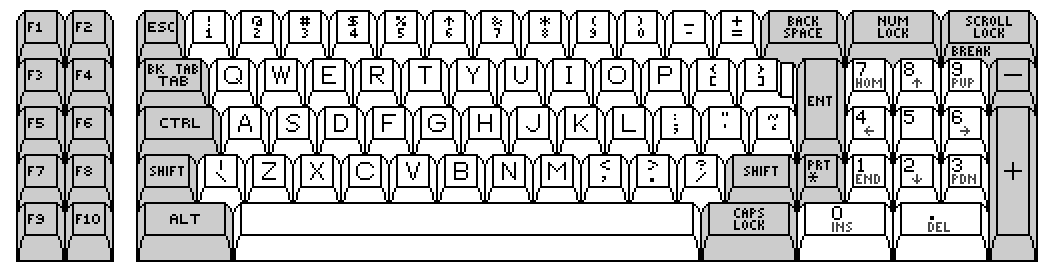
When IBM introduced the PC, it came with an 83-key keyboard keyboard that a number row and a numeric keypad.  There were no status LEDs on this keyboard, so the only way you could tell whether the Num Lock key had been pressed was by observing the behavior of the numeric keypad.  If a number was typed, then the Num Lock was on.  The general layout was as follows :


All layouts taken from here : http://www.quadibloc.com/comp/kyb03.htm.  There were also separate + and - keys and a PrtSc * key.  Not every game used the numberpad for directional controls.  

For the IBM PCjr., IBM severely cut down the keyboard size, build quality and number of keys.  There was no numeric keypad.  Instead, the keyboard only had six discrete cursor keys.  Here is the new layout :

The cursor keys pull double and even triple duty, as their function changes  if the Shift or Fn key is held down.  There is no Num Lock key on this keyboard.

The Num Lock key can be "pressed" by hitting Alt, Fn and N.  When the Num Lock function is activated in this manner or the Shift key is pressed, then Up becomes 8, Left becomes 4, Right becomes 6, Down becomes 2, Ins becomes 0 and Del becomes .  If the Fn key is held, then you get Home, Pg Up, Pg Dn and End for Up, Left, Right and Down, respectively.   Press Fn and Shift, and you get 7, 9, 3 and 1.  Numberpad key 5 cannot be directly generated by the PCjr. keyboard.

The next major keyboard innovation came from Tandy.  Tandy 2000 and more importantly 1000 keyboards have separate cursor control keys in the now familiar inverted-T layout.  In addition, there is a numeric keypad, but several functions have been changed.  There are individual keys for Home, Insert and Delete. Here is the layout :


There are more differences between an IBM and a Tandy keyboard as well.  However, the differences do not always make a difference to programs.  There are two general methods with PCs to determine which key was pressed.  The first was to call Int 16h.  The result would give you a translated scan code and an ASCII character.  The second was to read the raw scancode directly from the hardware.  Some programmers used the second method with their own keyboard interrupt handlers.  This tends to be the cause of keyboard incompatibilities.

Because some keys, like the numberpad keys, can give results identical to other keys on the keyboard, even the BIOS allows you to distinguish between the 1 key on the number row and the 1 key on the number paid.  You can tell the difference between the Left and Right Shift keys, even though their function is totally identical.

A Tandy has a Num Lock key and even a status LED, but when the Tandy boots up, the Num Lock defaults to off, just like the PCjr.  An IBM PC defaults the Num Lock function to on.  Many games require you to turn the Num Lock on when running on a Tandy 1000.  This is because the characters given by the Tandy keyboard are often not the same as on an IBM PC keyboard.  However, for numbers they will always be the same.  

The Tandy inverted T cursor keys are another issue.  A well-behaved program doesn't care which key is pressed so long as it reads the scancode it expects.  However, not every DOS game is well-behaved.  In DOS, the separate cursor keys function as they would on an IBM Model M keyboard.  However, some games rely on the numeric keypad to give eight movement directions.  Tandy's inverted-T cursor keys give different raw scancodes and may not always be recognized.  

Later Keyboards :

The 83-key keyboard layout was followed for the PC AT keyboard with a few differences to key placement and size.  IBM included status LEDs and an 84th key for Sys Req.  The raw scancodes are completely different from an 83-key keyboard, only the BIOS allows for compatibility with PC and XT software.  However, despite the fewer number of keys compared to more modern keyboards, it is still usable in any system with a PS/2 port.  

Finally, IBM released the Model M 101-key keyboard which essentially defined the minimum number of keys and the basic layout that we use today.  Its provided fully separate cursor keys in addition to the numeric keypad.  Most of the time, the cursor keys can be used as directionals, but because they have different raw scancodes than the numeric keypad cursor keys, some games will not recognize them.  The Model M supports three sets of raw scancodes, Set 1 is the PC/XT scancodes and it sends those scancodes when it is plugged into a PC or XT or Tandy 1000 TL/SL/RL or the 8086 based IBM PS/2s (but compatibility with anything other than the PC/XT's 2nd or 3rd BIOS is dicey).  Set 2 is when it is plugged into an IBM PC AT, PC/XT Model 286 and just about every other computer, including modern machines. Set 3 was intended as the native PS/2 scancode set and is similar to Set 2 but was rarely used. 

Saturday, March 15, 2014

The Perfect Keyboard

In my opinion, the perfect keyboard has yet to be made.  I envision a keyboard with the solid construction of an IBM Model F keyboard, the removable keycaps, LED faceplate and keycap lettering of the IBM Model M, the compatibility and much the layout of a Northgate Omnikey Ultra with a bit of the Apple Extended Keyboard.

The layout of the Model F, either the PC/XT or the AT version may be lacking for the 21st Century, but its build quality is second to none for PC keyboards.  It uses buckling spring technology with stiff springs over a printed circuit board where the keyswitches are located.  No membranes in these keyboards.  They used steel and heavy duty plastic and weighed almost as much as the Model M, which used slightly lighter materials.  Although rather annoying, every part of every key could be replaced.  One lesser known feature of the Model F was that it did support N-key rollover, which the Model M does not.

Improvements of the Model M were keycaps that could be replaced without needing to replace key stems, making it much easier and quicker to rearrange the keyboard to the user's preference.  The basic layout is standard today.  The lettering IBM used on the keys and the LED panel is classic and professional.  However, if you wanted a more stylish design, you can by replacing the keycaps.  Replacing keycaps is easier than having to replace the keystem of the Model F.  The cables, whether coiled or straight, were fairly heavy duty as these cables went.  The SDL connector at the rear allowed you to change cables instead of using adapters, but today a lower cost connector could be used instead.

The Model M was criticized for putting the function keys above the keyboard instead of on the left side as on the PC/XT and AT keyboards.  The Northgate Omnikey Ultra T put a set of function keys on the left side as well as on top.  F1-F10 on the left side is in the same place as you would have found them on a PC/XT or AT keyboard, and F11-F12 are to the left of the Escape key, as they were added later.  There was a switch to designate the top or the side rows of function keys are the primary and secondary function keys.  With 24 function keys, any user should have enough keys for just about anything he or she wished to have a separate button.

Northgate's keyboards could emulate a wide variety of keyboards, including the PC/XT keyboard, the AT/Model M keyboard, the Tandy 1000, the Amstrad PCs, the ATT 6300, even the Amiga 2000 with dipswitches.  My ideal keyboard would keep as much of this functionality as possible, using a dipswitch panel.  A special driver should not be required for support in this day and age where cheap and powerful microcontrollers are readily available.

The Northgate Omnikey keyboards support N-key rollover, which the IBM Model M does not.  They also have their keyswitches soldered onto a PCB.  The IBM Model M uses a membrane sandwiched between the black plastic key housing frame and the PCB.  The whole structure of the keyboard is held together by plastic rivets.

One thing about the Northgate and Apple keyboards is that they split the large + key on the numeric keypad into + and = (Northgate) and + and - (Apple).  The Apple keyboard have added five keys, F16-F19 and an eject/power key on various keyboards.  It also has F13-F15 where the Print Screen, Scroll Lock and Pause/Break keys are on an IBM keyboard.  F13-F19 usually have no commonly defined role and there are plenty of keys in my ideal keyboard to accomodate them.

F16-F19 on an Apple keyboard occupy the area where the option LEDs are on an IBM Model M keyboard.  Many keyboards have LEDs next to the Caps Lock, Num Lock and Scroll Lock keys.  I am neutral to this.  However, the keys that would be where the LED panel would be should be exactly the same size and use the same keystems as the rest of the keyboard.

The modern Windows 104-key keyboard includes the Windows keys, which seem to be a functional equivalent of the Apple Command keys.  Occasionally, Windows keys can be helpful, but they can also very very annoying in their default usage.  However, the menu key is a useless key that can be replicated with a right mouse button click or a shift F10.  There is no reason for it to have a key as it really cuts down on the size of the spacebar.  In my perfect keyboard, it does not exist on the spacebar row.  There are plenty of function keys to assign it to.
                                                       
Big L shaped enter keys, who needs them?  I have never found them to be particularly helpful, and they cause the \ key to be put in odd places.  Northgate shortened the right shift key, which is the only real flaw in its non-101 designs.

Sunday, September 29, 2013

Slaughter of the 'Bots - One Must Fall 2097 vs. Rise of the Robots

One Must Fall 2097 Title Screen
Rise of the Robots SVGA Title Screen
Rise of the Robots VGA Title Screen
In 1991, Street Fighter II was released in the arcades to great acclaim.  Ports of the game to home consoles and computers and clones like Mortal Kombat soon followed.  Virtually any property or idea could be used in a fighting game, including dinosaurs (Primal Rage), The Simpsons, or even Nintendo's characters (Super Smash Bros.).  In 1994, two different companies released a robot fighting game for the IBM PC Compatible platform.  The first was One Must Fall 2097 (OMF), developed by Diversions Entertainment and released around October, 1994 by Epic Megagames.  The second was Rise of the Robots (RotR), developed by Mirage Studios also released around the same time by Time-Warner Interactive.  In this article, we will compare these two DOS fighting games in every area.  As you will soon read, this comparison will turn out to be grossly unfair to one game.

Graphics

OMF Main Menu
OMF uses the standard 320x200x256 VGA color mode and originally came on five floppy disks.  Later releases were on CD.  RotR was released in separate 320x200x256 VGA and 640x400 SVGA boxes.  The SVGA retail version took up fourteen disks.  The VGA version, which was released only in Europe, still took up ten,  The VGA version has more animated cutscenes than the SVGA version. RotR was also released on CD with more animated scenes than either disk version, but no extra gameplay or music.  The screenshots for OMF and RotR VGA in this post have been pixel-doubled to 640x400 while the screenshots from RotR SVGA are in their native 640x400 resolution.  Neither game featured scrolling backgrounds.  Unlike RotR's static backgrounds, there is animation in OMF's backgrounds and hazards (spikes, fireballs, electrified walls, strafing aircraft) that can harm either opponent.

OMF takes its inspiration from Japanese anime.  Realism is not particularly prized.  This approach was uncommon during the mid-90s, when DOS games were generally striving for better realism.  RotR shows a more Western sci-fi influence, where realistic shapes and models are used.  Robot animation seems a bit choppier with RotR than with OMF.

Both games run very well on a mid-range 486, even RotR in its SVGA version.

RotR Main Menu SVGA
RotR Main Menu VGA
Sound and Music

OMF Combat Screen
Both games have entirely digitized sound tracks.  OMF officially supports the Sound Blaster, Sound Blaster Pro, Sound Blaster 16, Pro Audio Spectrum cards and the Gravis Ultrasound with 512K or more of RAM. The Ultrasound is the best choice by far for the game, the audio output quality with this card is always at its best.  The Sound Blaster 16 and the Pro Audio Spectrum 16 require a Pentium sound quality approaching that of the Ultrasound.  Even at the maximum quality settings, the music and sound effects as output by a Sound Blaster 16 or Pro Audio Spectrum 16 still sound a bit muffled and noisy compared to the output of the Ultrasound.

RotR only officially supports Sound Blaster cards.  It does not allow the user to determine the type of card, original, Pro, 16, in the setup program.

RotR Combat Screen SVGA
RotR Combat Screen VGA
The music for OMF was done by C.C. Catch (real name Kenny Chou) of the demoscene group Renaissance.  It is well-known that the demoscene took to the Gravis Ultrasound and thrived with it, and this music is well-representative of the music found in demos.  Each of the five arenas has its own music.

The "music" for RotR was done by Brian May, the guitarist of the band Queen, however in the DOS versions it consists of 15 seconds of guitar riffs, even with the CD version.  May's music is only heard during the title sequence.  The rest is ambient audio, even in the fight scenes.  The 3DO version has his soundtrack in addition to the Mirage soundtrack.

Control

Both games support the use of the keyboard or joystick.  Gravis gamepads, which are digital, are highly recommended.  Only the first two buttons on a joystick are supported.  Gemini of Ancient DOS Games indicates a preference for the keyboard because it is easier to pull off special moves.

Both games use the Up, Up-Left and Up-Right joystick positions to jump.  OMF uses one button for "punching" and one button for "kicking".  RotR uses one button for attacking and one button for blocking.  In both games blocking can be done by holding the directional away from the attacker.  In RotR, blocking an attack will still result in damage being taken, OMF only allows special attacks to take away health if successfully blocked.

RotR requires you to hold down the button to determine the strength of the attack, then push a direction to initiate an attack.  This is very strange for a fighting game.  Ordinary fighting games give an instant response to a button push.  If you press the punch button, your fighter punches.  The strength of the attack is usually determined by the button pressed.  In RotR, if you want to make an attack any more powerful, you must hold down the button until the power meter is at the level sought, then release the button to make the attack.  Needless to say this scheme throws timing completely off and makes jump attacks much more difficult to pull off than they should be.

OMF has a much more fluid control scheme like Street Fighter II.  It uses the combination of direction with the punch and kick buttons to determine the type and strength of the attack.  The push of a button, even without a direction, will still result in an attack.

Another oddity for RotR is that you cannot jump over your opponent and will always face the same direction.

With a special move list, I was able to perform special moves for the Jaguar robot reasonably well with OMF, but could not execute the special moves for RotR's Cyborg at all.

Robots

OMF Pilot Select
OMF in its one or two player games requires you to select a pilot for each robot, and there are ten pilots, each with their own back story and motivations.  The pilot determine the strength, speed and endurance of the robot selected.  When pilots fight against each other they taunt each other before the fight, and each pilot has his or her own ending.  There are ten robots ordinarily available, each with their own handling characteristics and three to four special moves.  Thus 100 combinations are available.  There are also special finishing moves like the fatalities of Mortal Kombat.  In the Tournament Play, you get to customize your own pilot character and your robot.  You can earn money by victories to buy upgrades for both and can eventually purchase new robots.  This is as about as close to a Role Playing Game as a fighting game got at this time.

OMF Robot Select
RotR has one main robot, the Cyborg which you can use in the story mode.  Five more robots are available for practice and in the two player fighting mode, but one player must control the Cyborg.  Each robot has one or two special moves.

RotR Enemy Robot Introduction SVGA (Originally Animated)
RotR Enemy Robot Introduction VGA (Originally Animated)
Releases and Ports

OMF was strictly a DOS game.  RotR was released for a wide variety of platforms, including the IBM PC Compatibles, the 3DO, Commodore Amiga (separate 32-color and 256-color disk releases), Amiga CD32, Phillips CD-i, Sega Game Gear, Sega Genesis and Super Nintendo.  The Super Nintendo version has more animation and music than the PC floppy versions, although it weighs in at only 4MB compared to the 29.7MB install of the SVGA PC floppy version.

Difficulty Levels

OMF Combat Aftermath
OMF has many difficulty levels, some of which are hidden.  The readily available difficulty levels are punching bag, rookie, veteran, world class and champion.  There are also the hidden difficulty settings of deadly and ultimate.  The lowest difficulty is for practicing moves, and the rookie difficulty is manageable once you know the regular and basic special moves.  The higher difficulty levels above veteran require real commitment to the game.  I was able to win on the veteran difficulty level (the lowest level of difficulty where you can face the final pilot and win the game) after a few hours of playing the game with the basic Jaguar robot.

RotR Combat Aftermath SVGA (you will see this screen a lot if you play this game)
RotR Combat Aftermath VGA (you will see this screen a lot if you play this game)
RotR has beginner, easy, medium and hard difficulties.  Don't be fooled, the beginner level is very difficult. The true final robot is only accessible after beating the hard difficulty twice.  The robots you will face in the game have tremendously unfair advantages.  Almost all of them seem to move faster and have attacks with a much better reach than the Cyborg and more powerful to boot.  They do not seem to be hampered by the control scheme inflicted on the player.

Special Features

OMF supports remote multiplayer as of version 2.0 through a null-modem serial link, a modem or over an IPX network.  It also will let you record your gameplay and play it back later.  There are a number of secrets, codes, robots and settings.  There is a hyper mode that makes for faster gameplay and more intense special moves.

RotR has a few special codes, but generally what you see is what you get.

Assessment

One Must Fall 2097 was one of the best fighting games for DOS.  I would say this is as controversial an opinion as "Abraham Lincoln was one of the greatest Presidents of the United States."  This is not saying too much, as most fighting games released for the PC before Street Fighter II have not aged well at all and most of the games released after Street Fighter II are ports of arcade machines of varying quality.  Still, given the limitations of the controllers available to OMF, it still manages to be a game of surprising depth and yet easy to pick up and play today.  The robots have varying abilities and while the balance is not necessarily perfect, all have their interesting points.  Moreover, it is surprising today to learn that this game was realized mainly by four people (according to the credits).  It is a testament to the talent and dedication of a few individuals who wanted to make a fun and enjoyable fighting game and succeeded tremendously.

As for Rise of the Robots, virtually every negative comment I have heard about the game prior to my own investigation of it is justified.  "Style over substance" and "graphics over gameplay" are two accusations that are entirely supported.  Interestingly, RotR had over a dozen people working on it and a budget large enough to port it to eight very different platforms.  It seems that whatever resources were left over after modeling the robots in 3D Studio Max was spent on ports.  However, all those resources resulted in a game that was about as complex as the original Street Fighter arcade game.  The moves are so simple, the too-few robots have very similar moves and there are only limited match ups available.  The music, sound effects, animation and moves are too limited to keep anyone playing for long.  Unless you are playing in the two player mode, your one robot will fight the same five robots in the same order over and over again until you get sick of the game.  The game quickly becomes boring and between the awful control scheme and the cheap computer opponents there is no reason why I would want to play this game ever again after this blog entry.  The PC version feels especially rushed, the console versions are more playable.

One Must Fall 2097 is freeware and deserves a spot on every DOS gamer's hard drive.  Virtually every version of it, 1.0, 1.1, 2.0 and 2.1 can be found at RGB Classic Games : http://www.classicdosgames.com/.  Ancient DOS Games' review of the game is an excellent point to start the new player with acquainting himself or herself with the game modes and play :  http://www.pixelships.com/adg/ep0019.html

Rise of the Robots deserves only to sit on a collector's shelf.

Saturday, April 17, 2010

IBM Model M Tips and Resources

Today I will be posting for a third time on one of my favorite subjects, the IBM Model M Keyboard.  First, I will talk about tips, then give some links with a description about what can be found on them.

How to open/unscrew a Model M?

The shell of the Model M is held together by four hex nut screws.  Three are recessed.  You need a nut driver to open it.  The proper size is 7/32" and it should have a slim barrel.  You can find the correct driver in a Sears.
The proper name of the product is Craftsman 7/32 in. Easy-To-Read Socket, 6 pt. Deep, 1/4 in. drive, model #45815.

This is what it looks like:

Look here for the Sears product page:
http://www.sears.com/shc/s/p_10153_12605_00945815000P?keyword=craftsman+7%2F32

You will also need a 1/4 in. spinner to attach it to.  Craftsman 6 in. Spinner Handle, 1/4 in. Drive is what you need.  Sears carries it too here: http://www.sears.com/shc/s/p_10153_12605_00943393000P

Whenever I have a need to open a Model M, usually because of something I spilt, I could never seem to find my driver.  This meant an quick trip to Sears to buy another.  If you don't have an urgent need to open your keyboard and would like a one piece solution, see here:
http://www.clickykeyboards.com/index.cfm/fa/items.main/parentcat/11298/subcatid/0/id/105901

The Model M will not work with my PS/2 port

If your Model M does not work reliably or at all, your PS/2 port may be to blame.  The Model M is a device from the mid-to-late 80s, and the keyboard control board and LEDs inside the machine draw a lot more current than a throw-away, el-cheapo modern keyboard use.  It requires 275mA, whereas a modern cheapo keyboard may only need 1/10 of that.  Some PS/2 ports just cannot provide the current for a Model M to run reliably or at all.  I have never encountered this particular problem myself, but according to the link below, it can be found in many motherboards. 

There are two solutions to this problem, both are listed on this page:

Sunday, February 28, 2010

Perfecting the IBM Model M Keyboard

The IBM Model M Keyboard is among the best keyboards ever made.  However, technologically it has shown its age a bit, and even IBM cut a corner or two to reduce the cost of production.  If I had the means, I would make the following improvements:

1.  Make a 103-key Keyboard. 

Some people like to have Windows keys.  Sometimes even I can see their utility.  Windows + D makes a good "boss key".  Learing how to use the key combinations can make working in Windows more efficient.  However, I would prefer a longer spacebar than Windows keys the same size and Ctrl and Alt.  The 101-key Model M has empty spaces, the size of a regular key, in between each set of Ctrl and Alt.  Why not put Windows key in those spaces?  People who hate the Windows key can easily disable it in software.  For Macintosh users, perhaps an option could be made for a shorter spacebar and a "Windows" key the same size as the Ctrl and Alt keys.  On no account would I want a Menu key cluttering up the row, that key's function can be replicated by Shift F10.  However, should one want one, a standard size keycap with the Menu graphic can be included if one was willing to sacrifice a Windows key. 

2.  Improve the internal assembly

The assembly of the Model M, once the keycaps and keystems are removed, is one plastic layer with holes for the keys, three membrane layers, and a metal back.  The greatest dangers to the Model M, regardless of version, are liquids.  I spilled some wine into my Unicomp Model M, and despite the drain holes, the conductive membrane was ruined.  Later, I spilled a little G2 into my 1987 Model M and the B and M keys would give VB and NM when pressed.  In the latter case, I was able to open keyboard up and save the keyboard by wiping up the liquid.  The membrane is NOT internally sealed, nor can it be, but the membrane itself is three sheets of translucent plastic that could easily be replaced. 

The problem with replacing the membrane is that IBM secured the upper plastic layer to the metal layer by melting the upper plastic layer through holes in the membrane and metal layer (in the assembly) and letting the melted plastic cool into studs on the bottom of the metal plate.  There are lots of these plastic nubs throught the back of the keyboard assembly.  The issue is that the can break after a hard impact or by wear over time.  Once all are broken off, there is no way to resecure the plastic layer to the metal layer.  At that point, you had best buy a new keyboard. 

The solution is to use screws instead of melted plastic.  This way the user can unscrew the keyboard and clean or replace the membrane.  I believe this is how the Tandy Enhanced Keyboard operates.  (A nut should be used.)  Yes, it increases costs, but I believe it is better to extend the life time of the investment.

3.  Improve the controller

The Keyboard controller circuit has some issues.  First, it only supports AT & PS/2 style connections.  Since the AT connection is a thing of the past and the PS/2 connector is a legacy port on modern motherboards, the controller should add USB support.  Second, some Model Ms have controllers than can work with the original IBM PC and IBM PC/XT and (with a custom an adapter) the IBM PC Portable (before 2nd BIOS in the latter two cases).  Most do not, I do not have any that do.  I would love a truly IBM PC Compatible keyboard.  The Tandy Enhanced Keyboard works perfectly with an IBM PC 5150 and with any other true IBM PC-compatible computer. 

The IBM Model Ms I have ## 1390120 (ledless), 1390131 (silver logo), & 1391401 (grey oval logo) have a 6-pin RJ-45-like port on the rear to attach a cable.  IBM generally supplied AT & PS/2 cables, coiled.  Why not make a sturdy USB cable?  Since only four pins are used, the other two can tell the controller that a USB cable is being attached.  While there are AT-PS/2 adapters and PS/2-USB adapters (and vice versa), permanency is prized by some people. 

Finally, why not have a wireless dongle attachment?  If it attaches to the back, another dongle can attach to the PC.  Rechargeable through USB. 

4.  Add support for N-Key and 6-Key Rollover

The Model M does not support N-key Rollover.  In fact, depending on the keys pressed, it cannot register three keys at the same time.  Try pressing r y u all at once.  Unlimited key rollover is supported through the PS/2 interface, but only 6-key rollover through USB.  6-key is not that terrible, after all the functional limit is 10 keys unless the user is a rare polydactyl with a functioning extra finger.  In order to have unlimited N-key rollover, each key on the membrane needs to be isolated with a diode.  As this is rather difficult to achieve with a thin plastic membrane, please see my next suggestion.

5.  Use Printed Circuit Board Contacts

The IBM Model F keyboards used a Printed Circuit Board with key contacted etched in the board, and the key mechanism used a carbonized switch to conduct electricity between the two halves of the contact.  This denoted significantly higher build quality.  Also, it gives an easy platform to install the diodes needed for N-key rollover.  Get rid of those flimsy plastic membranes which true rubber domes use. 

6.  Fix the layout shortcomings

The IBM Model M keyboard had a few shortcomings over the older Model Fs.  One, the function keys were relegated to the top instead of the side of the keyboard.  Savvy keyboard users with the space can use extra function keys, so add a set of function keys on the left side of the keyboard.  F11 and F12 would go to the left of the top function key row.  This is nothing new, the Nortgate Omnikey Ultra and Ultra T featured two sets of function keys in this fashion.

The ~` and Esc key can be exchanged using removable keycaps, so no adjustment need be made there.

Some people prefer that the L. Ctrl should be where the Caps Lock key is on a Model M.  All that is required here is to make a Caps Lock keycap and a Ctrl key (since the Model M's Caps Lock has cap and stem fused together).  I would also make two models of Ctrl key, one with the lowered area (so people would not strike it by trying to hit the A key) and one without.  Also, why not make a Caps Lock key without the lowered area. 

L shaped Enter key?  I have no particular views toward or against the big L shaped Enter key, which was a staple of the AT Model F keyboard.  But since it replaces the | \ key, the usual alternatives are not very good.  One option is to put it to the left of the Backspace key, which requires that key to be shortened.  I have never liked this option, which is perhaps the AT Model F's biggest shortcoming.  The next option is to put it to the right of the Shift key, ala the Nortgate Omnikey Ultra and Avant Stellar Prime, which is better but unlike a laptop we are not pressed for space here.  The best place to put it is where one of the Windows keys go.  I do not feel that sacrificing a Windows key to be that great of a loss.

7.  Make the Keyboard Fully Programmable

While the keyboard can be reprogrammed in software, there are times when the keycodes being reported from the keyboard to the system would actually match what the key cap indicates.  This is especially true when you have reconfigured your keycaps to match a DVORAK or AZERTY layout.  No need to load drivers or special software.  Volatile memory on the keyboard contoller should be used to indicate which scancode it outputs for each key, so the programming can be platform independent.  A USB cable may need to be used for the programming option.

Friday, January 22, 2010

The overall best PC keyboard ever made, the IBM Model M


One of my hobbies is retro computing.  Often, when I have looked back on some of the older computing models and devices, it seems that my eyes are rose-tinted.  But there are some products that can still show themselves to be superior, decades after their initial release.  The IBM Model M Keyboard is among those products. 

Back in the 1980s, the IBM brand was synonymous with quality construction.  Their personal computers were built out of thick sheet metal and industrial strength plastic.  IBM's earlier PC keyboards, the Model F PC & XT (1981, 83 keys) and the Model F AT (1984, 84 keys), were also made with the same attention to quality.  The Model F keyboards used buckling spring technology in its keyswitches, giving the key press an audible and tactile response.  The pressure from the user required to register a key was great enough to reduce the number of unintended key presses.  The keys were replaceable by lifting up from the keystem. 


The Model Fs do have their drawbacks.  The PC Model F has a widely criticized layout.  The key positioning was cramped and the US layout seemed more appropriate for Europe with its vertical Enter key and small shift keys.  The PC Model F uses a different communications protocol and is not compatible with more modern AT compatible computers.  The AT Model F addressed some of the PC Model F's shortcomings but still had its detractors.  A short backspace key is among its most frequently cited design errors.  An AT Model F will work in a modern PC (with a PS/2 adapter), but suffers from the lack of keys of a 101+ keyboard (no F11-F12, no separate cursor control or editing keys). 


In 1985, IBM released its Model M on the world.  The layout of this keyboard has been the standard ever since for PC and even Macintosh keyboards.  Unlike modern keyboards, it does not make the user suffer from tiny function keys or a small spacebar.   It still uses the buckling spring technology, toned down slightly from the Model F (especially the spacebar, which I feel is too long on a Model F.)  The Model M should work in just about any IBM PC Compatible except, in most cases, the original IBM PC Model 5150.  Like the Model F, IBM ingrained the key symbols into the plastic.  Lesser keyboards spray the symbol on top of the plastic, making the symbol likely to fade away from wear.  The Model M is a heavy keyboard, it weighs approximately 5 pounds and is not likely to shift on your desk. 

The Model M can be used with a 5-pin DIN AT plug, a 6-pin mini-DIN PS/2 plug, or with a PS/2 Keyboard to USB adapter.  I use 1390120 (no status LEDs, square IBM logo), 1390131 (status LEDs, square IBM logo) and 1391401 (status LEDs, elliptical IBM logo) style keyboards, all of which have a port on the keyboard to use an AT or PS/2 cable.  The connector used is a Shielded Data Link Connector and there are SDL to USB cables available today.  Because they use a converter in the USB plug, they are a bit expensive at roughly $35.

The Model M draws quite a bit more current than most modern keyboards, roughly 112mA.  Modern keyboards require only one-hundredth the amperage.  Some lesser and newer motherboards have had problems supplying the Model M with the proper amount of current.  A resistor or two on the keyboard's controller board can fix that, see here for this modification : http://ps-2.kev009.com/ohlandl/keyboard/modify_keyboard/Model_M_Modifications.html

The IBM Model M is easy to clean and can often be repaired.  It can be opened with a 7/32" hex nut driver.  Bent or worn out springs can be replaced with good tweezers.  All keys can be pulled off to get at the dirt in between the key holes.  One huge improvement over the Model Fs was the use of removable keycaps.  Most keycaps are readily interchangeable, so with a driver and a diagram you can have your DVORAK layout. 

Real IBM Model M's can be purchased at the same prices as quality, high end keyboards on eBay.  However, IBM subcontracted the construction of their keyboards, including the Model M, circa 1992 to Lexmark and other companies.  Lexmark and its successors implemented cost cutting measures that have a small effect on the quality of their manufactured keyboards.  Model M elitists generally tend to stick with true IBM made models.  However, there are some late variations, like the only black Model M, the M13, that are highly sought after.  A good IBM Model generally can be had on eBay for less than $75.  They were very popular for businesses back in the day and there seems to be no shortage of them available second-hand. 

There is nothing incredibly compelling about the Model M's appearance.  The keyboard is generally off-white in color with some dark keys.  The key symbols are ordinary looking, as is the LED display panel.  The overall look is old fashioned, but this keyboard is designed for serious work.

If you must have a new Model M, a 104-key Model M or a USB-native Model M, Unicomp can sell you one. 

Unicomp has the rights from IBM to continue to manufacture Model Ms and even uses IBM's molds.  I owned a black 104 USB keyboard I purchased from them before I was truly converted to the cult of the Model M.  I do not really recommend their keyboards for several reasons:

1.  Unicomp is a small outfit and has cut quality.  On the Unicomp keyboard I owned, compared to my IBM Model Ms, the plastic was not as weighty, the keycaps were raggedly separated, the cords were too thin.  The PCB inside the keyboard was held down by a plastic tab that eventually broke off, leaving the keyboard unable to make good contact with the keyboard matrix cables.

2.  104-key keyboards are less desirable than 101 keyboards.  The spacebar is drastically shortened on the 104 design to make room for windows and menu keys.  The menu key is particularly useless (right click or shift+ F10).  Letter-sized windows keys could have fit in between the Ctrl and Alt keys on each side of the spacebar without having to shorten the spacebar.  Unicomp does offer a 103 customization that will eliminate the menu key and give the spacebar a true Model M length.  The Windows keys on this mod are normal sized keys sandwiched in between the unused spaces between the Ctrl and Alt keys of a 101-key keyboard.  
3.  Unicomp's LED status label is ugly compared to IBM's. 


Gamers may prefer a more gamer friendly keyboard, the Model M can register approximately three simultaneous keystrokes.  The Model M does not come with silly multimedia keys, the functions of which can generally be accomplished with a keymapper and the function keys already in place.  A very small desk may not be able to accommodate the length of a Model M. IBM made a space saver keyboard, 1391472, that can be very useful for people who like that style of keyboard.  It does not support status LEDs.


Why be cheap and use a mushy or spongy modern keyboard with rubber dome technology?  A Model M, if properly taken care of, will likely outlast its owner.  My occupation requires a great deal of writing, so why settle for less than the best when the best is available and affordable?